Note: Adding staff is available from the Pro plan. On Starter you only work with your own account.
- Go to My company → Staff.
- Click New staff.
- Fill in the Email, First name and Last name.
- Choose a Role. It determines what the staff member is allowed to do. See Roles and permissions.
- Click Save.
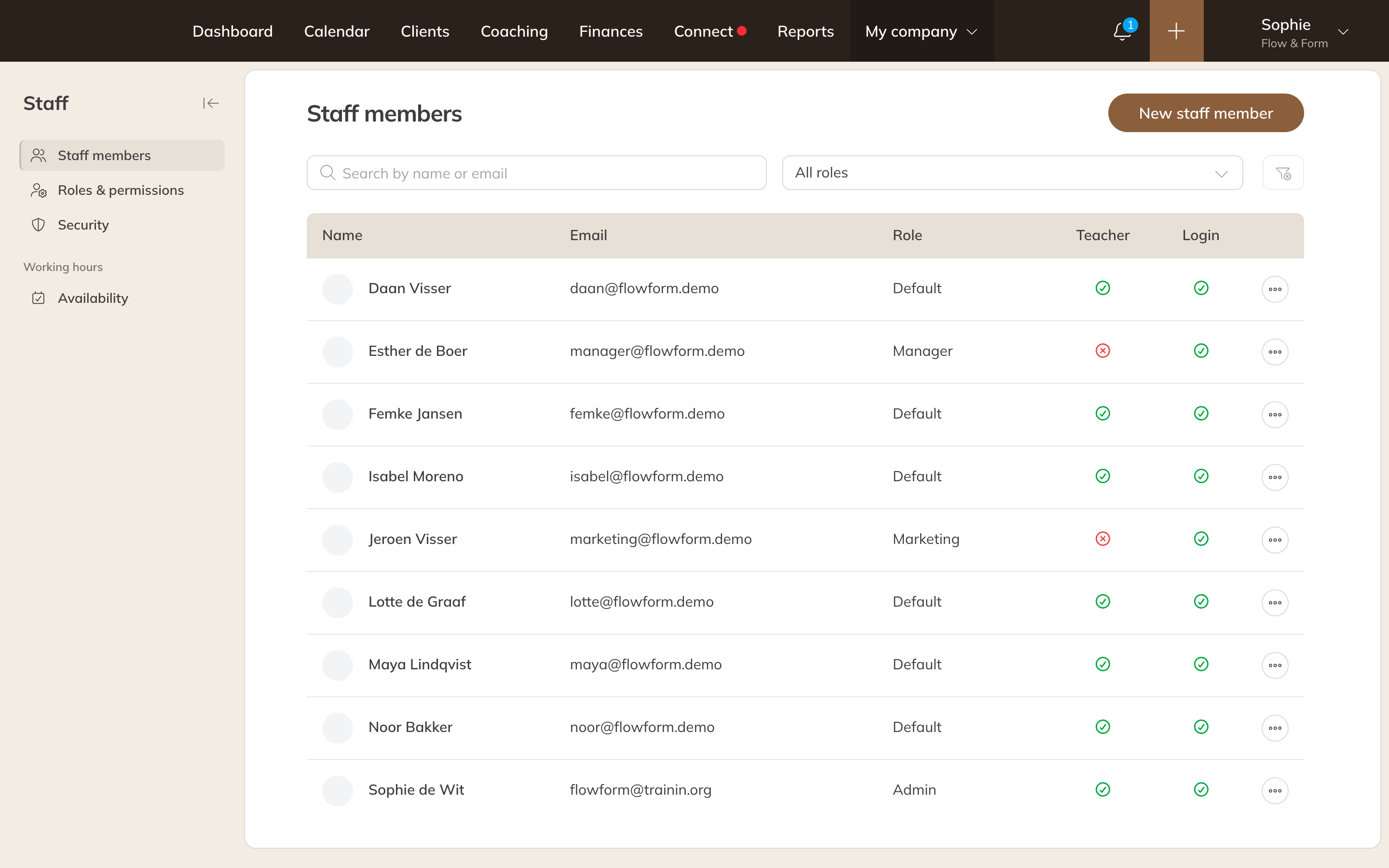
Your staff under Staff
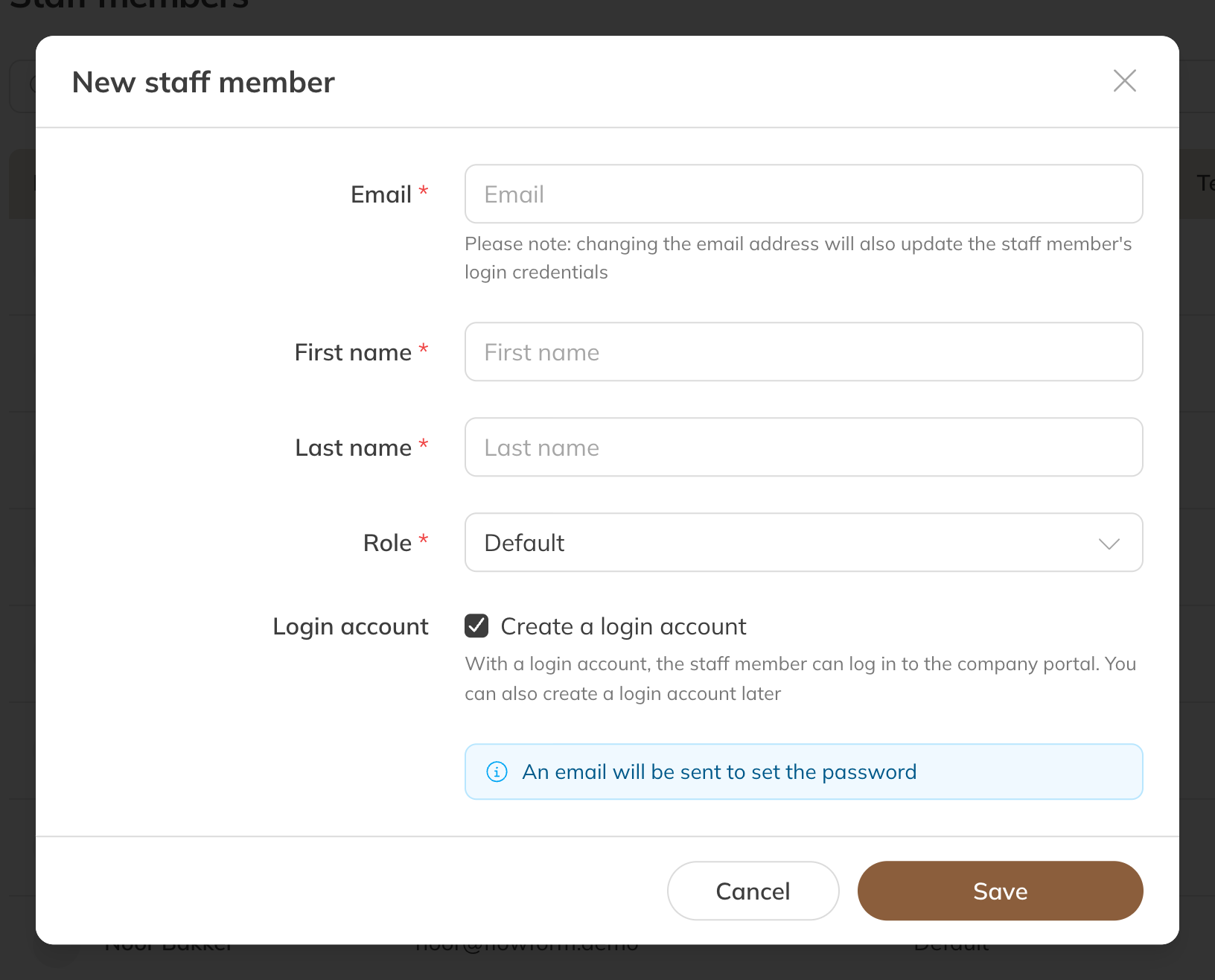
Adding a new staff member
The staff member gets an email to set a password. The link in that email works for 7 days. Has it expired, or didn't the email arrive? Open the staff member, click More and choose Resend welcome email. This works as long as the staff member hasn't chosen a password yet.
Staff without a login account (Premium)
In Premium you see the option Create a login account. If you untick it, you only create a profile: the staff member can't log in to the company portal and doesn't get a welcome email. You can still create a login account later. In Pro, every staff member gets a login account.
Note: For your subscription, Trainin counts staff members with a login account and a role. The account with the Equipment role doesn't count.
Setting up the staff member further
Click the staff member's name in the list. There you set:
- Roles: the role. Only admins can change it.
- Account: name, email address, phone number and language. If you change the email address, the email address the staff member logs in with changes too.
- Public profile: photo, Preferred name, a text about the staff member and the Teaching language
- Activities: which activities the staff member can be scheduled for. With Mark as substitute you indicate that someone only fills in; they are then listed last in the schedule.
- Notification preferences, Dashboard settings and Calendar settings. Staff can also change these themselves.
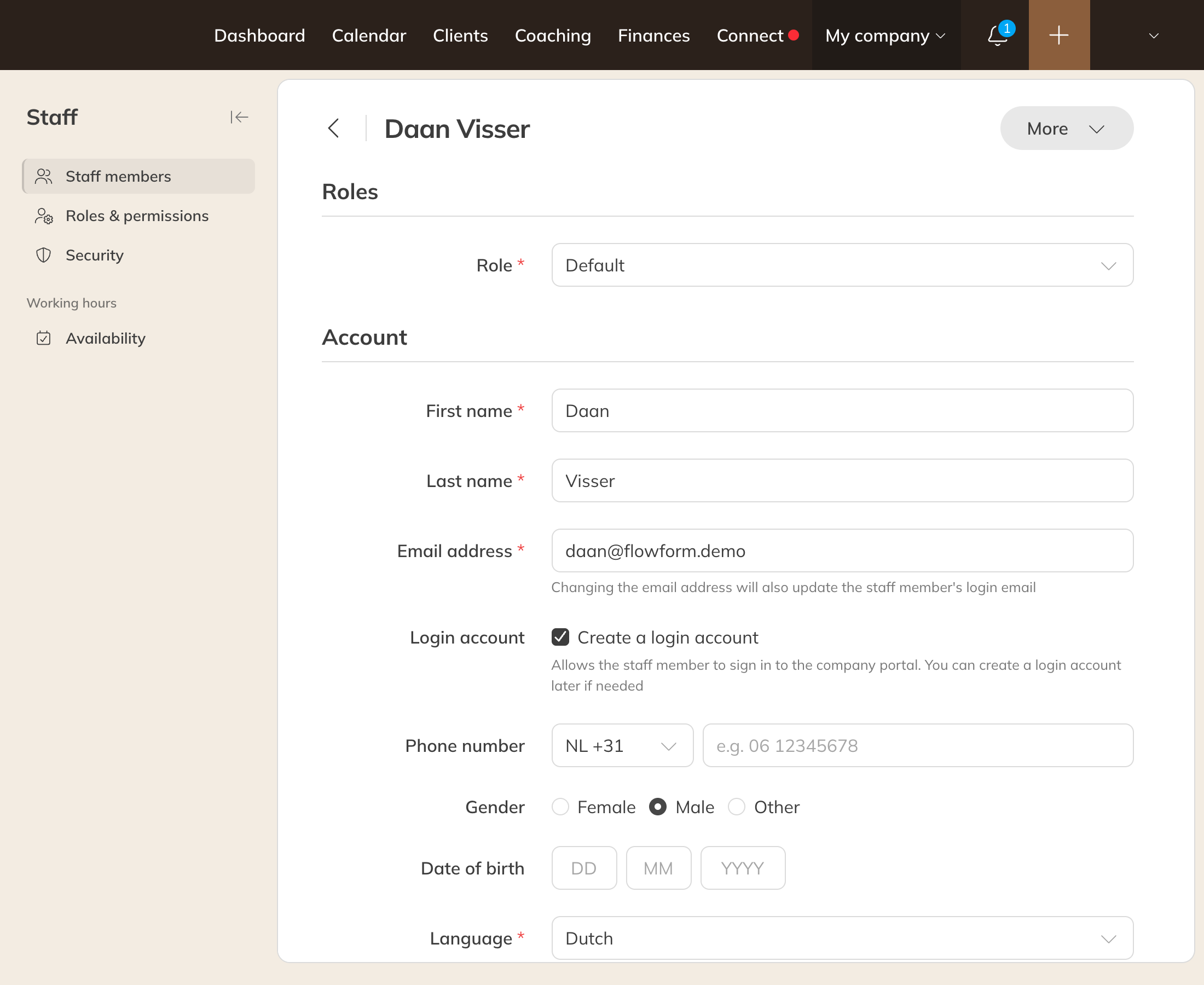
A staff member's page
Tip: You set when a trainer is available for private sessions under Staff → Availability. See Setting availability for private sessions.