Can clients book or request a private session with you themselves? Then they only see the times when you're available.
- Go to Calendar and choose More → Add availability.
- Choose the Start date and the Time (09:00 to 18:00 by default), or turn on All day.
- Under Repeats, choose how often it recurs (weekly by default), and under Repeats on, on which days.
- If you want it to stop, turn on Set end date.
- Leave Apply to all private activities on, or choose the activities yourself.
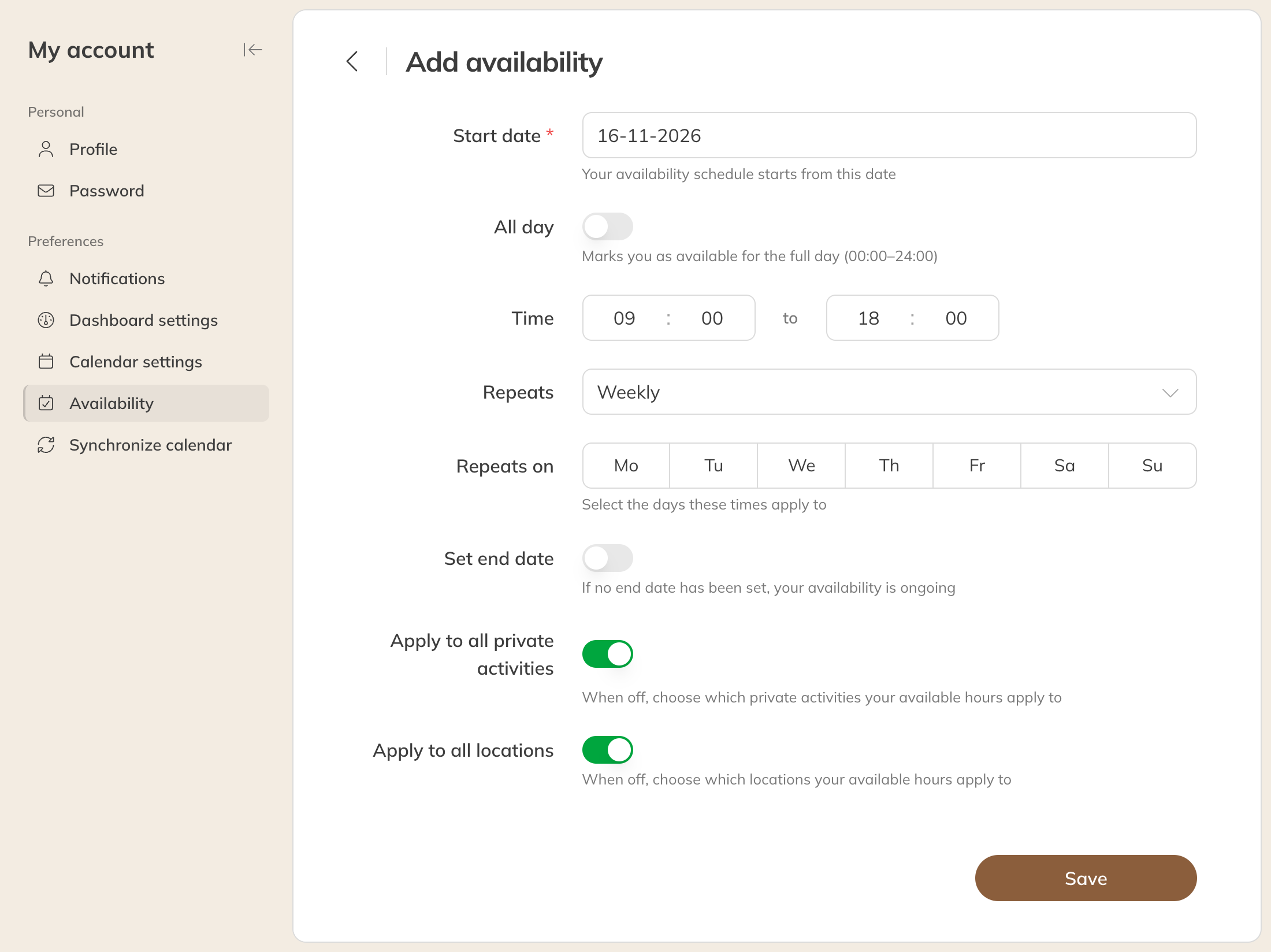
Adding availability
Do you work different hours on different days? Then create several rules, for example one for Monday and Wednesday and one for Saturday.
If two rules overlap, Trainin asks whether you want to save them anyway.
By location (Premium)
In the Premium plan, you choose for each rule at which locations you're available. Turn off Apply to all locations and choose the locations.
For a colleague
With the permission to change the availability of all staff, you can also set it for your colleagues. Add availability then takes you to the overview of all staff.
When are you unavailable?
- At times when a private session has already been booked or requested with you
- During an item that blocks the calendar (see Scheduling a calendar item or absence)
Tip: Turn on Availability in the calendar to see your available times while you schedule.