A session is one class, training or appointment in the calendar. A series is a session that recurs, for example every Tuesday at 19:00.
On a computer
- Go to Calendar.
- Click the time slot the session starts in. In month view, click the day; the session then starts at 12:00, and you change that time in the window.
- The Schedule session window opens on the Session tab.
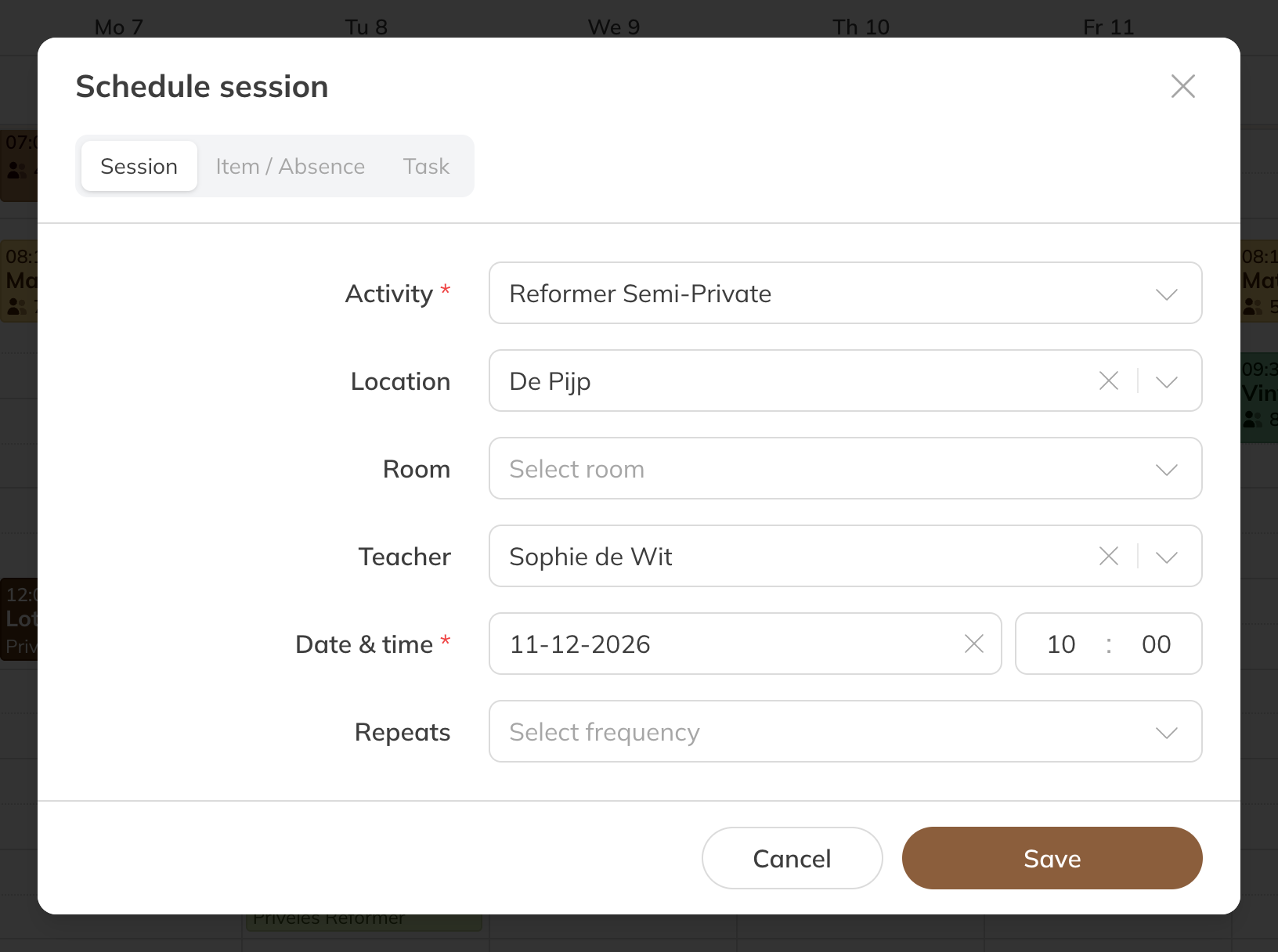
The Schedule session window
On your phone
Tap + at the top right, or press and hold a time slot. A short tap on an empty time slot does nothing, so you don't schedule something by accident while scrolling.
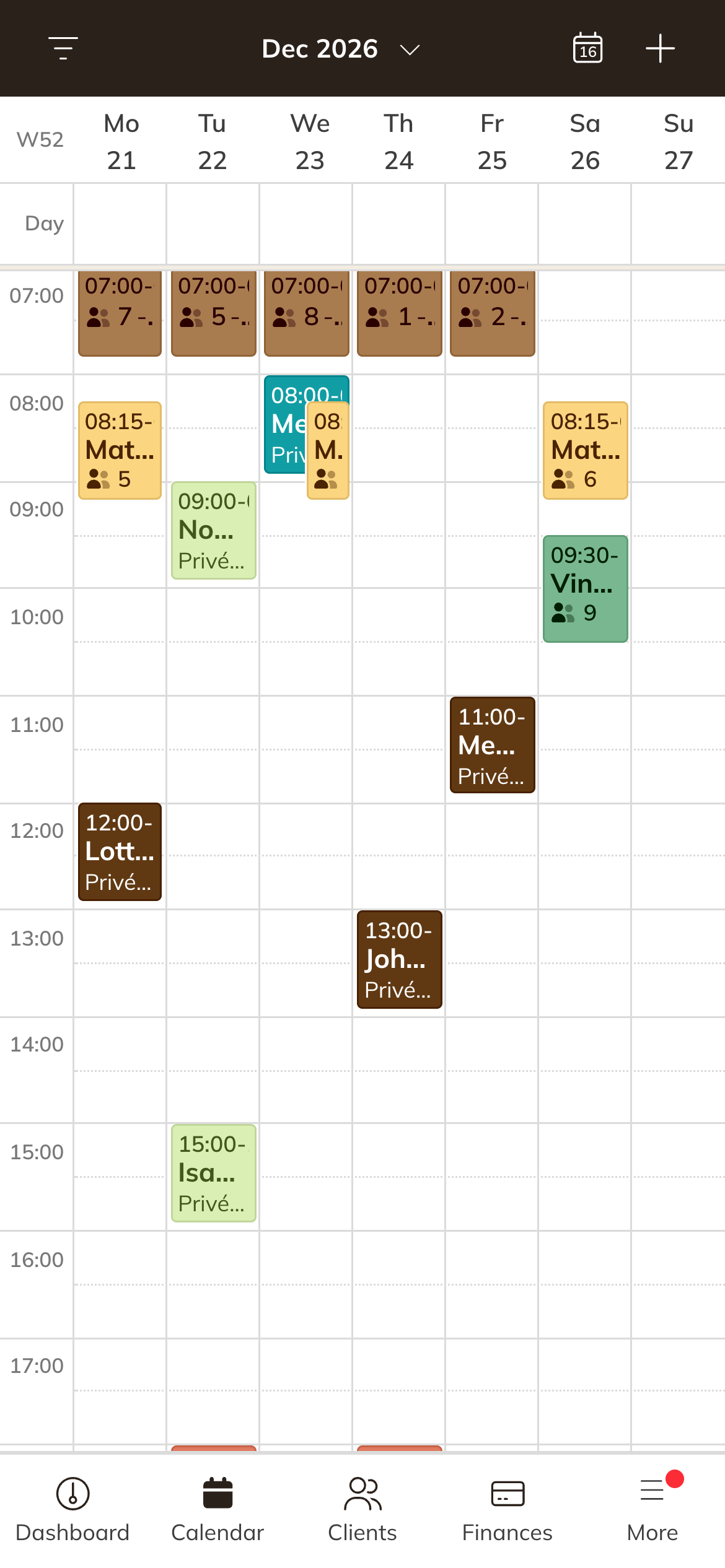
The calendar on a phone
Filling in the window
- Activity: which class or training it is. If you've set a default activity, it's already filled in. The duration comes from the activity; the end time is calculated from it.
- Location and, if you use them, the room or resource
- The instructor. Here you see the word your company uses; at Flow & Form that's Teacher
- Date & time of the (first) session
If the session overlaps with something else, for example the same instructor or room, you see a warning straight away. You can still schedule the session or choose another time.
Creating a series
Under Repeats, choose how often the session recurs: Weekly or Every 2 weeks up to Every 6 weeks. Then under Repeat until, choose when the series stops:
| Repeat until | What happens |
|---|---|
| Ongoing | The series runs on with no end. There are always 26 weeks ahead in the calendar; the schedule moves along automatically. |
| Sessions | You choose a number, from 2 to 52 sessions. |
| End date | The series stops on a date, at most two years ahead. |
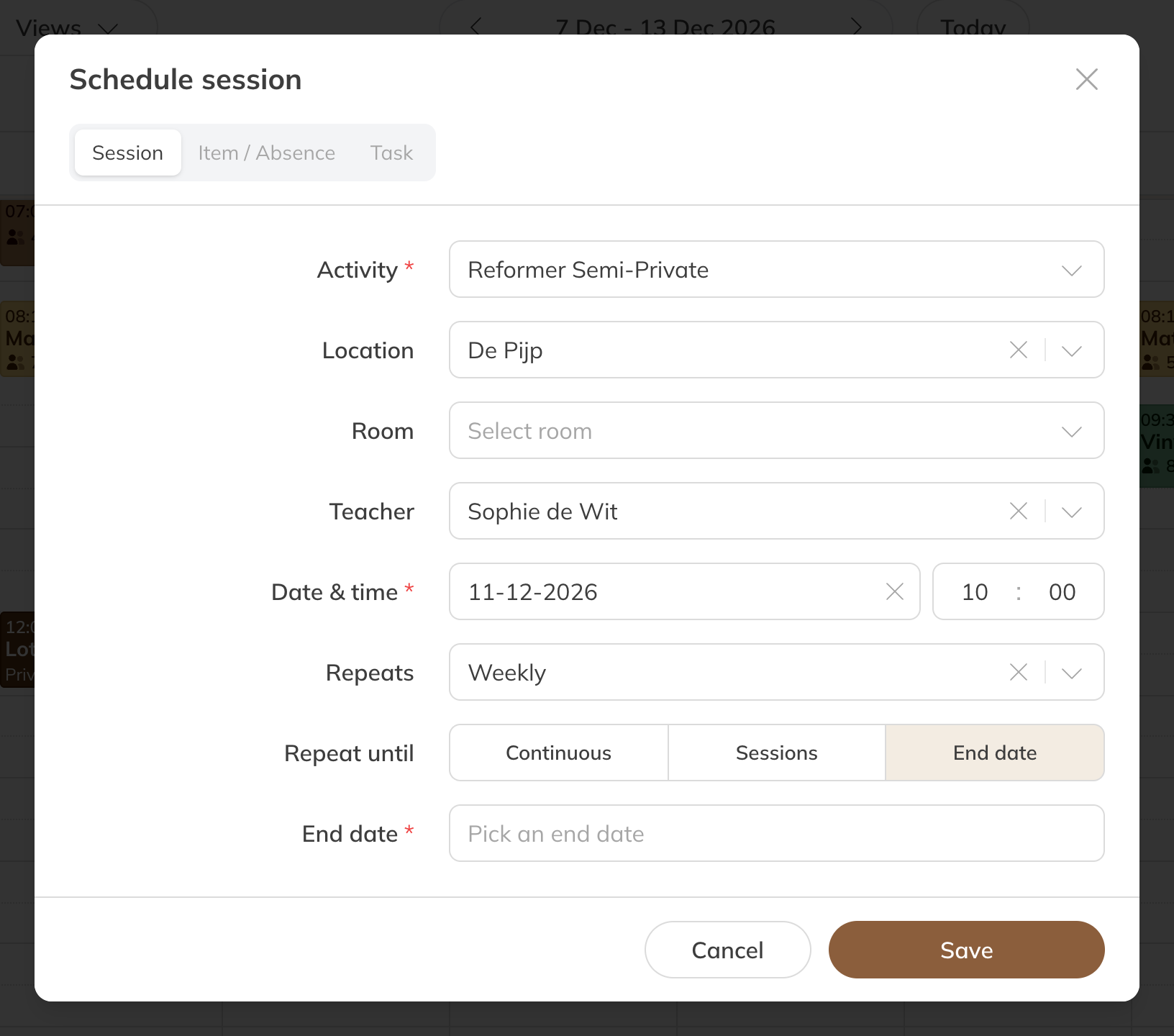
A weekly series
Note: A session can't repeat daily. If you want a class on several days of the week, create a separate series for each day.
A private session with a client
If you choose a private activity, the Client field appears. Look up the client; you immediately see which product pays for the session, and for a credit pack how many credits are left.
- If the activity is free, it says No product needed.
- If you schedule a series and the product doesn't cover all sessions, you see This product doesn't cover the whole series, with the first date that can't be paid for. Only the covered sessions are booked.
- If the client has no usable product, read Client can't be added.
Click Save. The instructor gets an email that the session has been scheduled.
Tip: For a group class, you add clients once the session is in the calendar. See Adding a client to a session or series.