- Open the session in the calendar.
- Click Cancel. On your phone, you'll find it in the three-dot menu.
- To cancel the whole series, tick Cancel sessions that belong to this series.
- Under Apply to, use the pencil to choose which sessions:
- This session and future sessions (default)
- From today onwards
- All sessions in series, including past ones
- Click Yes, cancel sessions (or Yes, cancel session for a single session).
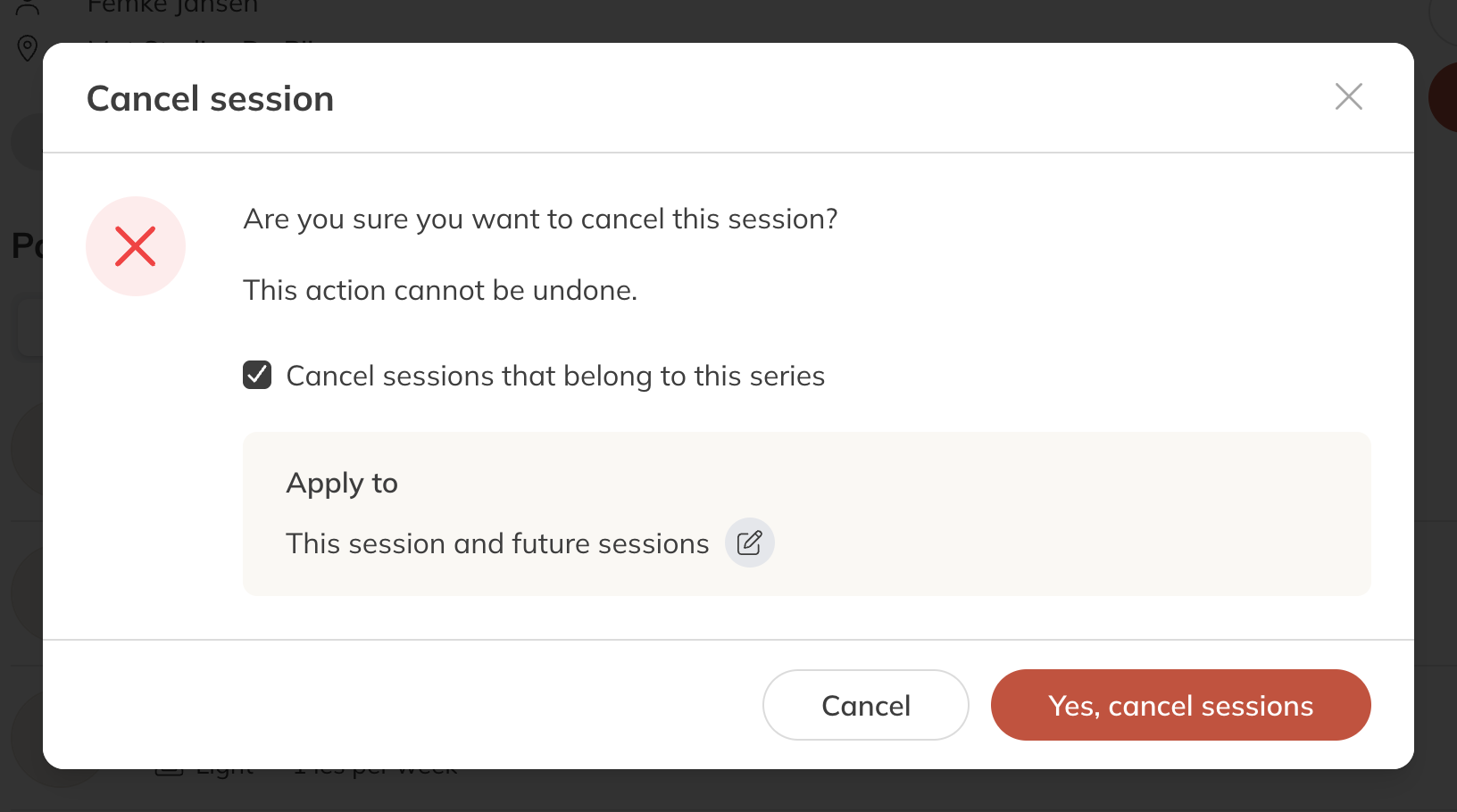
Cancelling a series
What happens next
- Participants and instructors always get an email. For a series, everyone gets one email listing all cancelled dates. You can't turn this off.
- Clients get their credits back, because your team cancelled the session.
- Clients on the waiting list don't get an email.
- The series stops: no new sessions are scheduled.
Note: Cancelling can't be undone. If you see the message Series is still being scheduled, wait a moment: a new or extended series is still being added to the calendar.
Tip: Just want a series to stop earlier, without emailing clients automatically? Shorten it instead via Edit series.