An item is anything in the calendar that isn't a session: a team meeting, a private appointment, a holiday or a day when you're closed.
- Go to Calendar.
- Click a time slot (on your phone: + or press and hold a time slot).
- Choose the Item / Absence tab.
If you click in the All day row at the top of the calendar, or drag across several days in month view, this tab opens straight away.
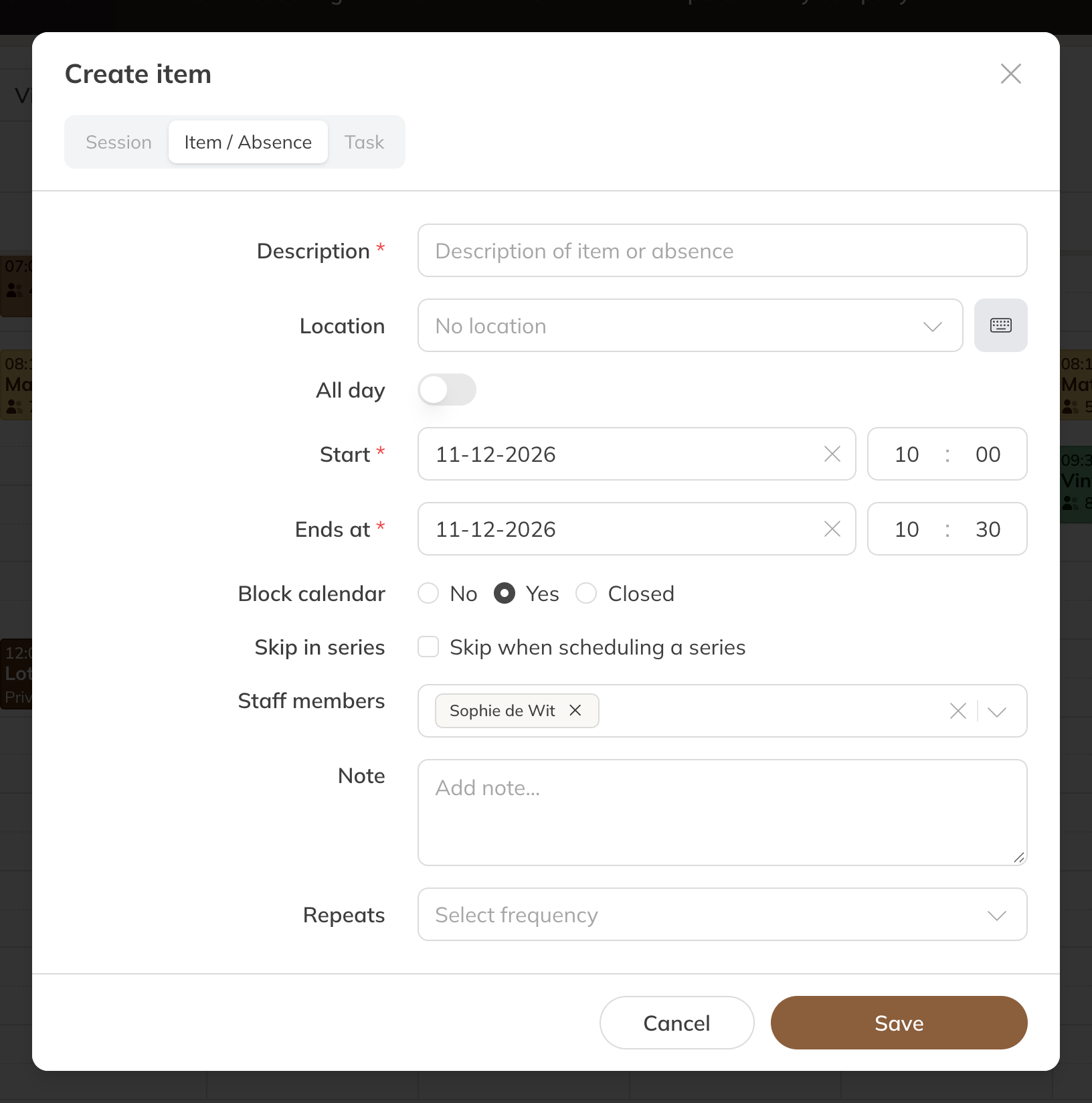
Creating an item or absence
The fields
- Description: for example Team meeting or Holiday
- Location, or your own address via Enter custom location
- All day, or a start and end time
- Staff: who the item applies to
- Repeats and Repeat until, for a recurring item
Blocking the calendar
| Block calendar | What happens |
|---|---|
| No | The item is in the calendar for information only. |
| Yes | The selected staff members are unavailable; clients can't book a private session with them. Tick Skip in series if new series should skip this period. |
| Closed | The calendar is blocked for everyone. New series don't schedule any sessions in this period. |
Note: Sessions already in the calendar stay where they are. Cancel them yourself if you're closed that day.
Tip: Working on your own? Then you only see No and Yes, and Yes means you're closed.
Changing or deleting
Click the item. For a recurring item, choose whether the change applies to This and future events, From today onwards or All events in series. You can also drag an item to another time or to the All day row.