With family accounts, one client, such as a parent, manages the bookings and products of one or more family members. Useful for kids' classes or youth clubs.
Switching on family accounts
- Go to your business's Settings and under Preferences choose Clients.
- Under Family accounts, choose one of the options at Family members.
- Click Save.
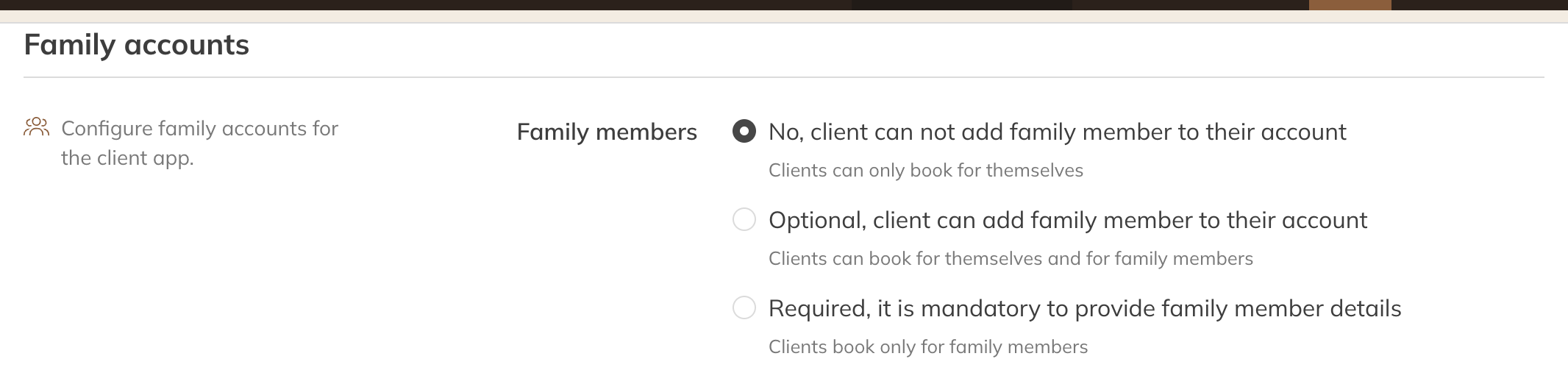
The family accounts setting
| Option | What happens |
|---|---|
| No | A client only books for themselves. |
| Optional | A client can add family members and books for themselves or for a family member. |
| Required | A client must add a family member and only books for family members. For example, if you only run classes for children. |
You can use your own word for a family member in Trainin, for example Child. You'll then see that word everywhere instead of family member.
Adding a family member as a staff member
- Open the client and choose the Details tab.
- In the family members block, add a family member with their name and, if you like, gender and date of birth.
When you create a new client, you can add a family member there straight away too. When you give a client a product, you choose at Assign to whether the product is for the client or for a family member.
As a client
A client adds family members in the app under their account, in Profile. After that, the client chooses who it's for when booking and buying.
Note: A family member doesn't have their own login. Everything goes through the client's account. If a family member needs to log in themselves, create a separate client with their own email address.
Tip: A client can't delete a family member who has an active product or an upcoming booking.