- Open the client and choose the Products tab.
- Click Options next to the membership and choose Upgrade / downgrade.
- Choose the New membership.
- Choose the Effective from date: Next billing date (default) or Direct (today).
- Tick Send notification if you like and click Save.
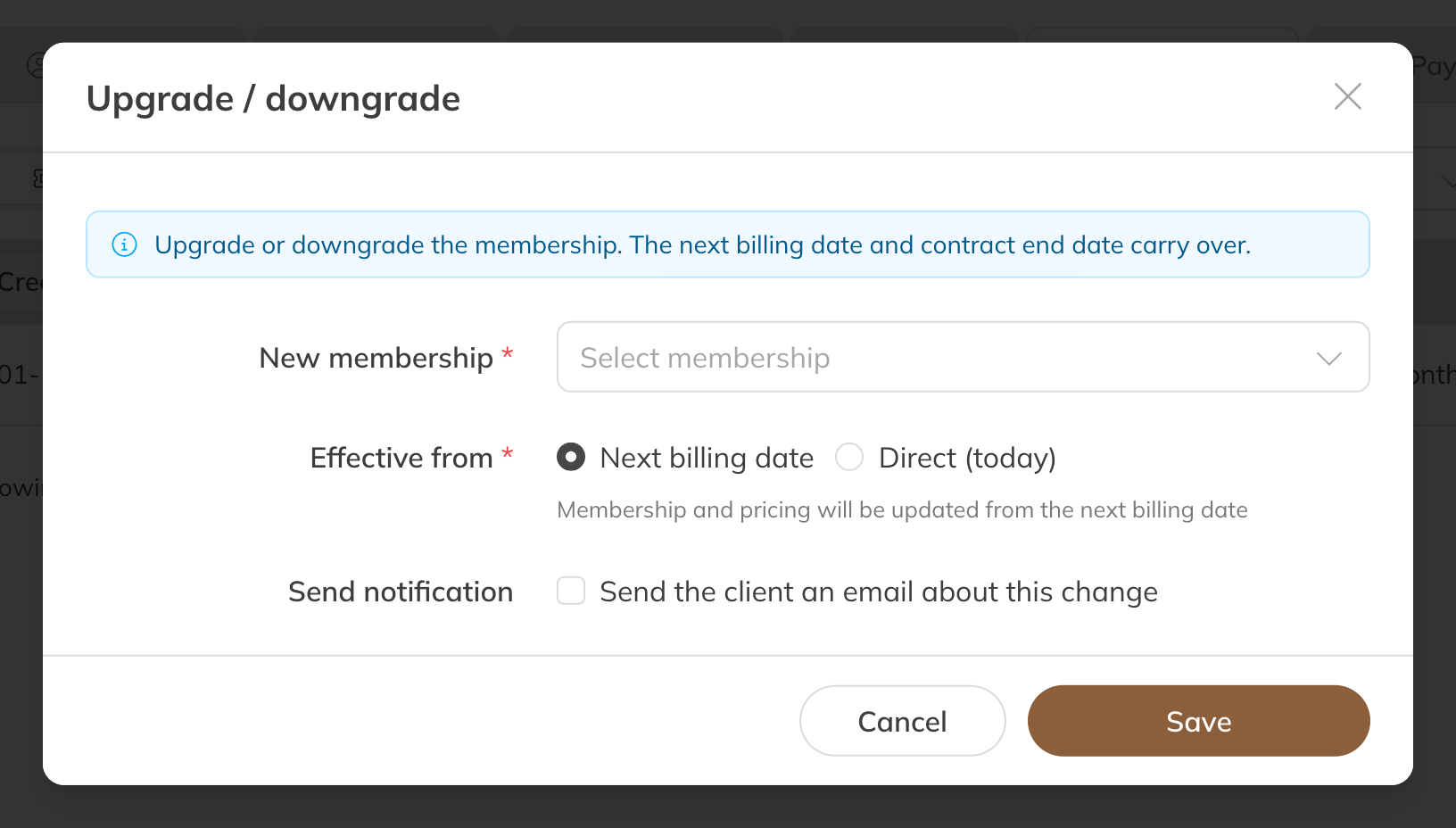
Upgrade or downgrade
What happens
- The old membership stops the day before the effective date. The new membership starts on the effective date.
- The next payment date stays the same. From then on, the client pays the price of the new product. If the old membership was free, the new one is too.
- A price you previously adjusted by hand for this client isn't carried over. If you want to give a discount again, change the price of the new membership.
- The contract end date carries over. If the new membership has a minimum contract term that ends later, that one applies, counted from the effective date.
- Bookings from the effective date are moved to the new membership. If that isn't possible, for example because the new membership doesn't cover that class, the booking stays open. You'll see it on the Visits tab, where you can confirm it with another product or cancel it.
Upgrading immediately and charging the difference
If you choose Direct (today), the client has already paid for the current period at the old price. Trainin doesn't charge the difference itself. If you want the client to pay extra, adjust the next scheduled payment under Payments in the new membership.
Note: Upgrading or downgrading only works for an ongoing membership without an end date. If the membership has an end date, or you want a different payment date or contract term, end it and give a new membership. See Ending a membership.