Assigning a form
- Go to My company → Forms, choose Clients and click Assign form. Or click Options → Assign form on a form.
- At Type, choose Scheduled or Available anytime (see below).
- Choose the Form and fill in the rest.
- Click Plan form or Make available.
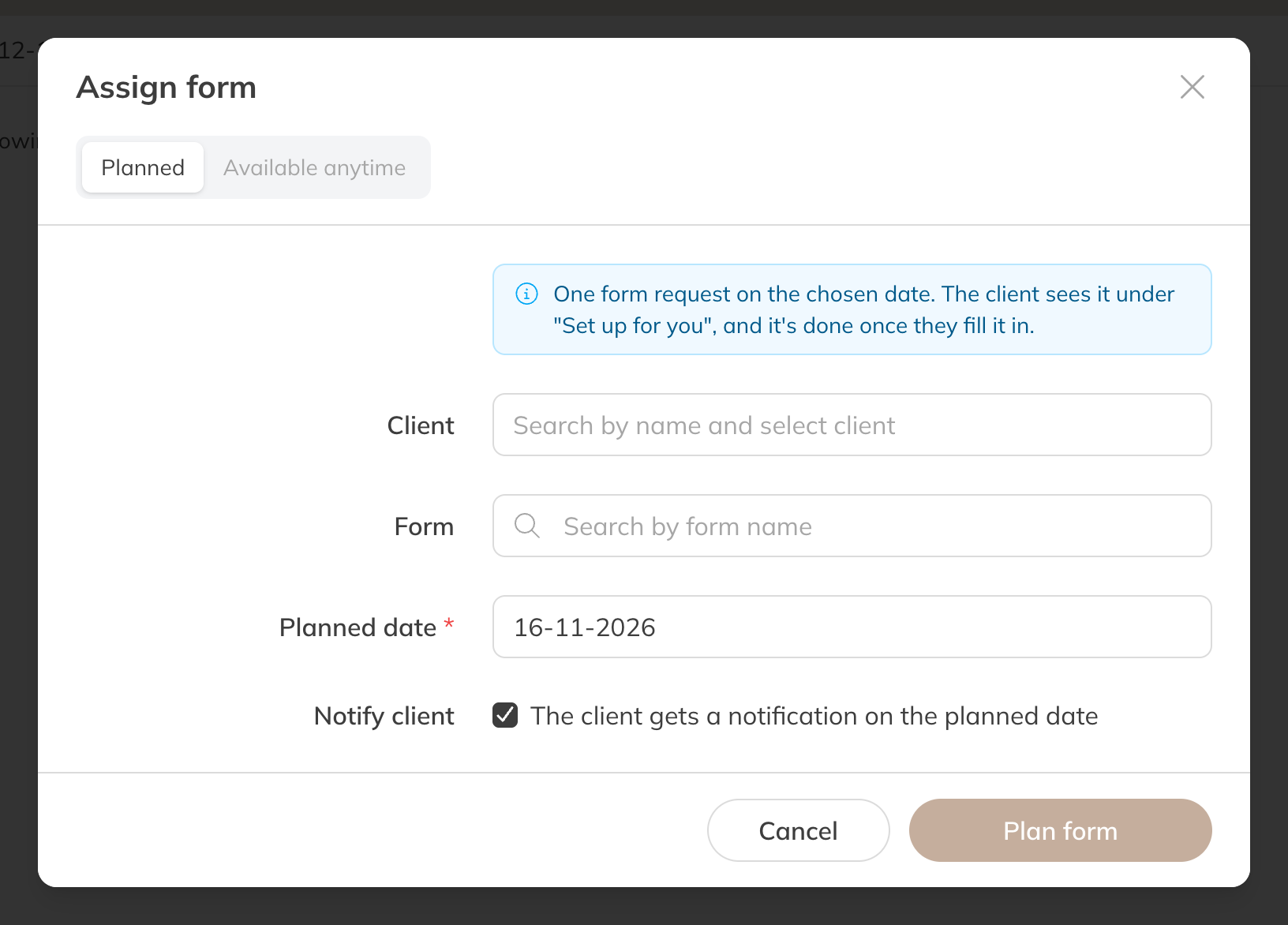
Assigning a form
| Type | What happens |
|---|---|
| Scheduled | You choose one Client and a Scheduled date. With Notify client, the client gets a notification on that date. |
| Available anytime | At Make available to, choose A client or Client groups. The client fills in the form whenever they like. With Notify client, the client gets a notification with a link. |
- Client can: what the client is allowed to do, for this assignment only. The form itself keeps its own settings.
- Personal copy: the client gets their own copy, which doesn't change if you edit the form later.
If you want every client to be able to fill in the form, switch on Available for all clients on the form. See Creating and organising forms.
What the client sees
In the Client app, forms are under Forms: Set up for you shows what you've assigned (To do, Scheduled, Completed), and Available anytime shows what the client can always fill in. The client can save along the way and sends it with Submit form.
If the client isn't allowed to fill in the form themselves, you fill it in: click Fill in in the list, or open the form in the client's profile.
Reading the answers
- All clients: go to My company → Forms → Clients. Switch between Planned forms and Available anytime, filter by status (open, planned or completed) and open a form to see the answers.
- One form: on the form, choose Options → View responses.
- One client: open the client and choose Documents → Forms. There you can also download a completed form as a PDF.
Use Export responses to download the answers as an Excel file. When a client submits a form, you get a notification, depending on your notification settings.
Note: You delete a completed form with Delete response. You can't undo this.