For a course, workshop series or block of classes, you want clients to sign up for all sessions in one go. You do this with Automatically enroll client in series.
Setting it up
- Create a group activity, or open an existing one.
- Under Booking settings, turn on Automatically enroll client in series.
- Under Enrollment window, choose:
- From the first session: clients can only book the first session of the series. So they can only join at the start, as with a course.
- From any session: clients book any session and are added to the series from there, as with an ongoing block of classes.
- Under Credit products, link the product clients use to pay for the course, and click Save.
- Schedule the course in the calendar as a series, for example with a number of sessions or an end date. See Scheduling a session or series.
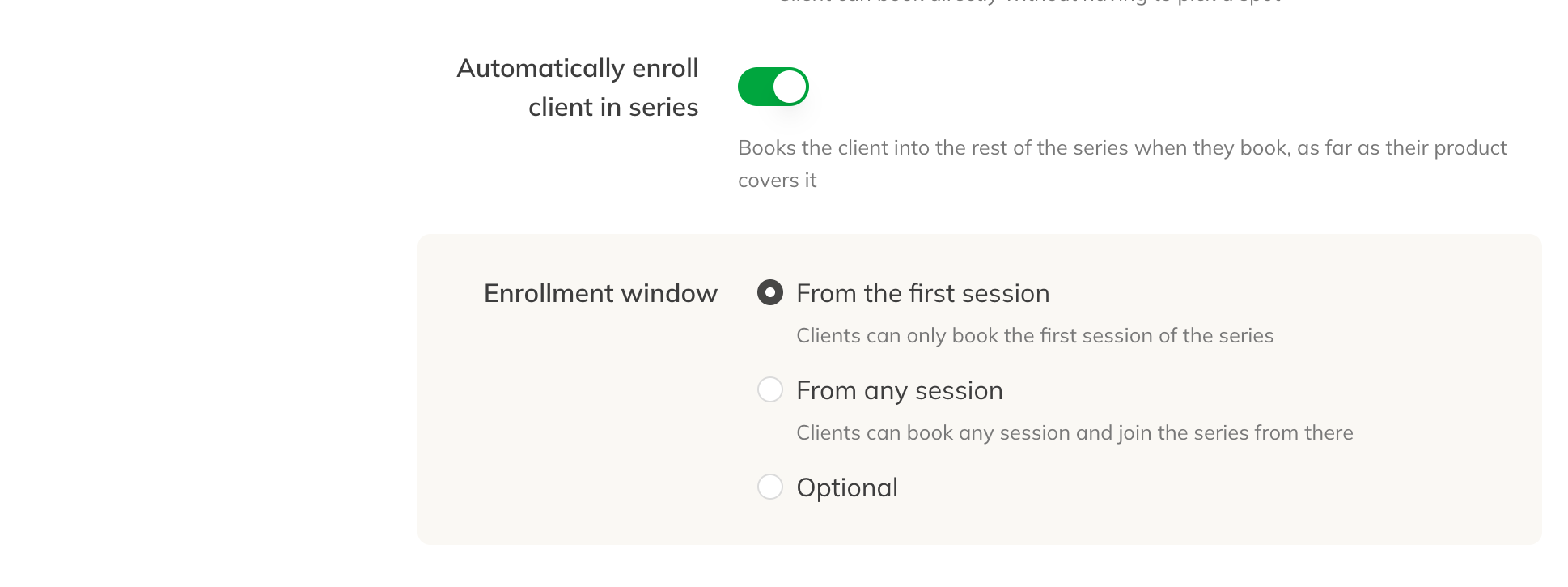
Automatically enrolling clients in the series
Tip: Also turn on Session numbering in series under More settings. Then you can see in the calendar which class of the course it is.
What happens when a client books
- The client is booked into the chosen session and all following sessions of the series, as long as their product covers them. Where the product runs out, the enrollment stops.
- If the chosen product doesn't cover the whole series, the client sees a warning about it before booking.
- If the client buys a single class or credit pack while booking, they buy enough for all remaining sessions in one go. A trial class is an exception: it's valid for one class.
- The product must be valid until the last session of the series.
Note: For a course, choose a product that's valid for at least as long as the course lasts, with enough credits for all sessions. A course of 10 sessions needs a product with 10 credits.
Enrolling someone as a staff member
When you add a client to a session of such a series in the calendar, Add to future sessions in this series is already ticked. If you choose a later session while joining is only allowed at the start, you see a warning; you can still add the client. See Adding a client to a session or series.
Good to know
- This option doesn't work together with spot booking or with Booking for multiple people; those disappear when you turn it on.
- If clients can only join at the start, there's no waiting list.
- Is one class of the course different, for example on another day? Then change only that session in the calendar.