Duplicating
- Go to My company → Products.
- Click the three-dot menu next to the product and choose Duplicate. In an open product you'll find this under More.
- Click Yes, duplicate product.
The copy has the same name with (copy) after it and opens straight away, so you can edit it. Activities, videos, client groups and recommended products are copied along.
Editing
If you change a product, the change only applies to products bought or assigned after that. Clients who already have the product keep the old price, credits and terms.
Deleting
- In the three-dot menu, choose Delete.
- If clients still have the product, you'll see how many. They'll lose their credits and access if you continue. Type the number of clients to confirm.
- Click Yes, delete product.
- Any gift card for this product is deleted too. Gift cards that haven't been redeemed yet will then stop working.
- You can restore a deleted product within 3 months through More → Deleted products. Then link the activities, videos and discount codes again, because they've been unlinked.
Tip: Just want to stop selling a product? Set it to Hidden instead of deleting it. See Sales channels.
Order and categories
Through More → Sort products you drag products into the order in which they appear in the shop. With More → Categories you create categories that clients can use to filter in the shop. You can do both separately for credit products and retail products.
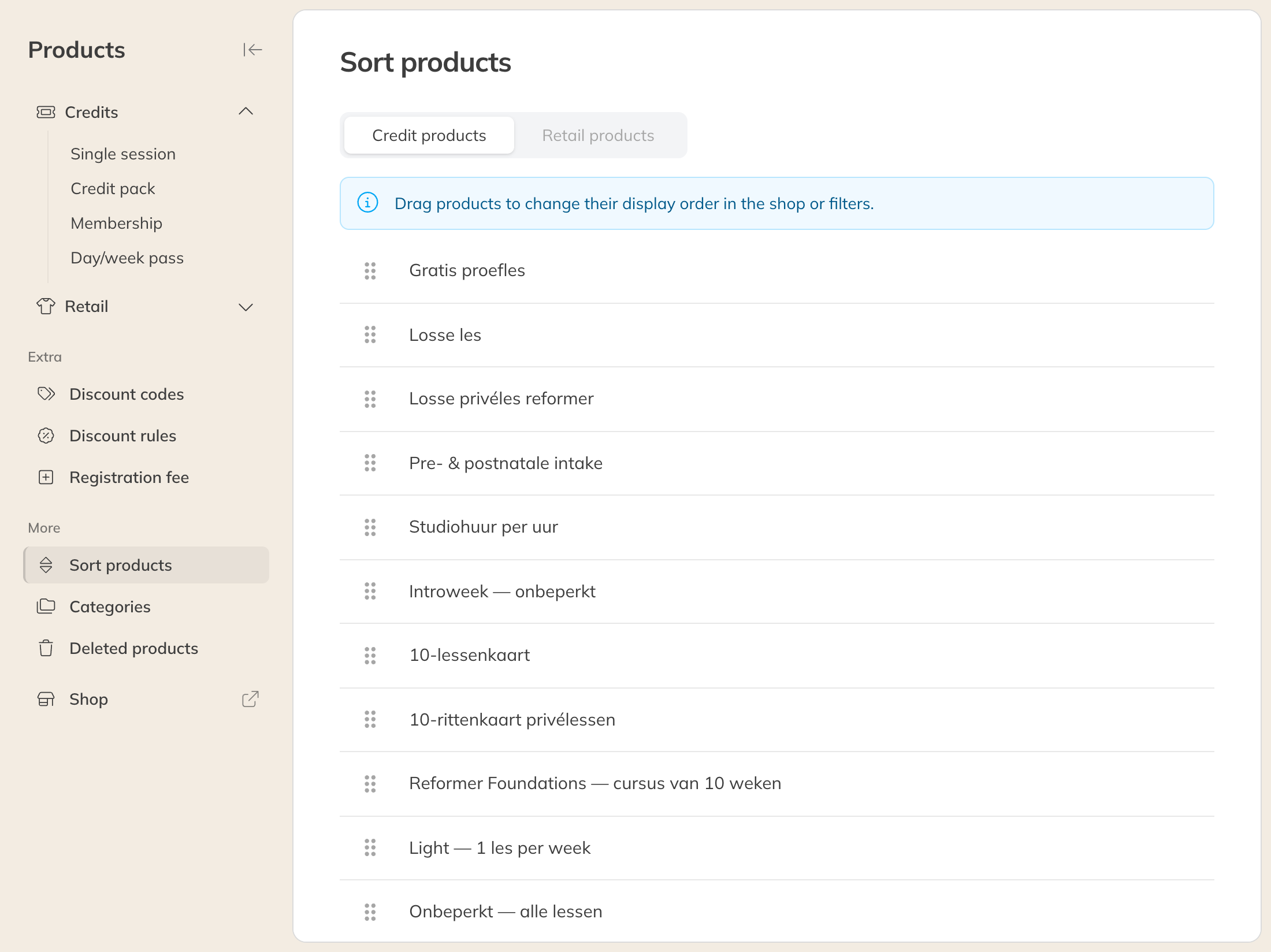
Sort products