With a discount rule you give a fixed discount, such as a family discount or company discount. You link the rule to clients. When you assign such a client a product with a payment request, the discount is applied automatically.
Creating a discount rule
- Go to My company → Products and choose Discount rules on the left.
- Click New discount rule.
- Enter a Name and the Discount percentage and click Save.
Linking clients
Open the discount rule and, next to Clients, click + to Assign client(s). You can also work from the client: open their profile, go to Bank & payment details and choose the rule under Discount rule. A client has one discount rule.
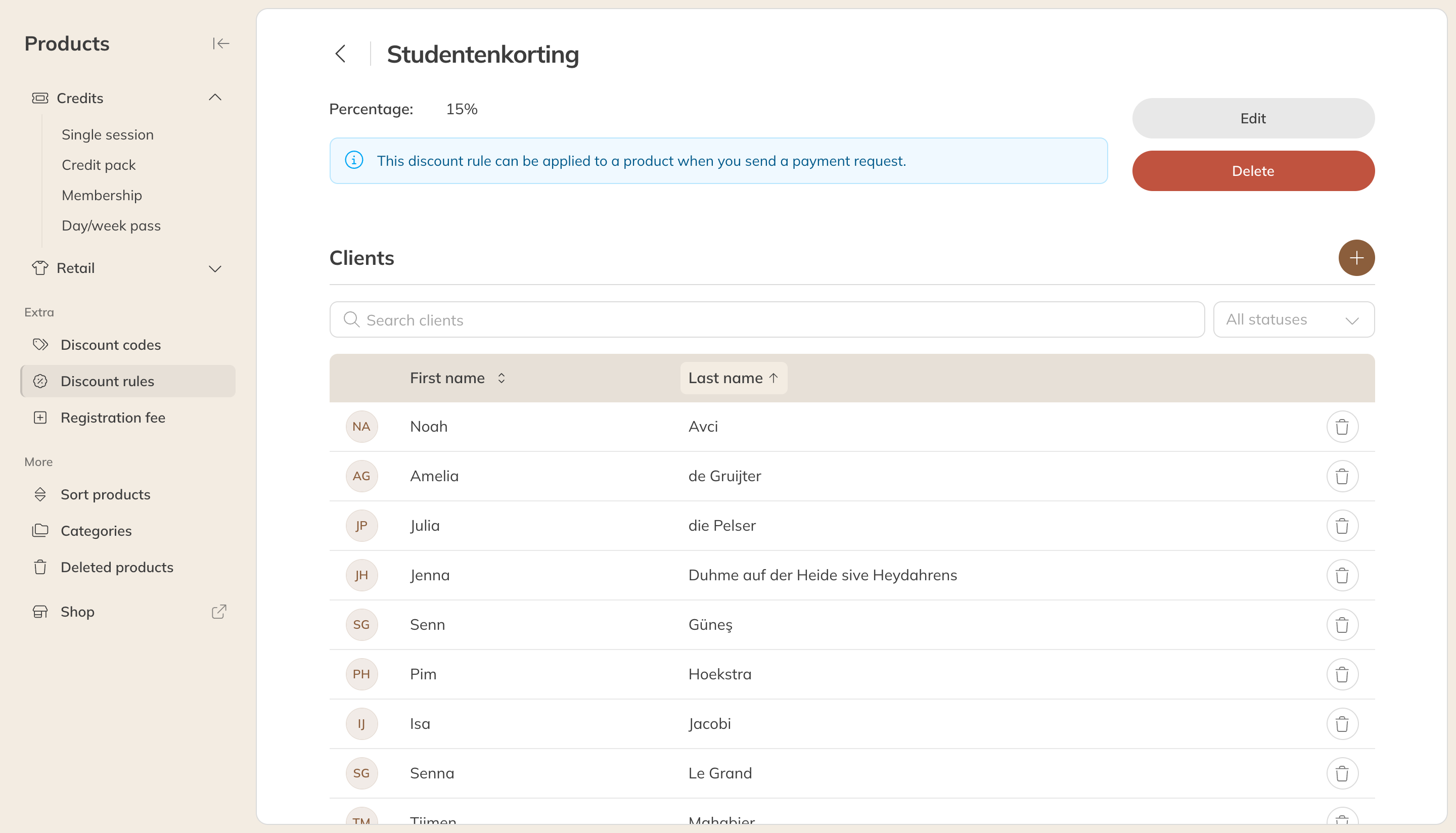
A discount rule with the clients who get it
When does the discount apply?
- When you give a client a product through Assign a product. The client's discount rule is already selected; you can choose a different one or No discount.
- When you invoice sessions afterwards. See Invoicing sessions afterwards.
For a membership, the discount applies to every payment, because the discounted price becomes the price of that membership.
Note: A discount rule doesn't work when the client buys something themselves in the shop or through a checkout link. Use a discount code for that. A discount rule and a price you've changed yourself don't combine: if you choose a discount rule, it applies to the regular price.