- Go to My company → Settings and, under Preferences, choose Connect.
- Adjust the settings under Chat and Messages.
- Click Save.
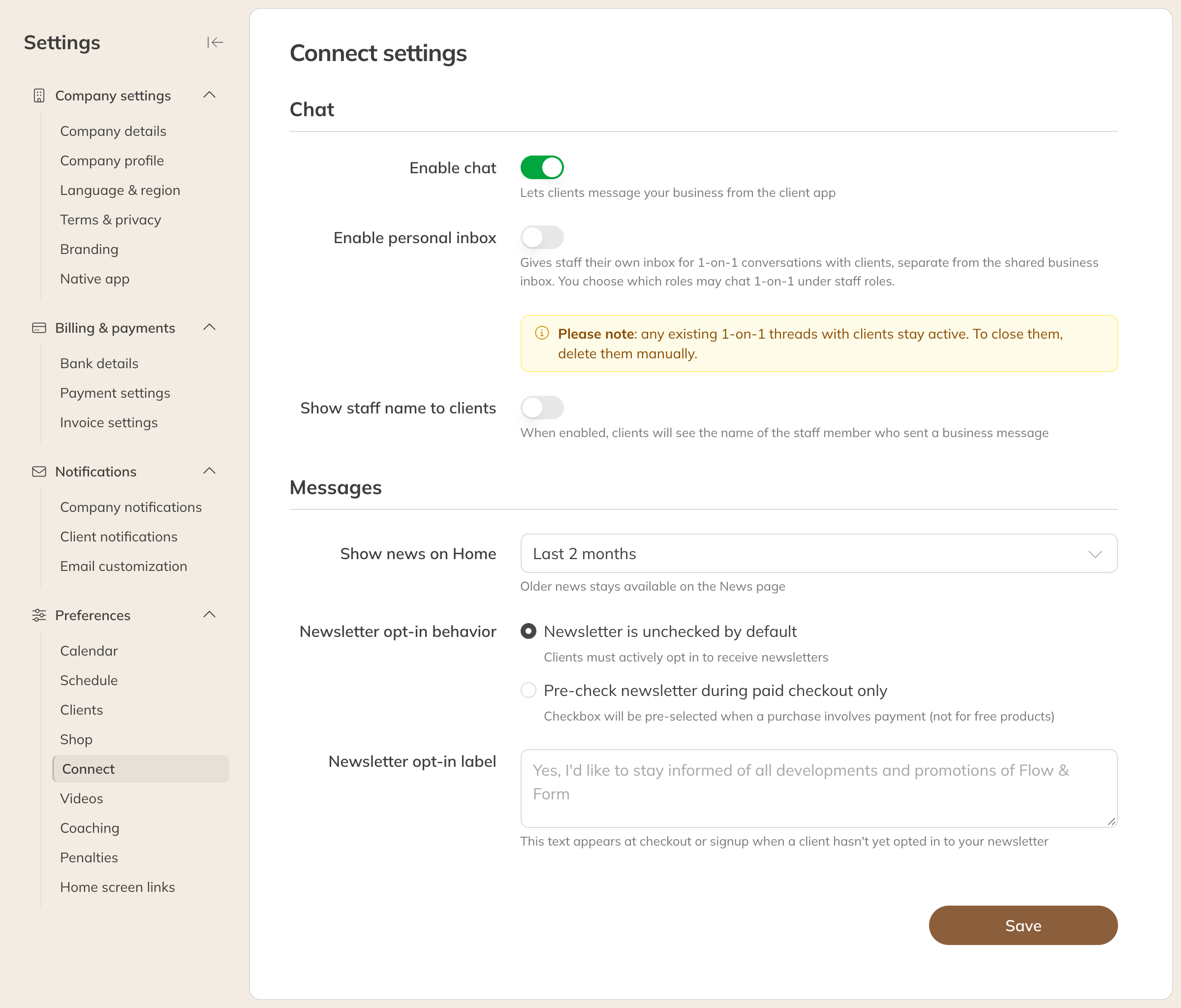
Connect settings
Chat
| Option | What happens |
|---|---|
| Enable chat | Clients can send you messages through the Client app. If this is off, chat disappears from the Client app. You can still read old conversations in the inbox, but you can no longer reply. |
| Enable personal inbox | From Pro. Besides the shared company inbox, staff get their own inbox for one-to-one conversations with clients. You set which roles can chat one-to-one in the roles, with the permission One-to-one chat with clients. |
| Show staff name to clients | From Pro. For a message from the company inbox, clients see which staff member sent it. If this is off, they only see your business name. |
When the personal inbox is on, two extra options appear:
| Option | What happens |
|---|---|
| Only chat with assigned clients and trainers | Staff can only message their own clients, and clients can only message their own trainers. You set which clients belong to a trainer on the client's profile. |
| Allow clients to start conversations | Clients can start a one-to-one conversation with a staff member themselves. If this is off, only the staff member can start a conversation; the client can still reply after that. |
Note: If you turn off chat or the personal inbox, existing one-to-one conversations with clients stay. If you want to close them, delete them yourself in the inbox.
Does a staff member lose the permission to chat one-to-one, or are they no longer the client's trainer while Only chat with assigned clients is on? Then the conversation stays readable, but nobody can reply in it any more.
Messages
| Option | What happens |
|---|---|
| Show news on Home | How old a news message can be and still appear on the home page of the Client app: from Last 2 weeks to Last 6 months, or All time. Older news can still be read under Messages. |
| Newsletter opt-in behavior | Whether the newsletter box is already ticked when a client signs up or checks out. Choose No (the client ticks it themselves) or Pre-check newsletter during paid checkout only (only for a purchase that is paid for, not for free products). |
| Newsletter opt-in label | The text next to that box. Clients only see it as long as they haven't signed up for your newsletter yet. |
Note: If you choose a pre-ticked box, check whether that's allowed under the privacy law in your country.
Tip: Anyone who has the newsletter turned on receives your campaigns. See Email campaigns and the email builder.