Go to My company → Settings and, under Notifications, choose Email customization. What you set here applies to the emails Trainin sends to clients on your behalf, such as booking confirmations.
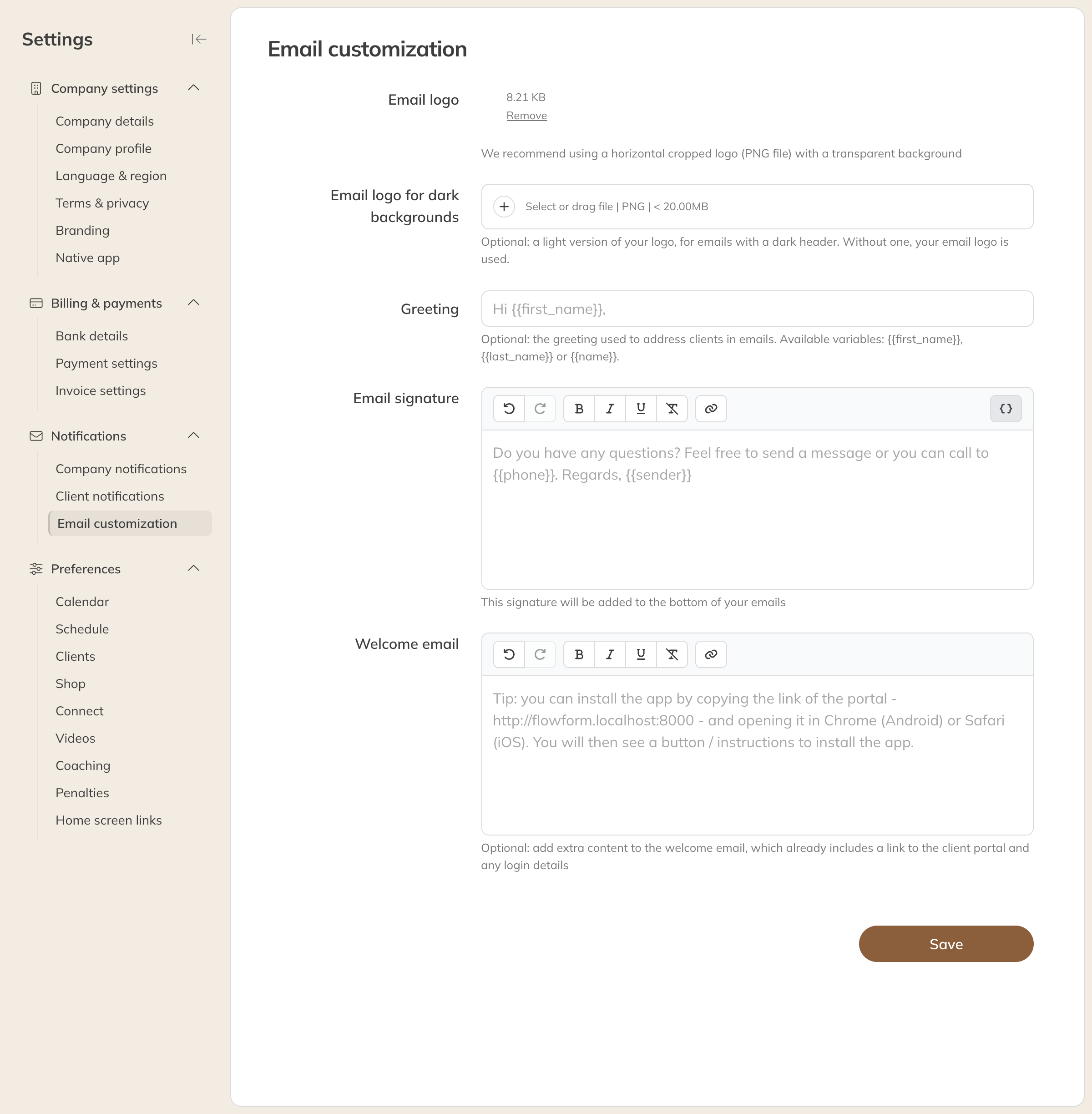
Email customization
| Field | What it does |
|---|---|
| Email logo | Your logo at the top of the emails. Use a PNG file, ideally cropped horizontally and with a transparent background. |
| Email logo for dark backgrounds | Optional: a light version of your logo, for emails with a dark header. Without this logo, your regular email logo is used. |
| Greeting | How you address your clients, for example Hi {{first_name}},. You can use {{first_name}}, {{last_name}} or {{name}}. |
| Email signature | The sign-off at the bottom of your emails. Use the variables to insert the sender, your phone number or your email address. |
| Welcome email | Extra text for the welcome email a new client receives. A link to the client portal and any login details are already included by default; you don't need a greeting or sign-off either. |
Click Save.
Tip: Follow-up emails are written separately, under Connect → Follow-up emails. See Setting up automatic follow-up emails. For emails with your own design there's the email builder: Email campaigns and the email builder.