As a staff member
- Open the client's profile and go to the Coaching tab.
- Click Metric. The Record metrics window opens.
- Choose the Date (today by default) and fill in the values. Empty fields are skipped.
- Click Save. The charts update straight away.
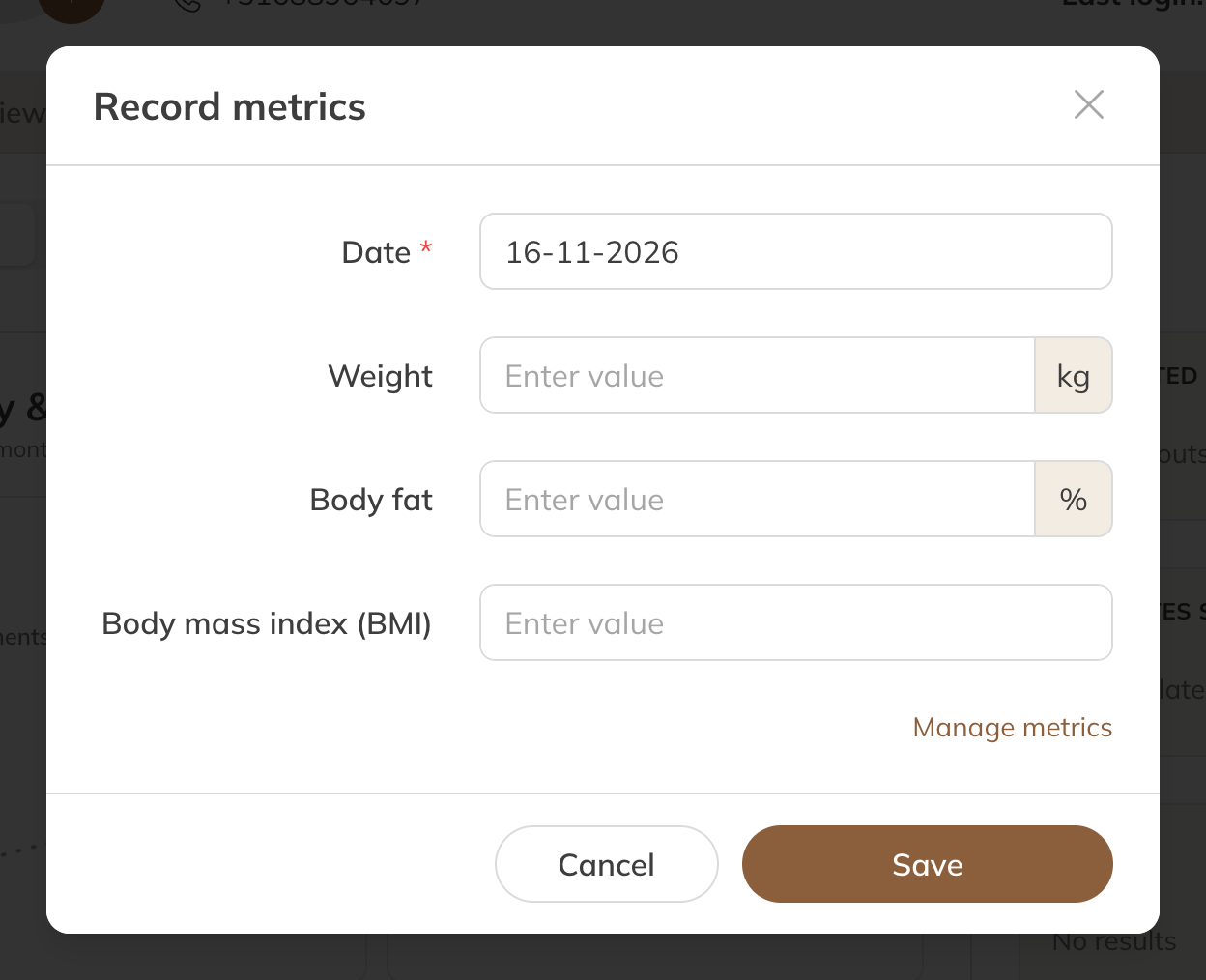
The Record metrics window
Note: You can't record measurements for a future date. You decide which metrics appear in the window under Metrics.
Changing or deleting a measurement
In the client's coaching profile, click a measurement in the latest results, or choose See all and click the measurement. The window opens on that date: change the values and click Save. The bin icon deletes a value. Charts and goals stay in place.
Through a form
If you add metrics to a coaching form, every answer is saved as a measurement. See Tracking intake and progress with forms.
By the client
In the Client app, under Coaching, the client chooses New → Record metric (on a phone, in the Options menu), or New measurement on the Progress page. The client can't change values you entered as their coach; these are marked Filled in by your coach.