How to define Business Locations and Room configurations
Estimated Reading Time: 4 minutes
Applies to: Premium / Pro + Add-On
Quick Summary
You can create multiple Business Locations and configure different rooms per location to manage your Schedule more efficiently.
This allows you to organize Activities clearly and avoid double bookings across spaces.
It is also possible to add equipment instead of rooms, this makes it possible to rent out equipment.
Why This Matters
If you operate in more than one studio, gym, or training space, setting up multiple Business Locations keeps your planning structured and professional.
Room configurations help prevent scheduling conflicts and ensure each Activity is assigned to the correct space.
Adding multiple locations and rooms is available on Premium, or Pro with Add-On plans.
Step by Step Instructions
Step 1: Create a Business Location
– Go to My Company > Locations > + New and add a new Business Location with the correct name and address.
Step 2: Add Rooms or Equipment to a Location
– Open the location settings by clicking on the location and create rooms or equipment via + add room/equipment.
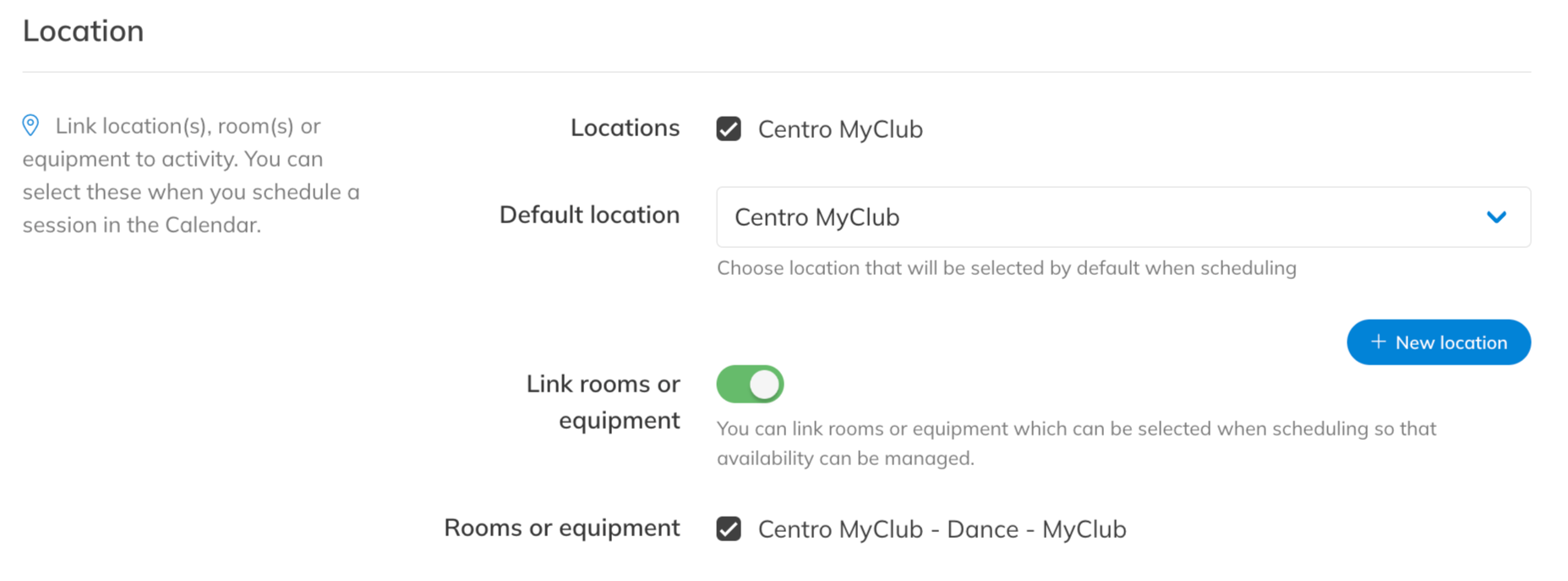
Step 3: Link a Location to an Activity
– Go to My Company > Activities > Open the settings of an Activity and select the correct Business Locations (and rooms).
Step 4: Plan Activities in the Schedule
– When scheduling an Activity, select the correct location and room to avoid overlaps.
Step 5: Update a Location for Future Sessions
– If you change the location of an Activity by swiping it to another column in the location/room overview, future sessions will not update automatically. You can change the location/room for future sessions by opening the session in the calendar > edit > edit series > change location/room
Best Practice
Always link a Business Location inside the Activity settings. If no location is linked, it will not appear in the Schedule when planning.
Common Questions
Why is my new location not visible when scheduling sessions in the agenda?
– You first need to activate the new location in the settings of an activity.
Why can’t I find an address when creating a Business Location?
– The system uses Google location data, and very new addresses may not yet be available.
Can I create multiple Business Locations?
– Yes, multiple locations and rooms are available on Premium, or Pro with Add-On.
If you would like to know more about our Premium or Add-Ons, send us an email to support@trainin.com.
Related Articles
– How to define availability of your staff per location
– How to setup and manage your rooms and equipment for rental