How to setup and manage your rooms and equipment for rental
Estimated Reading Time: 4 minutes
Applies to: Premium / Pro with Add-On
Quick Summary
You can create rooms, fields, or equipment and make them available for rental.
This allows clients to book and pay for space or equipment directly through your Schedule.
Why This Matters
Renting out rooms or equipment creates an additional revenue stream. A clear setup prevents double bookings, pricing mistakes, and availability conflicts.
Step by Step Instructions
Step 1: Activate the rental functionality
– Make sure the rental Add-On is active on your account (Premium or Pro with Add-On). Send an email to support@trainin.com and we will immediately activate this for you.
Step 2: Create a room or equipment item
– Go to My Company > Locations > open the location settings by clicking on the location and create rooms or equipment via + add room/equipment.
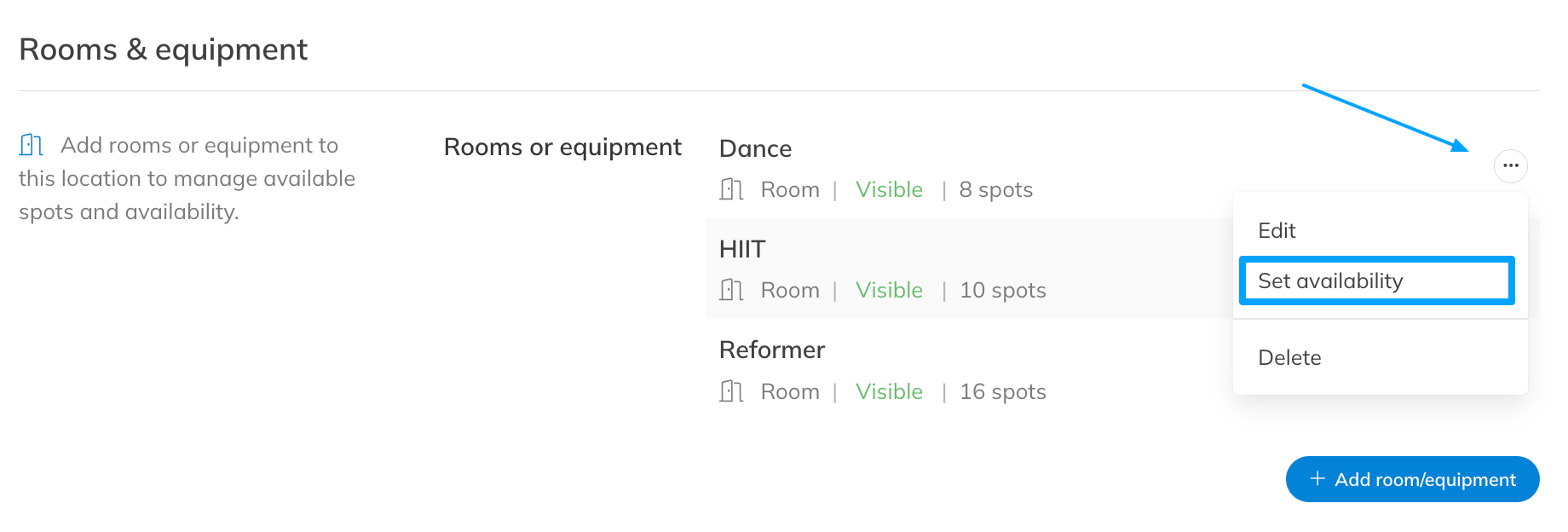
Step 3: Define availability
– Set when the room or equipment is available for booking to prevent scheduling conflicts. Go to the button on the right side of a room/equipment > set availability.
Step 4: Set the rental Product
– Create a Product so clients can purchase access or book the rental via the Schedule. Go to My Company > Products > + new product, choose what kind of product you want to offer for rental.
Step 5: Set the rental Activity
– Create an Activity so clients can book the room/equipment via the Schedule. Go to My Company > activities > + new activity, choose rental. Make sure the room/equipment is activated in the settings of this activity.
Step 6: Manage bookings
– Monitor reservations in your Schedule and adjust availability when needed.
Best Practice
Use clear naming (for example: “Studio Room 1 – 60 min”) to avoid confusion between different rooms or equipment types.
Common Questions
Can clients book a room without buying a Membership?
– Yes, you can connect the rental to a single session or credit pack Product.
Can I limit how far in advance clients can book?
– Yes, you can control up to how many hours a booking can be made in the settings of the activity.
Can I temporarily block a room or equipment item?
– Yes, you can adjust availability or block time slots directly in the Schedule.
If you would like to know more about our Premium package or Add-Ons, send us an email to support@trainin.com.
Related Articles
– How to define buisness locations and room configurations– Trainin Add-Ons: Overview of available features