How to Set Staff or Personal Availability for Private Sessions
Estimated Reading Time: 4 minutes
Applies to: All plans
Quick Summary
Availability defines when trainers or staff members can accept bookings for private sessions. By configuring availability, the system knows when a trainer can be scheduled for one-on-one activities.
Starter accounts can set personal availability, while Pro and Premium accounts can configure availability for multiple staff members.
Why This Matters
Setting availability ensures private sessions can only be booked during the times trainers are actually working. This prevents scheduling conflicts, keeps your Schedule accurate, and allows the platform to automatically match available instructors with client bookings.
It also ensures bookings align with the correct Activities and Locations.
Steps by Step instructions
Step 1: Open the availability settings
– For personal availability (Starter): Click your name in the top-right corner of the portal or, in the app, tap the three lines in the bottom menu (More) > open your user profile > select availability.
– For staff availability (Pro and Premium): My Company > Staff > Availability > Select staff member or via the app tap the three lines in the bottom menu (More) > select Staff >Availability
– This opens the availability overview where you can configure when sessions can be booked.
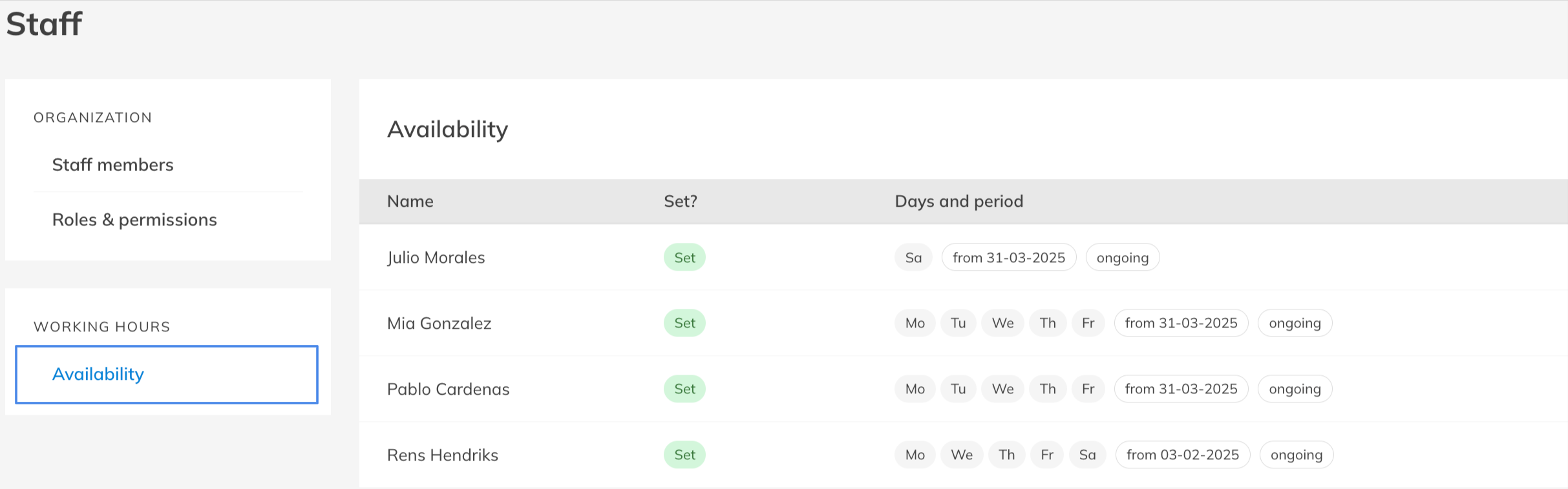
Step 2: To add a new availability period: Availability > Add (for Starter) or Select the staff member (Pro and Premium)
– Click Add to create a new availability schedule. Select the start date when the availability should begin and define the working hours (start time and end time).
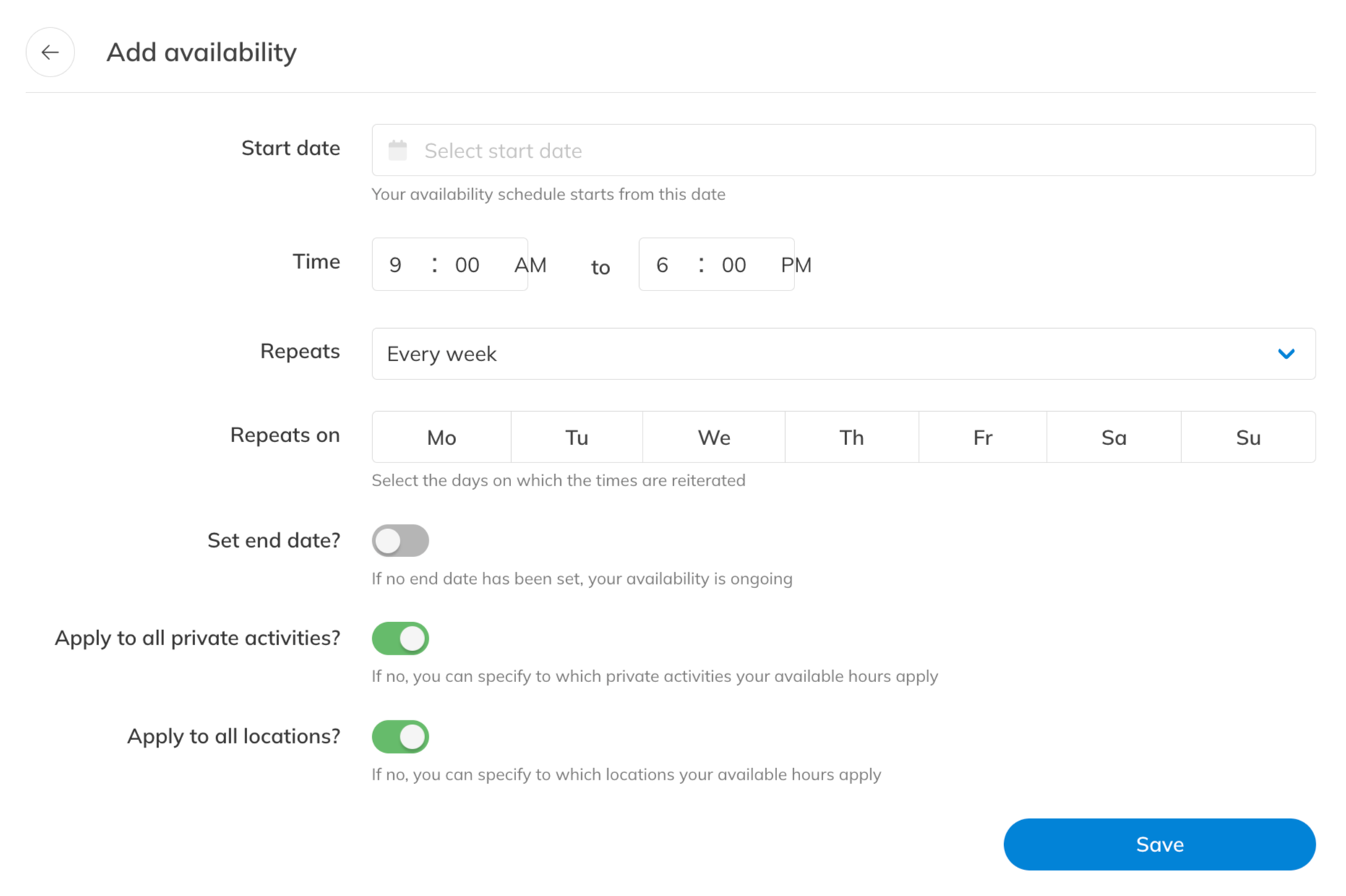
Step 3: Configure the recurring schedule for this time slot: Repeat / Repeats on
Step 4: Define an optional end date if needed: Activate toggle > Set end date
– Enable the end date option if the availability should only apply for a limited period.
Step 5: Choose the Activities and Locations (Premium) that the availability applies to
– Select the Activities that can be booked during this availability and the locations where the trainer can perform private sessions.
Best Practice
Create availability schedules that reflect the real working hours for yourself or of each trainer. This helps avoid double bookings and ensures the Schedule only shows sessions that can actually be delivered.
If trainers work across multiple locations, configure availability per location to prevent incorrect bookings. (Premium)
Pro Tips
Use recurring availability (for example weekly schedules) instead of creating individual entries for each day. This keeps the Schedule easier to manage.
If a trainer works temporary hours, use the end date option so the system automatically stops using that availability period.
Availability can be applied to all private Activities or limited to specific locations depending on how your business operates.
Common Questions
Can I change a trainer’s availability later?
– Yes. Open the availability section again, select the trainer (or your personal profile), and edit the existing availability.
What happens if no availability is set?
– If no availability is configured, private sessions cannot be booked by clients.
Can I set availability for multiple locations?
– Yes. When creating availability, you can select one or multiple locations where the trainer can work (Premium).
Can availability be temporary?
– Yes. You can enable an end date so the availability only applies during a specific time period.
Can the trainer set his/her own availability?
– Yes. Every individual can add or change their availability.
If you would like to know more about our Pro, Premium or Add-Ons, email us at support@trainin.com.
Related Articles
– How to configure your staff permissions and access levels
– How to add or remove Staff members
– How to configure your staff permissions and access levels