How to Create a Course or Workshop (Automatic Enrollment Series)
Estimated Reading Time: 5 minutes
Applies to: All
Quick Summary
Courses and workshops in Trainin are created by combining a Product with a Group Activity series. When a client purchases the course product through the booking module, they are automatically added to the full series of sessions.
This setup is ideal for multi-session programs such as courses, workshops, or training programs where participants follow a fixed schedule.
Why This Matters
This configuration allows clients to enroll in an entire course with a single purchase. After buying the course product, the system automatically registers them for all sessions in the series. This reduces manual administration and ensures participants follow the complete program.
Tip: Before setting up the course, decide whether clients can join only at the beginning of the series or at any moment during the series.
Step by Step Instructions
Step 1: Create the product needed to enroll in the course: My Company > Products > New Product > Credit pack
– Make sure the number of credits equals the number of sessions in the course (for example, a course with 10 sessions should have a product with 10 credits).
– Ensure the product validity is at least as long as the duration of the course. You can do this by going to “More Product Details” to add the “ends on” date.
– Set the product visibility so it can only be purchased via the booking module.
Step 2: Create the activity for the course: My Company > Activities > New Activity > Group
– Create a Group Activity that represents the course, workshop, or training program.
Step 3: Configure automatic enrollment in the session series: Booking Settings
– Activate the option that automatically adds the client to the session series when booking. Automatically add client to series
– Enable the option Only at the start of the series if participants should only be able to join when the course starts.
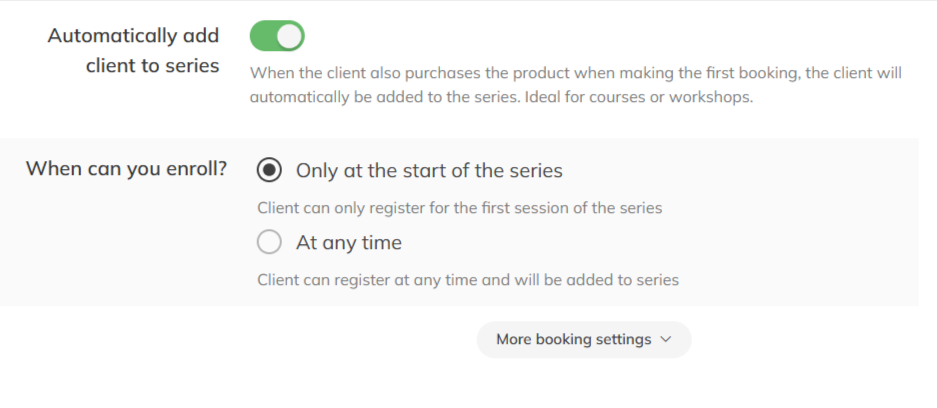
– Set numbering for a series under “More booking settings”
Step 4: Connect the course product to the activity.
– Link the Product created in Step 1 so clients can only join the activity using the correct course product.
Step 5: Schedule the course sessions in the calendar: Calendar > Create recurring session
– Plan the full course in the calendar by creating a recurring session series.
– Ensure the number of sessions in the series matches the number of credits in the product (for example: a course with 10 sessions requires a product with 10 credits).
Step 6: Allow clients to enroll in the course
– Clients can enroll in the course through:
– The Trainin app via the Schedule
– Your website if the activity is integrated there
– A Promo Page link which you can share via:
- Web > My Company > Activities > 3 dots next to the activity > Promo page
- Mobile > More > Activities > Activity > 3 dots on the top > Promo page
After purchasing the product, the client is automatically added to the full course series.
Pro Tips
If one session in the course needs to be changed, you can edit that individual session in the calendar without modifying the entire series.
If you want to run the same course again later, you can reuse the activity and simply schedule a new session series in the calendar.
Common Questions
Can clients join a course after it has started?
– If the activity is configured so clients can only join at the beginning of the series, new participants cannot join after the course has started.
Is there a waiting list for courses?
– When clients can only enroll at the beginning of the series, a waiting list is not available.
What happens if a client already has the course product?
– If a client already owns the product and books a session from the activity, they will not automatically be added to the course series. A staff member can manually add the client to the series if needed.
Can clients cancel the entire course themselves?
– Clients can cancel individual sessions, but they cannot cancel the entire course themselves. Cancelling the full course must be handled by a staff member.
Related Articles
– How to create Group Activities (Group Classes or Sessions)
– How to create Credit Packs and Single Sessions
– How to add Activities to your Schedule so customers can book