How to enable penalties in your products
Estimated Reading Time: 3 minutes
Applies to: Pro and Premium
Quick Summary
Penalties allow you to enforce booking policies when clients cancel late or do not attend an Activity.
By enabling penalties inside a Product, you activate the rules that apply to bookings made with that Product. This ensures customers follow your cancellation policy and helps reduce no-shows.
Why This Matters
Enabling penalties inside your Product ensures that bookings made with that Product follow your cancellation policy automatically.
This helps protect your schedule, improves attendance reliability, and encourages clients to manage their bookings responsibly.
Step by Step Instructions
Step 1: Open your products overview: My Company > Products
– This is where all Memberships, Credit Packs, and other Products are managed.
Step 2: Open the Product you want to edit
– This opens the Product configuration, where booking rules and usage settings are controlled.
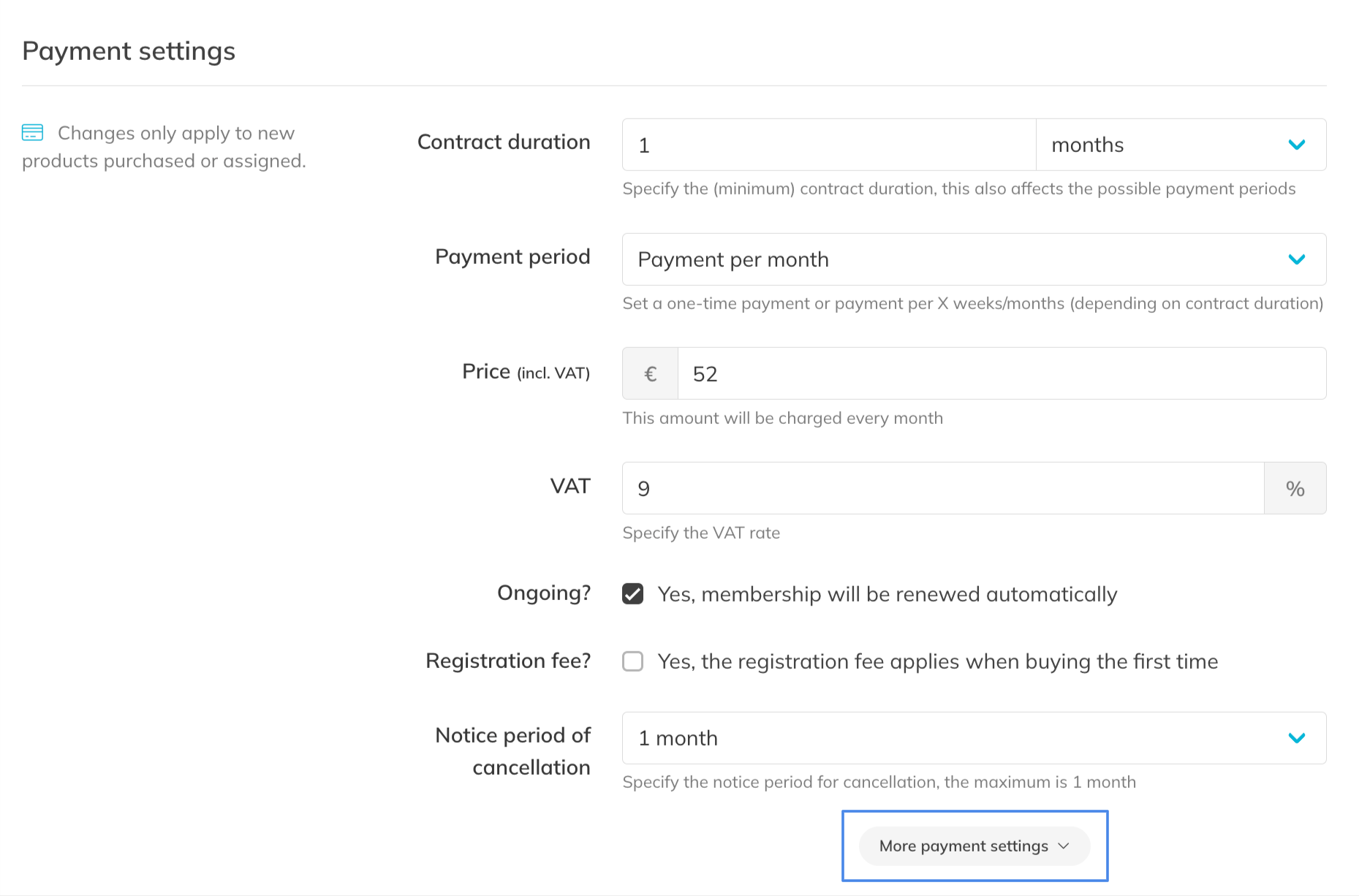
Step 3: Enable penalties for the Product
– You can find this setting under ‘More payment settings’. Penalties are disabled by default.
How to enable penalties in your products
Estimated Reading Time: 3 minutes
Applies to: Pro and Premium
Quick Summary
Penalties allow you to enforce booking policies when clients cancel late or do not attend an Activity.
By enabling penalties inside a Product, you activate the rules that apply to bookings made with that Product. This ensures customers follow your cancellation policy and helps reduce no-shows.
Why This Matters
Enabling penalties inside your Product ensures that bookings made with that Product follow your cancellation policy automatically.
This helps protect your schedule, improves attendance reliability, and encourages clients to manage their bookings responsibly.
Step by Step Instructions
Step 1: Open your products overview: My Company > Products
– This is where all Memberships, Credit Packs, and other Products are managed.
Step 2: Open the Product you want to edit
– This opens the Product configuration, where booking rules and usage settings are controlled.
Step 3: Enable penalties for the Product
– You can find this setting under ‘More payment settings’. Penalties are disabled by default.

Best Practice
Penalties work best for unlimited memberships
Pro Tips
Review your cancellation policy before enabling penalties so it aligns with how you manage your schedule.
Clearly communicate your cancellation rules to clients so they understand when penalties apply.
A strike is registered on the client's current membership. Strikes expire with a new subscription.
Common Questions
Will penalties apply to existing bookings?
– Yes. Penalties also apply to bookings made before the Product has penalties enabled.
Do penalties apply to all Activities booked with this Product?
– Yes. Once enabled, the penalty rules apply to any Activity booked using that Product. You can exclude penalties per activity.
Can I enable penalties for multiple Products?
– Yes. Penalties must be enabled individually for each Product where you want the policy to apply.
Related Articles
– How to configure automated Penalties for no-shows and late cancellations– How to disable penalties for specific Activities
– How to get insights and view reports on strikes and penalties
– How to manage penalties and strikes for a customer
– How to can my customers view their strikes and their penalties