How to manage penalties and strikes for a customer
Estimated Reading Time: 3 minutes
Applies to: Pro and Premium
Quick Summary
Penalties and strikes help you enforce attendance policies for late cancellations and no-shows.
From a customer’s profile, you can manually review, add, or remove strikes and penalties when needed. This allows you to handle exceptions or correct mistakes while keeping your booking policies consistent.
Why This Matters
Sometimes a penalty or strike needs to be adjusted manually. For example, if a client had a valid reason for missing a session or if a penalty was applied incorrectly.
Being able to manage penalties directly from the customer profile helps you maintain fairness while keeping your attendance rules clear and enforceable.
Step by Step Instructions
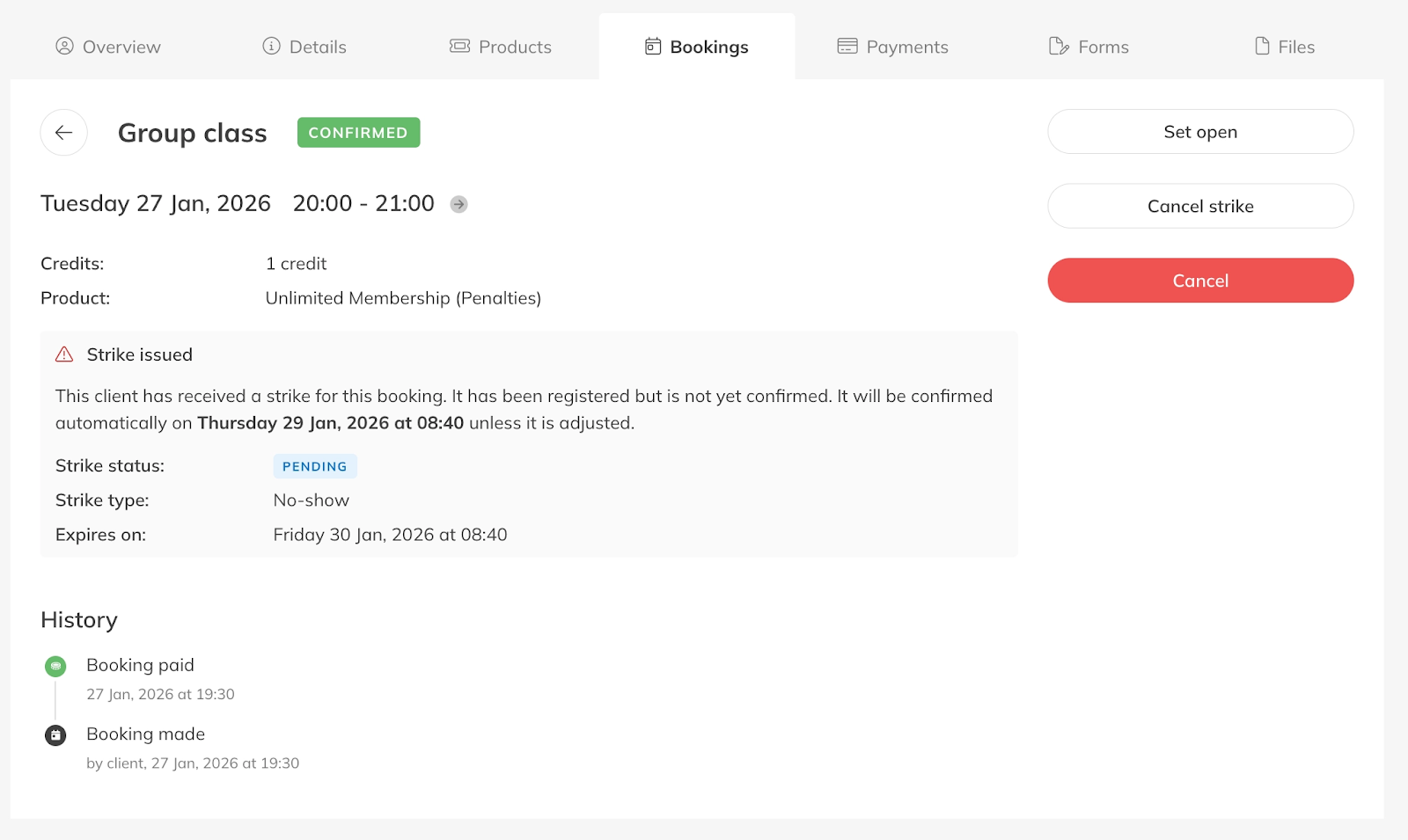
Step 1: View the customer's strikes and penalties: Customers > Select Customer > Bookings
– Here you can see all strikes or penalties linked to the client, including the reason they were applied.
Step 2: Remove a penalty or strike if needed: Select booking > Cancel strike
– Use this option if a penalty was applied incorrectly or if you decide to make an exception for the client.
Best Practice
Only remove penalties when there is a clear reason, such as a technical issue or a legitimate exception. Consistent enforcement of penalties helps clients respect your cancellation policy.
Pro Tips
Keep notes internally when manually adjusting strikes or penalties so your team understands why a change was made.
If multiple staff members manage bookings, align on clear rules for when a penalty may be removed to keep your policies consistent.
Regularly review customer profiles if clients frequently cancel or miss sessions to decide whether policy reminders are needed.
Common Questions
How can I cancel a penalty fee?
– When a payment request for the penalty has been sent, you have two options:
If a payment request has been sent, you can cancel or credit the payment via options.
If a client has provided a payment mandate, the penalty fee is automatically collected. You can only cancel the request via Mollie if it has just been sent. Otherwise, you can do a refund later.
Are strikes adjusted when penalty settings are changed?
– When you adjust settings via Settings > Penalties, previously registered strikes are not adjusted. Future sessions, such as training sessions or classes, are adjusted if the time of registration or confirmation is changed, so that strikes are registered earlier or later, for example.
Will removing a penalty affect past bookings?
– No. Removing a penalty only updates the customer’s strike or penalty record and does not change the original booking.
What happens after a penalty is removed?
– The customer's strike or penalty count will update immediately in their profile.
Related Articles
– How to configure automated Penalties for no-shows and late cancellations
– How to enable penalties in your products
– How to disable penalties for specific Activities
– How to get insights and view reports on strikes and penalties
– How can my customers view their strikes and their penalties