How to Manage the Waiting List for Fully Booked Classes
Estimated Reading Time: 3 minutes
Applies to: All Plans
Quick Summary
The Waiting List allows clients to sign up for a class even when all available spots are filled.
If a participant cancels their booking, the first client on the waiting list is automatically added to the session and receives a notification.
Why This Matters
Popular classes often fill up quickly, which can lead to missed opportunities for clients who still want to attend.
Using a waiting list ensures that empty spots are filled automatically, helping you maximize attendance and improve the booking experience for your clients.
Step by Step Instructions
Step 1: Open your activities overview: My Company > Activities
– This is where you manage all group activities, classes, and training sessions.
Step 2: Edit the activity you want to update: Activities > Options > Edit
– Select the group activity where you would like to enable the waiting list.
Step 3: Open the booking settings: Activities > Edit Activity > Booking Settings
– Scroll to the booking settings section where booking behavior and capacity rules are configured.
Step 4: Enable the waiting list: Activities > Edit Activity > Booking Settings > Waiting List Option
– Activate the waiting list so clients can join the list when the class reaches full capacity.
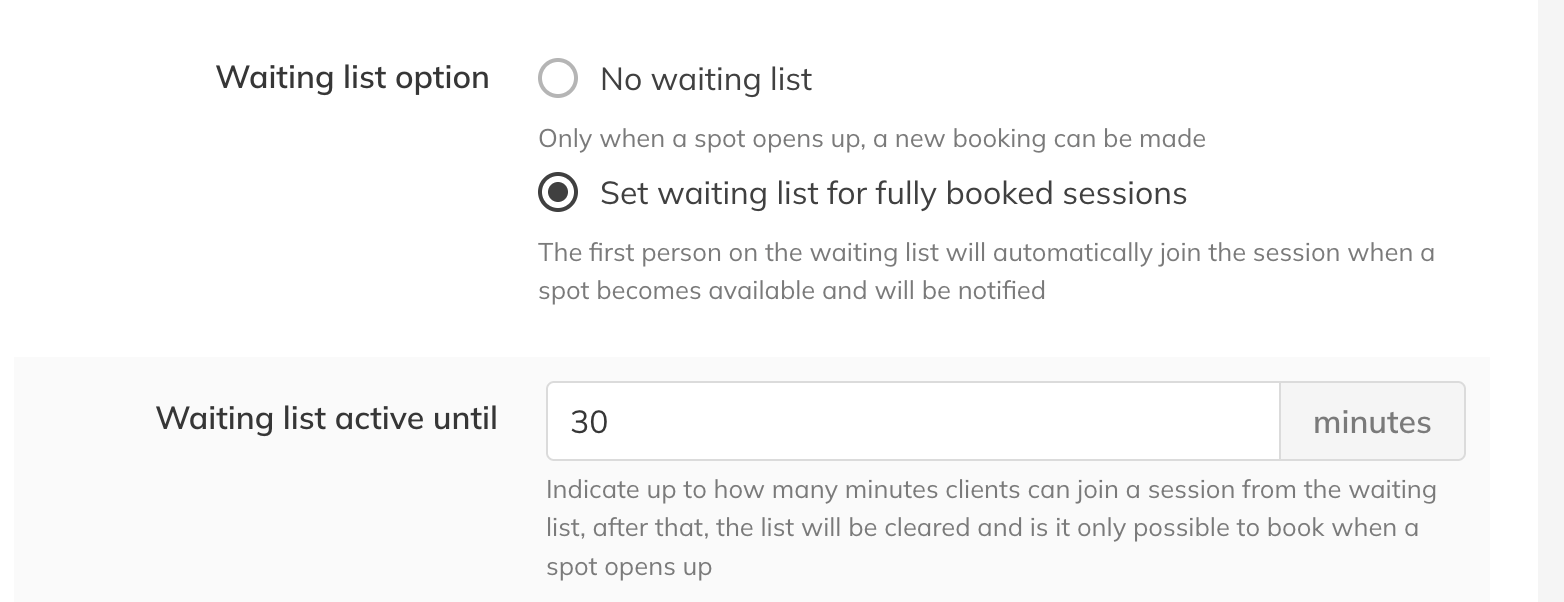
Step 5: Set when the waiting list closes: Activities > Edit Activity > Booking Settings > Waiting List Active Until
– Define how long the waiting list stays active before the class starts. The default setting is typically 30 minutes before the session begins.
Best Practice
Use the waiting list for popular group activities where cancellations frequently occur. This helps ensure every available spot is filled automatically. There is no limit to the number of clients that can join a waiting list.
Common Questions
How does the waiting list work when someone cancels?
- When a participant cancels a booking, the first person on the waiting list is automatically added to the session and receives an email notification.
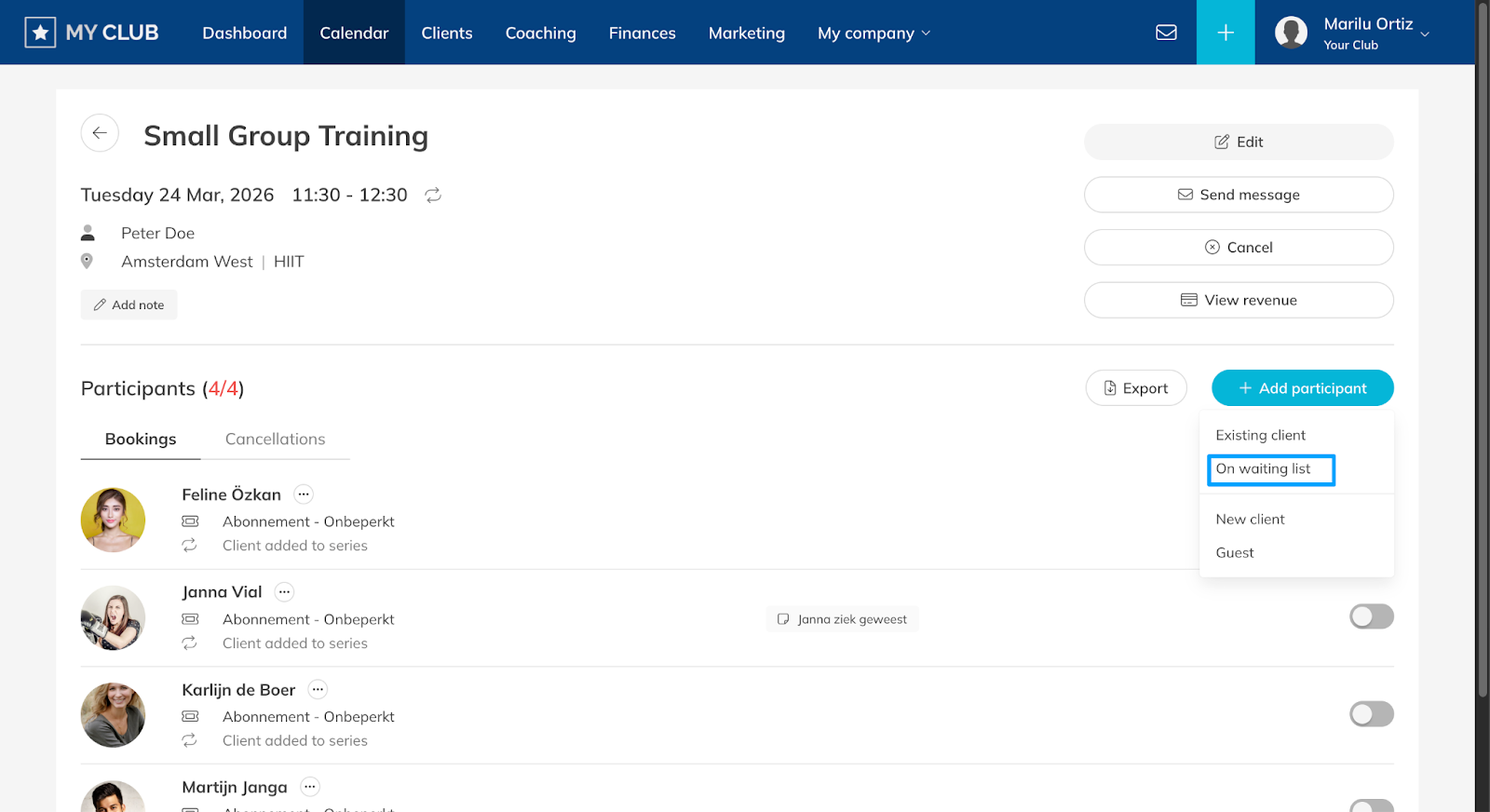
Can I add a client to the waiting list manually?
- Yes, if a class is full you can add a customer to the waiting list of the session manually by going to the session in the calendar and selecting the “add participant” button.
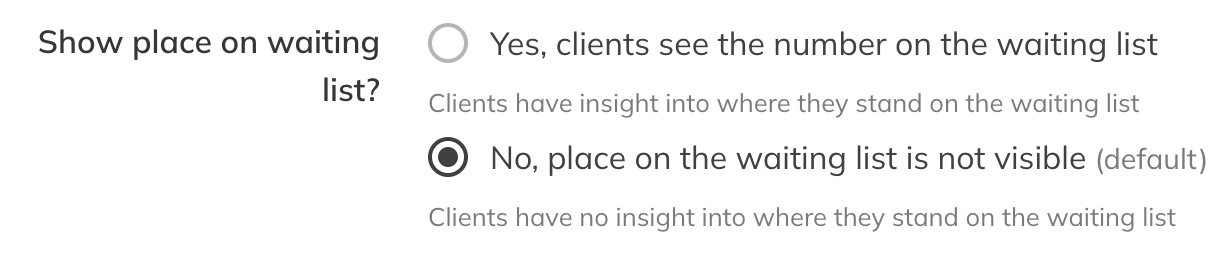
Can clients see their position on the waiting list?
- You can enable that the customer can see their position on the waiting list. You can do this via My Company > Settings > Schedule.
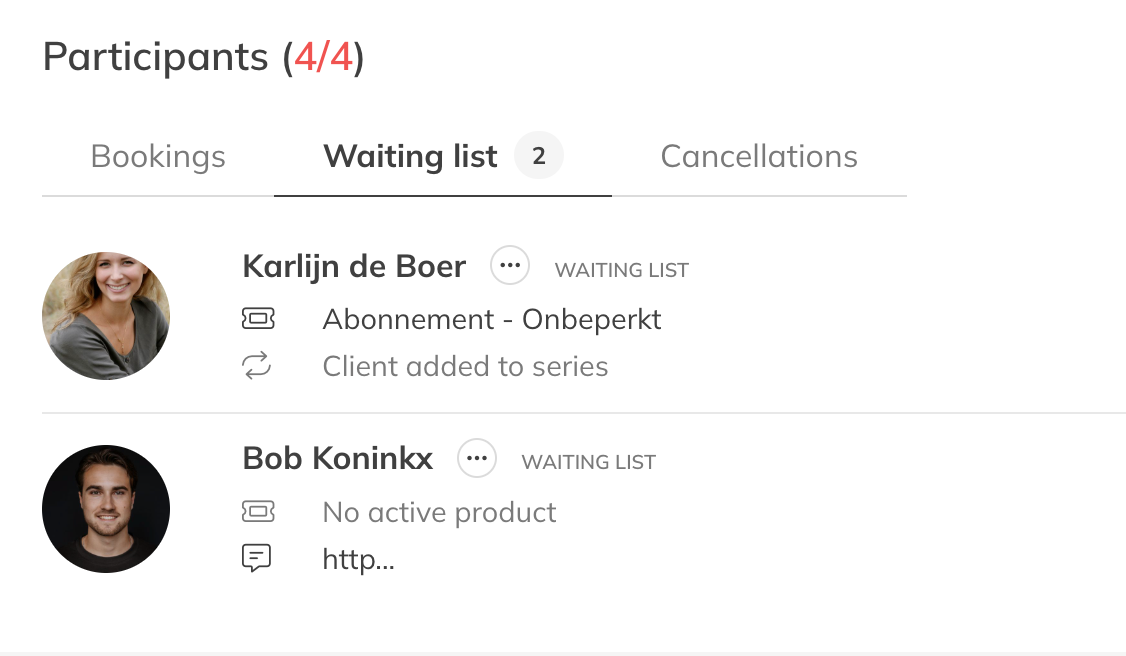
Administrators can also view the order of the waiting list in the calendar.
If you run popular classes that frequently fill up, enabling the waiting list can help keep your sessions full and improve client satisfaction.
Related Articles
– How to add your (or your team's) tasks in the schedule
– How to Edit, Update, or Cancel Scheduled Activities in Trainin
– How to manually Book Your Customers to Scheduled Activites