How to Process Manual Payments (Cash, Bank Transfer, Other)
Estimated Reading Time: 4 minutes
Applies to: All plans
Quick Summary
How to handle and correctly register payments that are made outside Trainin, such as bank transfers or cash payments.
There are probably two common situations: confirming an already existing outstanding payment or creating a manual invoice for a payment that will be transferred to your bank account.
Why This Matters
It is important to do this to keep your financial records accurate, ensuring clients pay for the products and services used, payment statuses are up to date, and to avoid confusion.
Step by Step Approach
Part 1: Manually Confirm an Outstanding Payment
Step 1: Locate the open payment: Go to Finances > ‘Outstanding’
or go to the client account > click the payments tab
– Here you will find the client or order with the open / outstanding payment.
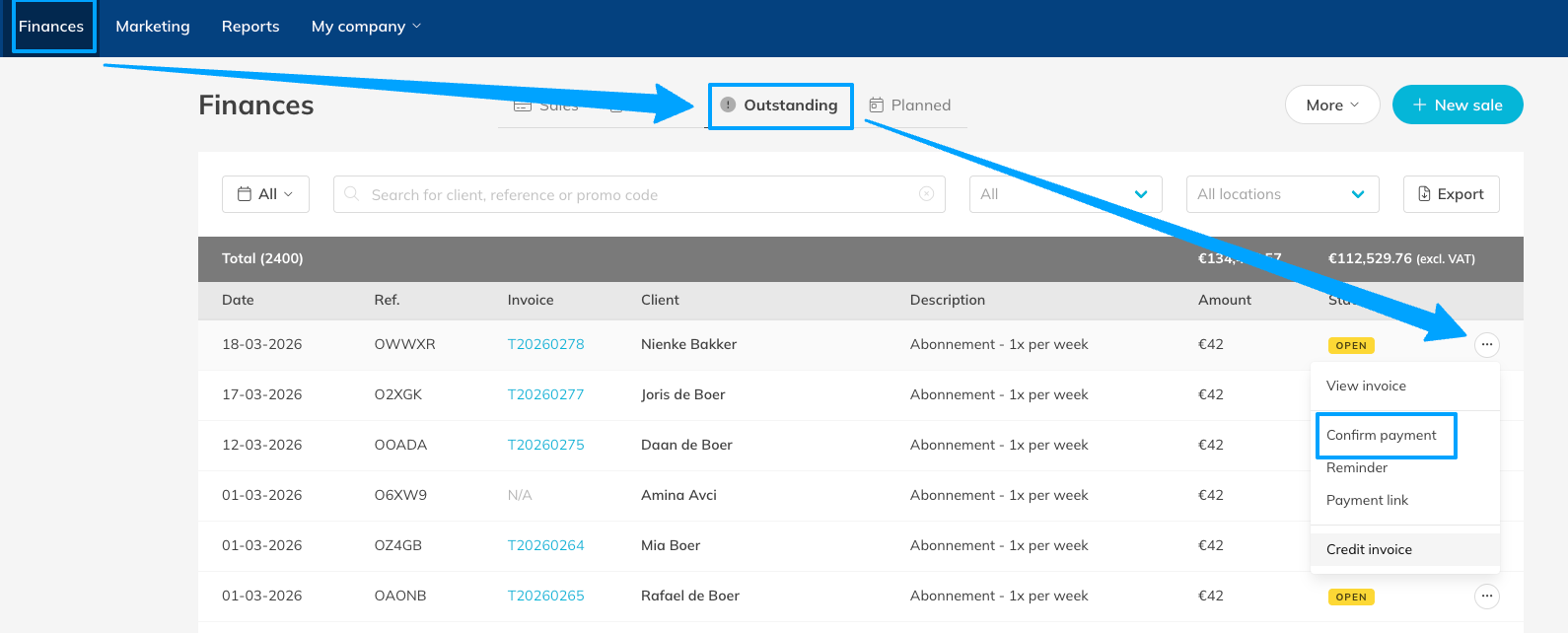
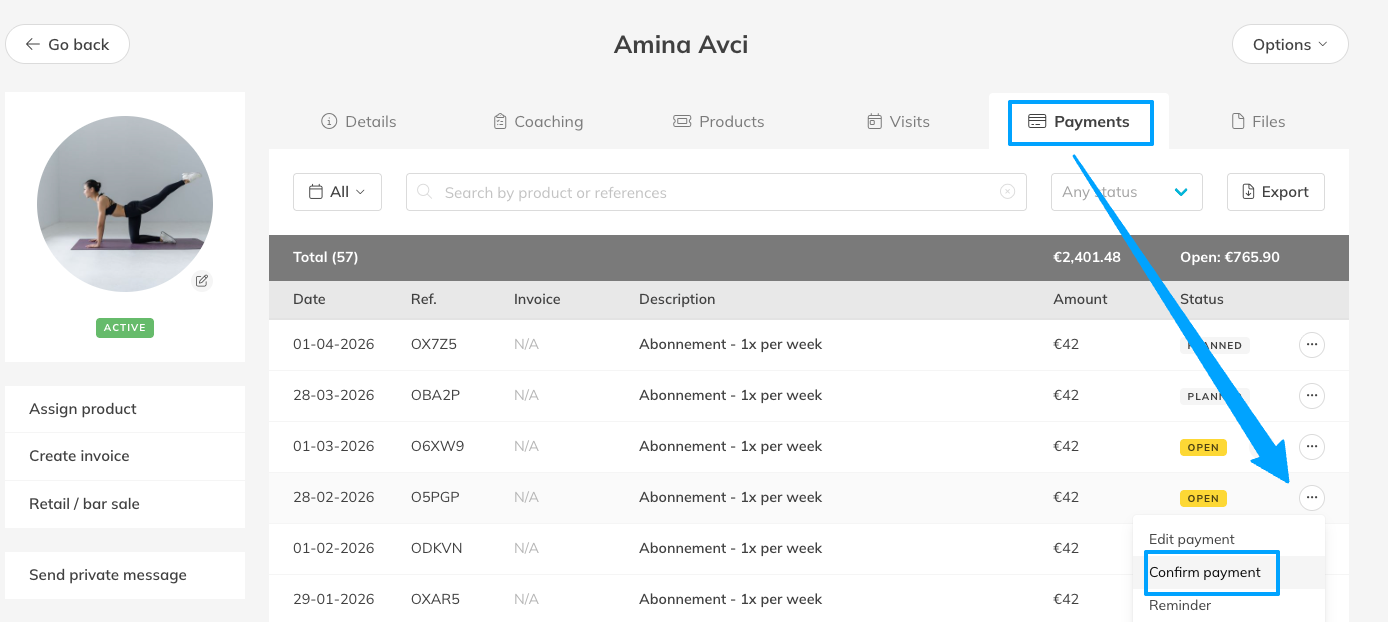
Step 2: Open the payment details: Click on the open payment or click on the 3 dots on the right to edit the payment. > Select ‘confirm payment’ next, select the payment method used. You can choose from the following options:
- Cash
- PIN/Card
- Bank transfer
- Other
- Multiple
Step 3: Click ‘Yes, confirm payment’ and verify the updated payment status: it should now show as ‘Paid’ and the selected payment method should also be reflected in the details.
Part 2: Create an Invoice for a Manual Bank Transfer (or other payment method)
Step 1: Create a new invoice: Go to the client account > Options
or click on the + sign on the top right of your screen (next to your own name)
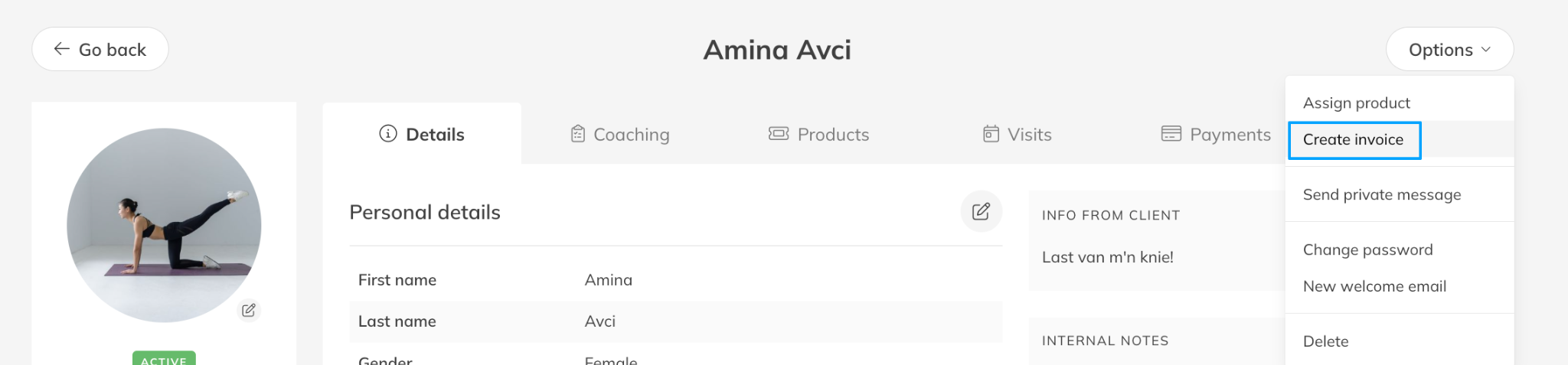

> select ‘create invoice’.
Step 2: Now select a Product with a one-time payment or click ‘custom line’.
– In a custom line,
– Describe what the client is paying for, being specific will help the client understand the invoice. The client may need something different on the invoice to be able to process it on their side i.e. ‘coaching’ instead of ‘personal training’.
– Specify which period or what amount of sessions / products they are paying for with this invoice.
– If needed create more than one line. Add the quantity, price per unit and the VAT. Add any remarks if needed.
Step 3: You can now select Payment options for the invoice:
– You can send the payment link directly (will be paid via Trainin and be marked as paid when the payment is received).
– You can mark as paid and send the invoice by email (you can again select the payment method).
– Or you can create the invoice and send it manually with i.e. the instructions of how the client should pay.
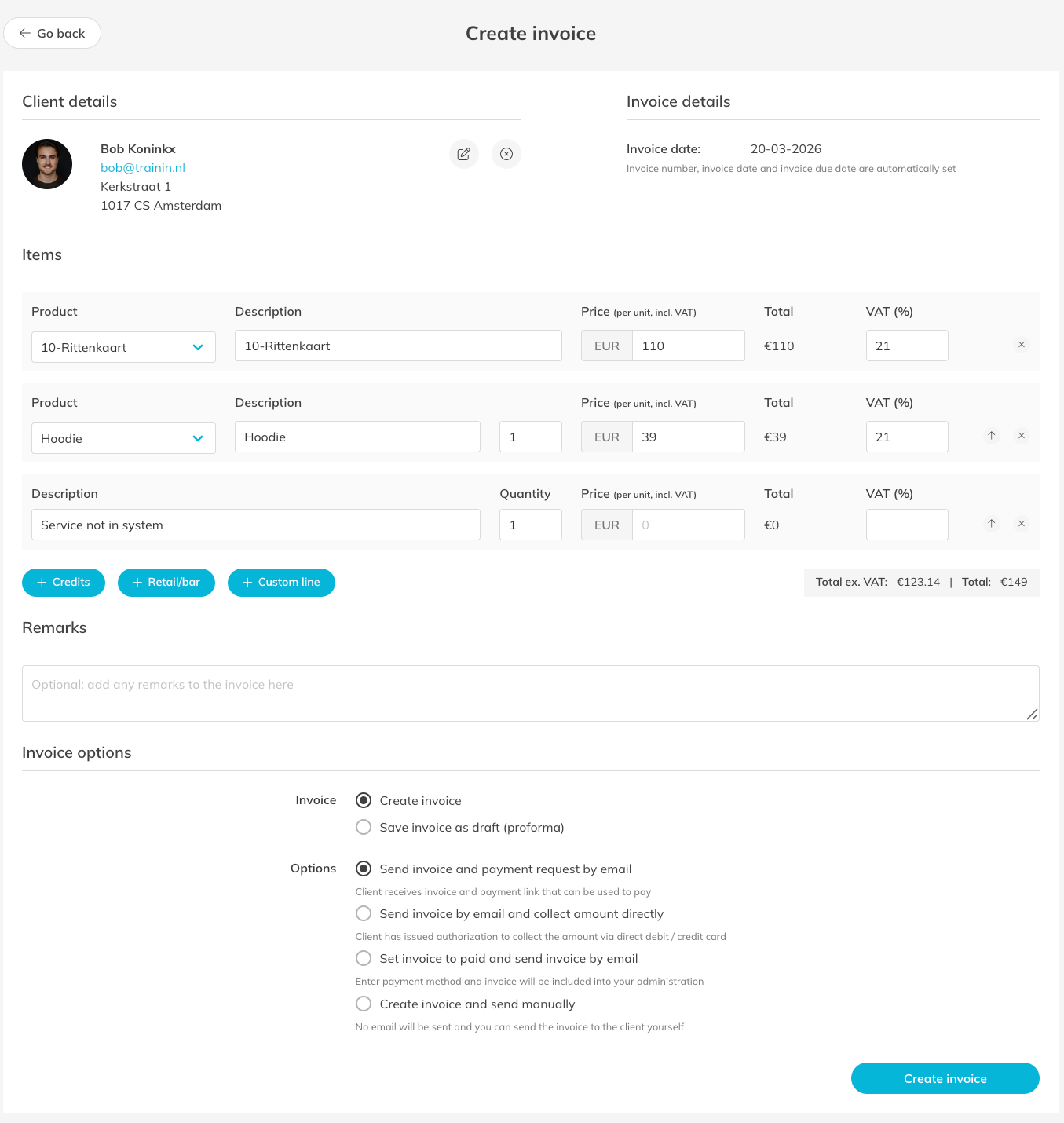
Step 4: Click ‘create invoice’ and send it to the client or save the invoice for your own records. The client will also be able to find this invoice in their client account.
Best Practice
Only mark an outstanding payment if you are certain you received the money (not when someone tells you they already paid). When someone pays through Trainin/Mollie the payment status will automatically be updated once the client has paid.
Pro Tips
Keep the manual payments to a minimum as the chance for mistakes is higher
Mark an outstanding payment as paid as soon as you have received the money
Check your ‘outstanding’ payments regularly as the status of a payment can change (also from paid to open when a client’s direct debit failed or was reversed for example).
Common Questions
When should I confirm a payment manually?
– When you have received the money from your client in an alternative manner (not via Trainin / Mollie)
Can I still give a client access to a Membership or Credit Pack if the payment is manual?
– Yes, definitely.
What happens if I forget to confirm a manual payment?
– The payment will remain ‘open’ and you might send the client a payment reminder for the payment they have already done
How can I see what has happened to a payment in Trainin?
– By opening a payment (clicking on it) you can see the history of that payment, and what has happened to it (i.e. status changes).
Related Articles
– How to Edit a Planned Payment (Order)
– How to Modify the Price of a Customer’s Assigned Membership
– How to track outstanding Debts and unpaid Orders