How to generate a manual invoice for a customer
Estimated Reading Time: 5 minutes
Applies to: All plans
Quick Summary
You can create a manual invoice in Trainin when you need to charge a client for products or services outside the normal checkout process.
Manual invoices can be created for existing clients or guests and allow you to add custom products, services, or adjustments.
Why This Matters
Manual invoicing ensures that payments arranged outside the platform are still recorded properly in your financial administration.
It also allows you to invoice for custom services or special agreements with clients.
Step by Step Approach
Option 1: Create an invoice from Finances
Step 1: Open the finances section: Finances
– This section allows you to manage sales, payments, and invoices.
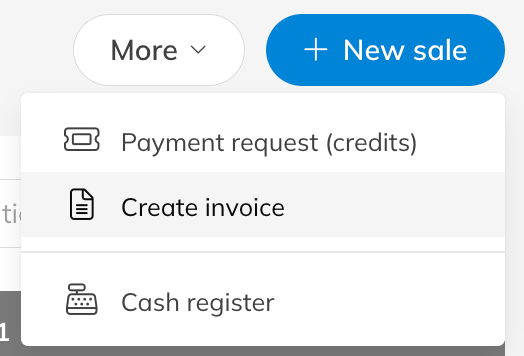
Step 2: Create a new sale: Finances > New sale > Create invoice
– This opens the invoice editor where you can manually create the invoice.
Option 2: Use the quick action button
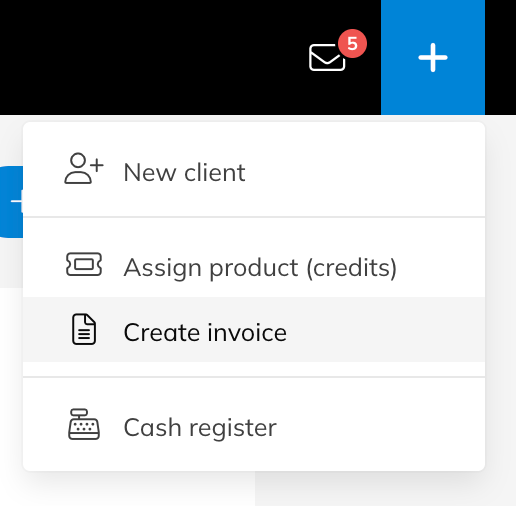
Step 1: Open the quick action menu: +
– The quick action button is located in the top right corner of the platform.
Step 2: Create the invoice: + > Create invoice
– This opens the same invoice creation screen.
Step 3: Add the client information
– Select an existing client by searching their name or email address, or create the invoice for a guest by entering the name and address details.
Step 4: Add invoice items
– Add products or services to the invoice. You can add existing products such as Credit Packs or retail products, or create a custom invoice line.
Step 5: Adjust item details if needed
– You can edit the description, quantity, unit price, and VAT rate for each item.
Step 6: Add remarks (optional)
– Include comments that should appear on the invoice if necessary.
Step 7: Choose the invoice options
– You can create the invoice immediately, save it as a draft or proforma invoice, send it with a payment link, or mark it as paid if payment has already been received.
Best Practice
Always review the invoice details before sending it to ensure that the product descriptions, quantities, and tax settings are correct.
Pro Tips
Invoice number, invoice date, and due date are generated automatically when the invoice is created based on your configured payment terms.
If a payment has already been received but no invoice was created, you can still generate one afterwards from the payment options.
Common Questions
Can I create an invoice for someone who is not a client?
– Yes. You can create an invoice for a guest by entering their details manually.
Can I delete an invoice after creating it?
– No. Once an invoice is created it cannot be deleted. If there is a mistake, you must create a credit invoice.
Can I add custom services to an invoice?
– Yes. You can create custom invoice lines for services that are not part of your standard products.
Related articles
– How to Correct an Invoice Using a Credit Note