These settings only apply to you. You find them via your name at the top right → My account, under Preferences. On your phone, tap More → My account.
Dashboard settings
Under Dashboard settings, choose what your dashboard shows and click Save.
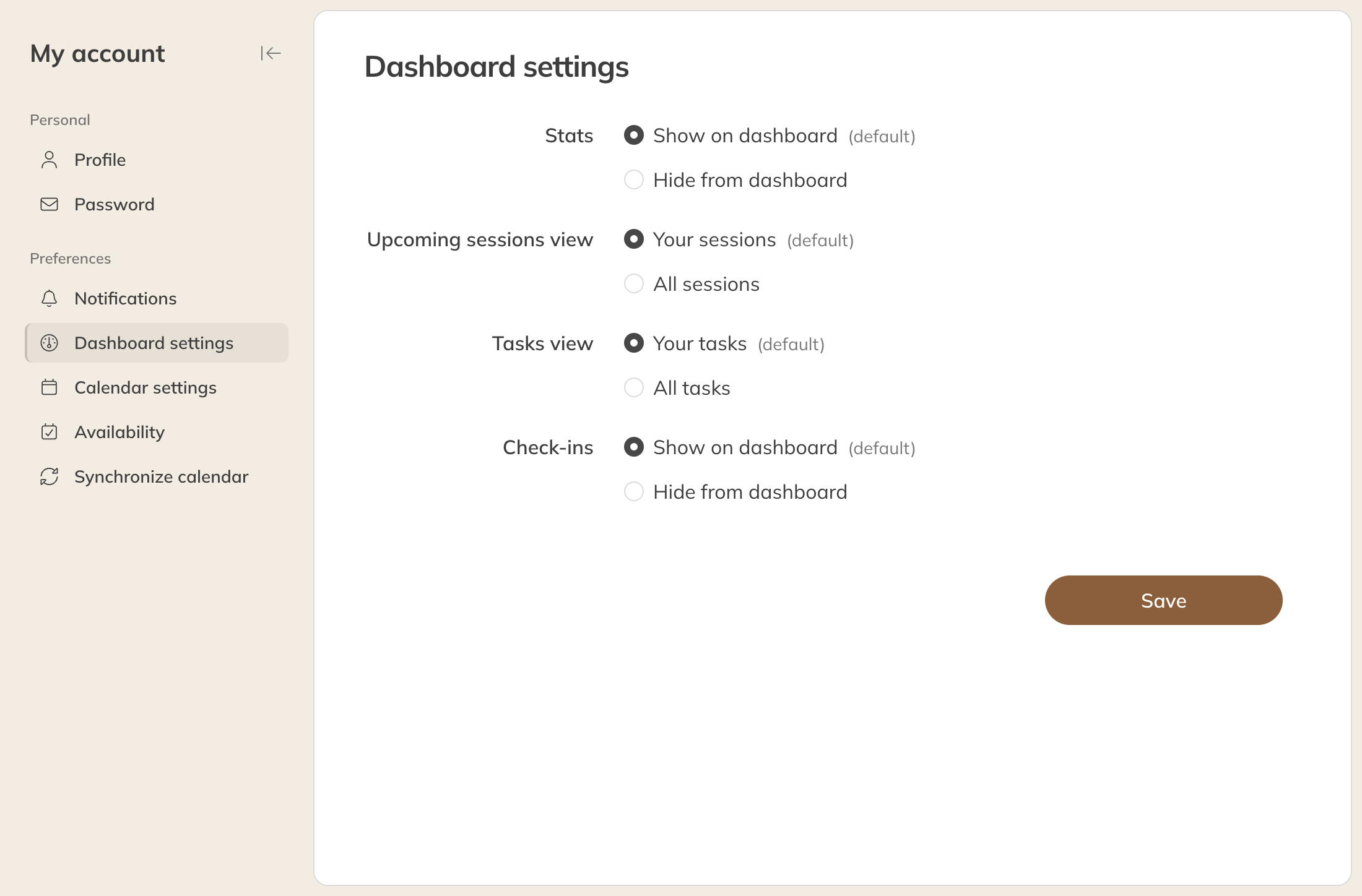
Dashboard settings
| Option | What it does |
|---|---|
| Statistics | Show or hide the figures at the top of your dashboard. Only if you are allowed to see them. |
| Upcoming sessions view | Your sessions or All sessions. From Pro, and only if you are allowed to see the whole calendar. |
| Tasks view | Your tasks or All tasks. From Pro, and only if you are allowed to see all calendar items. |
| Check-ins | Show or hide the check-ins. Only if you have access control and are allowed to see check-ins. |
Which notifications you get
Under Notifications, turn on each notification you want to get, for example Session(s) scheduled, Booking request received or Chat received, and click Save.
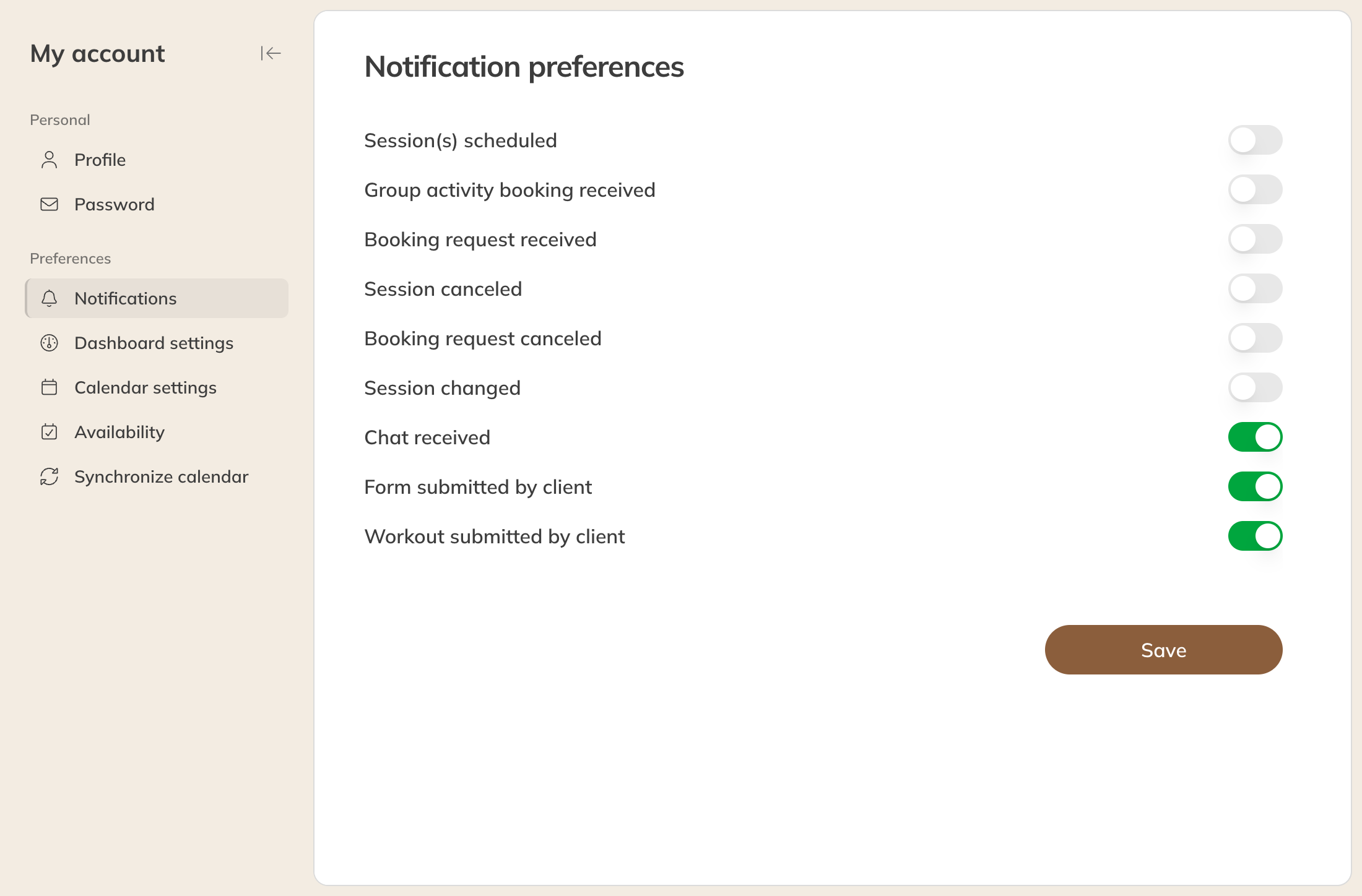
Your notification preferences
You only see notifications here that your company has turned on for staff. An admin can also change your preferences for you. See Turning company notifications on and off.
The bell: your notifications
Click Notifications (the bell) at the top. The number on it is the number of unread notifications.

Your notifications under the bell
- Choose Inbox or Unread. Click a notification to go to it, for example to a chat or an export that is ready.
- From a notification's options, choose Mark as read, Mark as unread or Archive.
- Mark all as read marks everything as read in one go.
- See all opens the page with all your notifications. There you search and filter by type, and you also find the Archived tab. Under More you find Archive all.
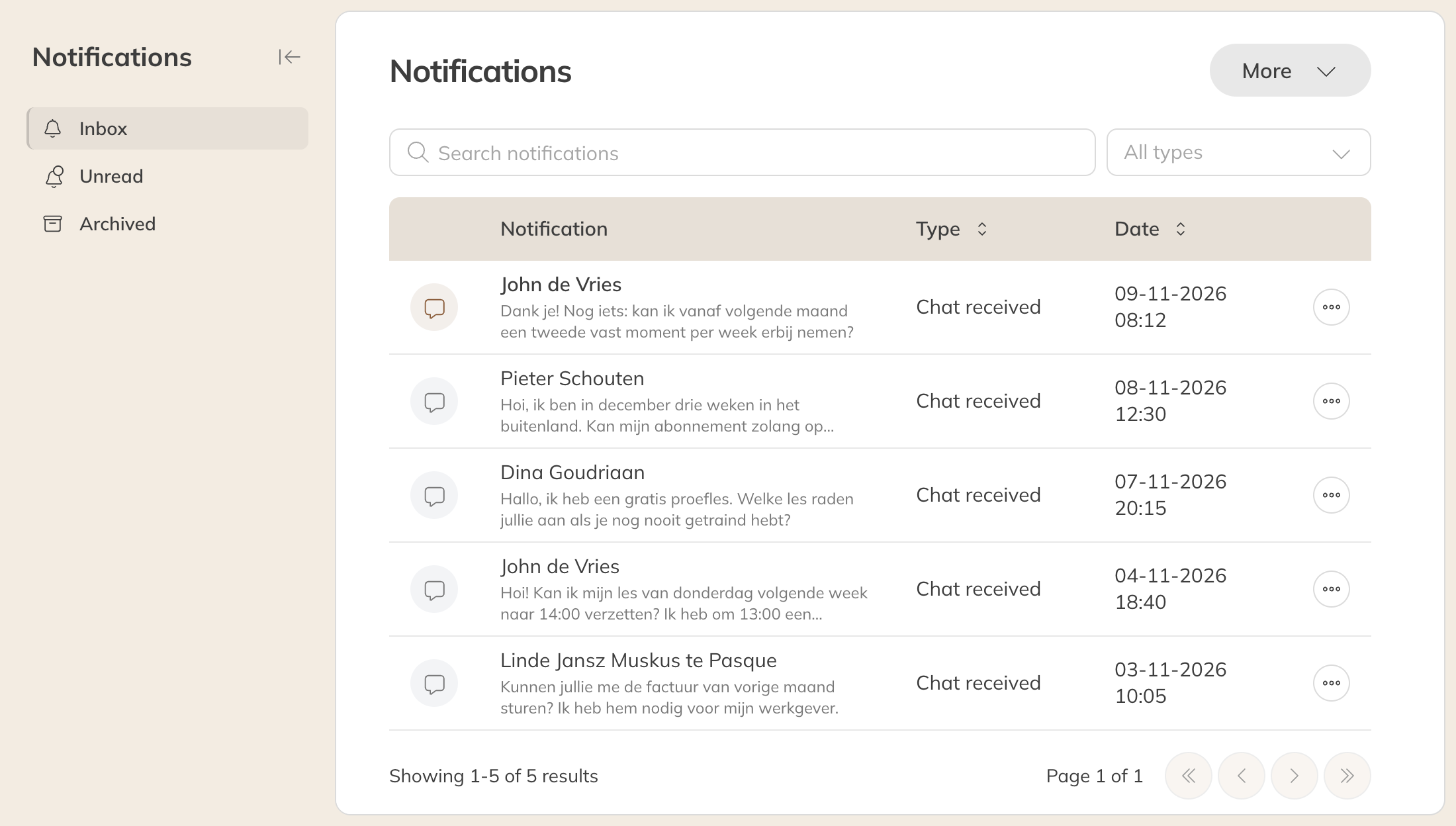
All your notifications
Note: Admins and managers also see the company notifications, such as a product being sold. These are the same for everyone.