As a staff member
- Go to Calendar and click Synchronize calendar.
- Choose Your sessions or, if you have the permission, All sessions.
- Click Sync with your calendar. If that doesn't work, for example on an Android phone, click Copy and add the link in your calendar app as a calendar subscription.
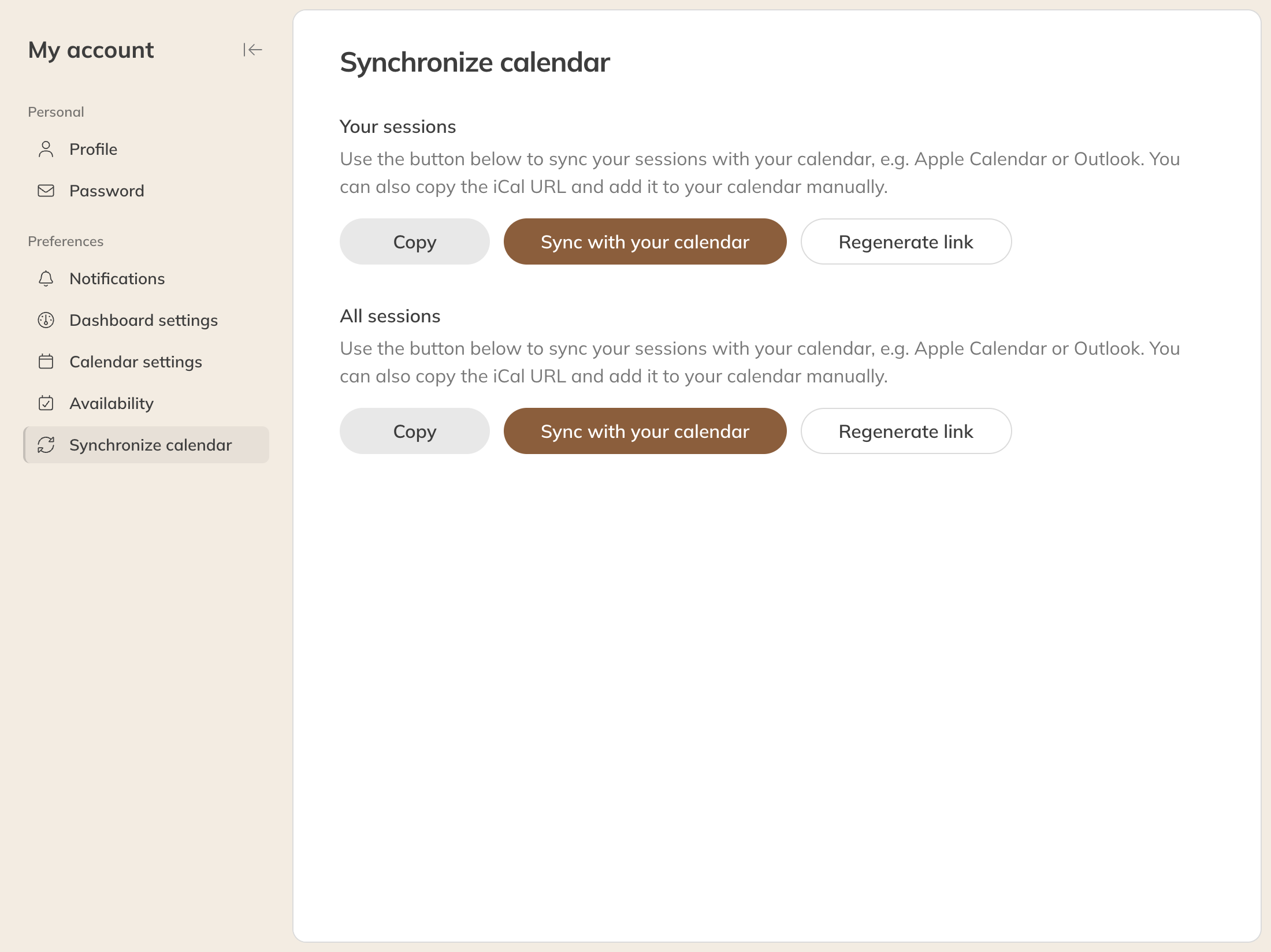
Syncing your calendar
In your own calendar you see sessions from one month ago onwards. A private session shows the client's name with the activity. Items and absences are included, tasks aren't.
As a client
Clients go to their account in the app, then to Preferences → Sync calendar. That's where the link for their own calendar is. They see their bookings as Activity (Company name).
A client can also add a single session to their calendar from the booking confirmation.
Why don't I see a change yet?
Your own calendar fetches the data from Trainin itself, at a moment that calendar chooses. Trainin can't send an update. So there's always some time between a change in Trainin and your own calendar:
- Trainin refreshes the link every 15 minutes for staff, and every hour for clients.
- You can set Apple Calendar and Outlook to refresh more often, for example every 5 or 15 minutes.
- Google Calendar decides this itself. It can take up to 12 hours, and you can't speed it up.
Tip: For the latest situation, always check Trainin itself.
Note: Think someone else has your link? Click Regenerate link. The old link then stops working; add the new one to your calendar again.