If an activity is set to Request, a client doesn't book straight away but sends a request. The booking is only final once you or a colleague accepts the request. You set this per activity under Booking option; see Booking options: who books, when and with which product.
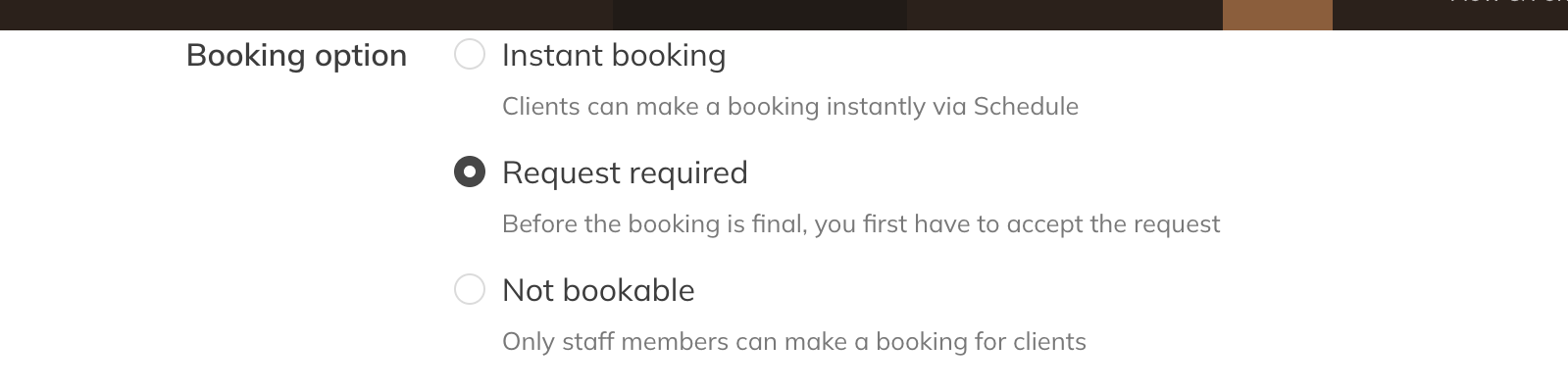
An activity set to Request
Where you see requests
When a new request comes in, your company and the session's instructors get a notification, depending on your notification settings. You'll find the requests:
- on the Dashboard, in the Booking requests block;
- under Reports → Bookings & sessions → Booking requests: all requests that are still waiting;
- in the session's participant list in the calendar, and with the bookings in the client's profile.
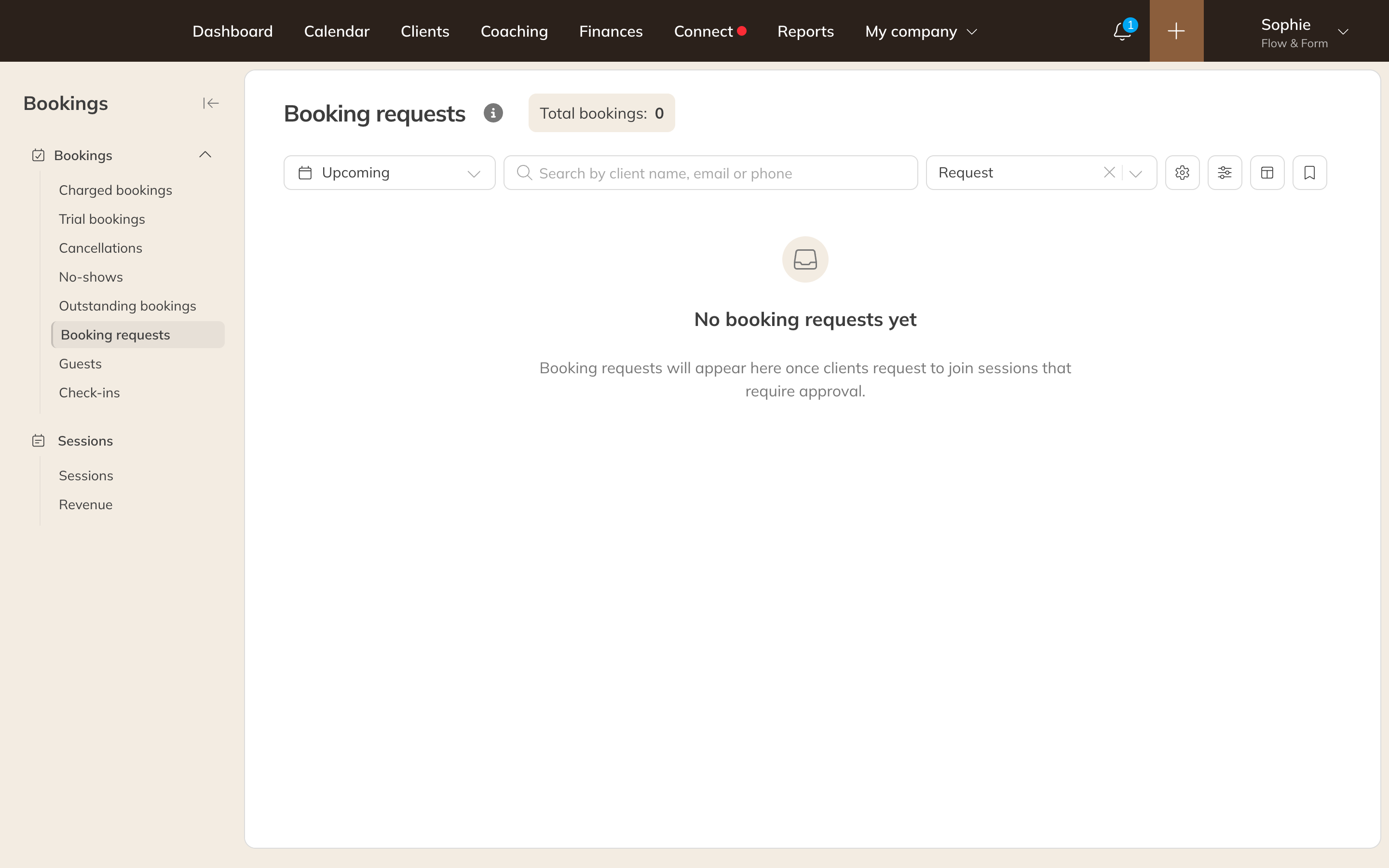
The Booking requests list
Accepting or rejecting
- Click the tick (Accept booking request) or the cross (Reject booking request) next to the request.
- Confirm with Accept or Reject.
The client is notified that their request has been accepted or rejected.
Note: If the client requested a whole series, you answer all their requests for that series in one go. Accept one, and you accept them all.
What happens when you accept
| The client requested with | What happens |
|---|---|
| Credits from a product they already have | The credit is deducted and the booking is paid. |
| A free product | The client gets the product and the booking is paid with it. |
| A product they still need to buy | The payment becomes outstanding and the client is asked to pay it. As soon as they pay, the product starts and the booking is paid. |
If nobody responds in time
- A request nobody accepts in time is rejected automatically: fifteen minutes after the activity's Bookable up to deadline has passed. That's why this deadline must be at least 1 hour for an activity set to Request.
- An accepted request that hasn't been paid yet stays outstanding by default, so the client can pay on the spot or afterwards. If you want such a booking to lapse as soon as the session starts, set Unpaid accepted booking requests to Cancel at session start in the calendar settings. See Calendar settings for the whole company.
Tip: A staff member who may only manage their own sessions can only answer requests for their own sessions.