Every client has a status. You see it in the client list in the Status column, as a label at the top of the client's profile, and in the number of Active clients on the dashboard. Trainin sets the status itself, based on products, bookings and visits. You don't have to keep track of anything.
The statuses
| Status | When |
|---|---|
| Inactive | The client has never had any product other than a trial product. |
| Trial | The client has a trial product or an upcoming trial booking. |
| Active | The client has a current product, or a booking ahead. A waiting list spot, a request or an invitation also counts. |
| Stopped | The client had a product before, but has nothing current now. |
| Recent | The first days (30 by default) after a client becomes Active. This only happens once: a client who stops and comes back is simply Active. |
| At risk | An active client who hasn't booked for a while (30 days by default). |
| Sleeping | An active client who hasn't booked for even longer (60 days in total by default), or whose current memberships are all paused. |
If a client has a regular product as well as a trial product, the client is Active, not Trial. Whether the product is free doesn't matter.
Recent, At risk and Sleeping are a refinement of Active: the Engagement statuses. If you turn one off, you'll just see those clients as Active.
Which statuses you see
| Plan | Statuses |
|---|---|
| Starter | Active and Inactive. A client on trial counts as Active, a client who has stopped as Inactive. |
| Pro | Also Trial and Stopped. |
| Premium | Also Recent, At risk and Sleeping. |
On the settings page you also see the statuses of a higher plan, but you can't change them. See What do Starter, Pro and Premium include?
Setting up
- Go to Clients → Client statuses.
- Under Current client lifecycle you see how a client moves through the statuses with your settings. Click What each status means for the explanation and the number of clients per status.
- Adjust the settings (see below) and click Save.
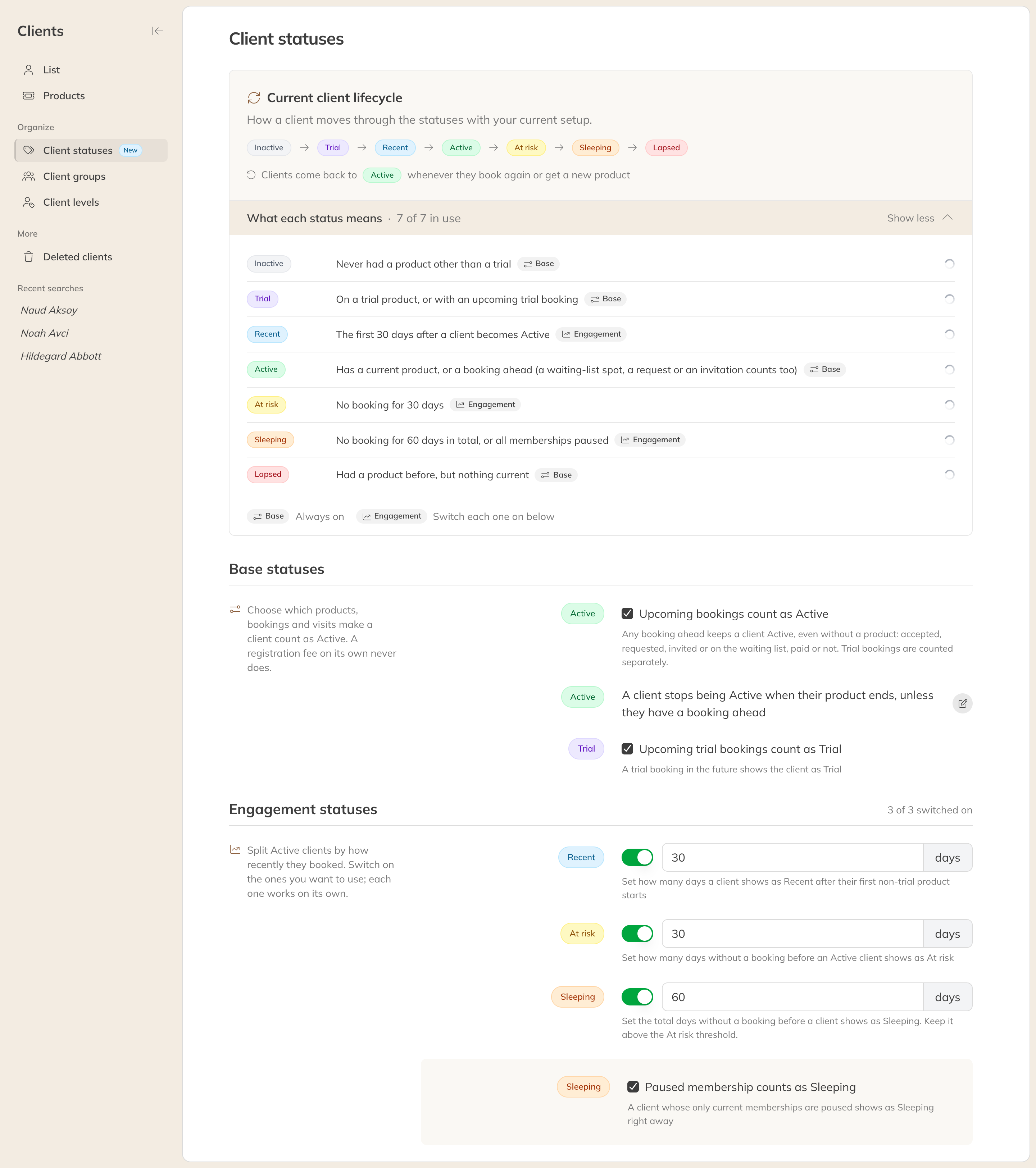
Client statuses, with the explanation per status open
Basic statuses
| Option | What happens |
|---|---|
| Upcoming bookings count as Active | On (default): any booking ahead keeps a client Active, even without a product, paid or not. Off: only a current product counts. |
| Upcoming trial bookings count as Trial | A trial booking in the future shows the client as Trial. |
A client stops being Active as soon as their product ends, unless they have a booking ahead. If you want a client to stay Active for a while after a visit, for example someone with a credit pack who doesn't come every week, click the pencil next to that line. Enter the number of days for each kind of product:
- Memberships stay Active after a visit: the number of days a member stays Active after a visit once the membership has ended. With 0 (default), the member becomes Stopped as soon as the membership ends.
- Credit packs stay Active after a visit: days after a visit paid with a credit pack.
- Singles & passes stay Active after a visit: days after a visit with a single session or pass. Visits without a product count here too.
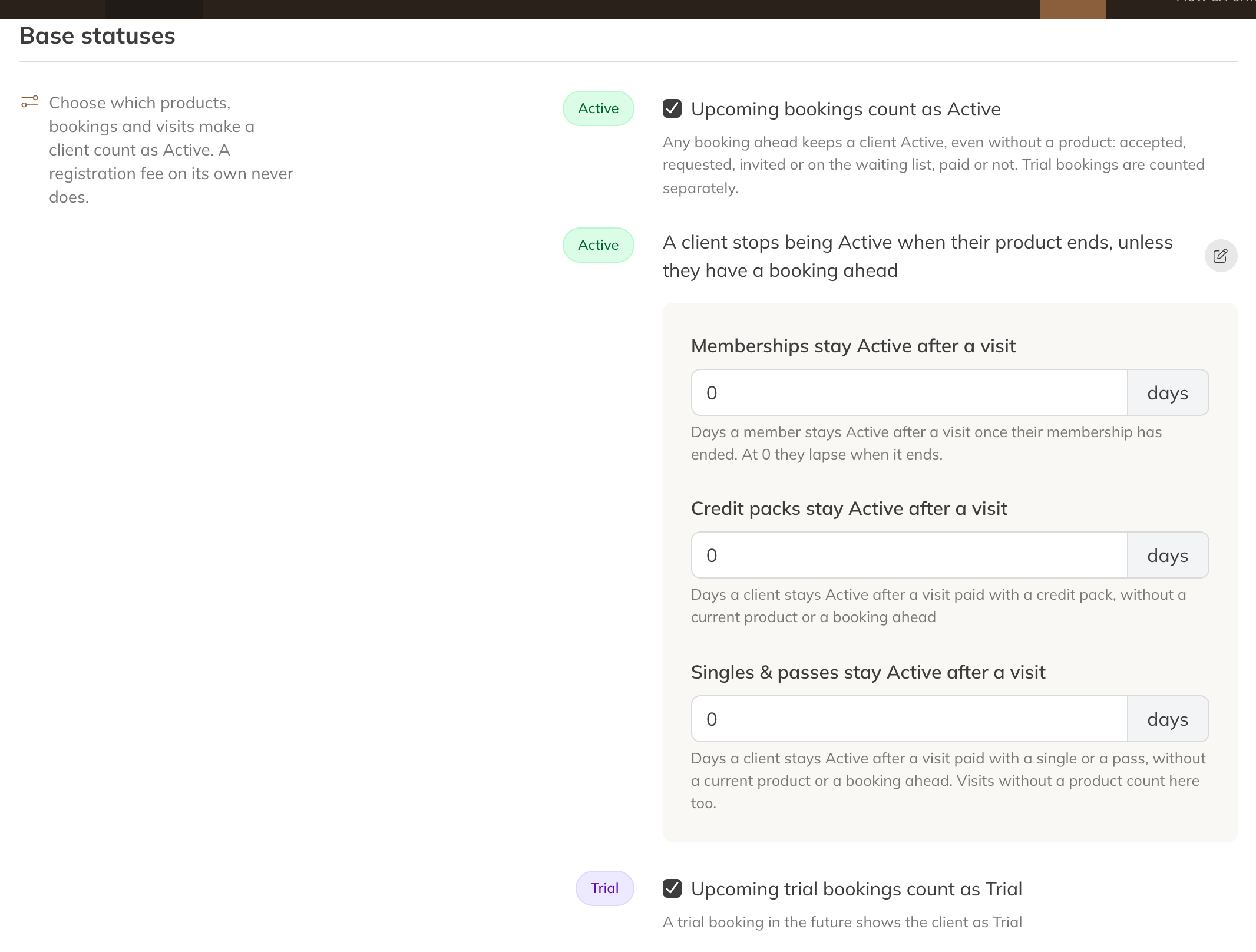
How long a visit keeps a client Active
Engagement statuses (Premium)
Turn each status on or off separately, and choose the number of days:
- Recent: how many days a client is Recent after their first product (not a trial product) starts.
- At risk: after how many days without a booking an active client becomes At risk.
- Sleeping: after how many days in total without a booking a client becomes Sleeping. This must be higher than the number for At risk.
- Paused membership counts as Sleeping: a client whose current memberships are all paused is Sleeping straight away.
A booking ahead keeps a client Active. If a client has never booked, the days count from the start of their first product.
Note: When you save a changed setting, Trainin recalculates the status of all your clients, including past ones. This happens in the background and can take a while. Until it's done, some clients keep their old status.
Using statuses
Filter the client list by status with All statuses, for example on At risk to reach out to clients before they stop. Save a list like that as a view so you can find it again with one click: see Saving views in tables.
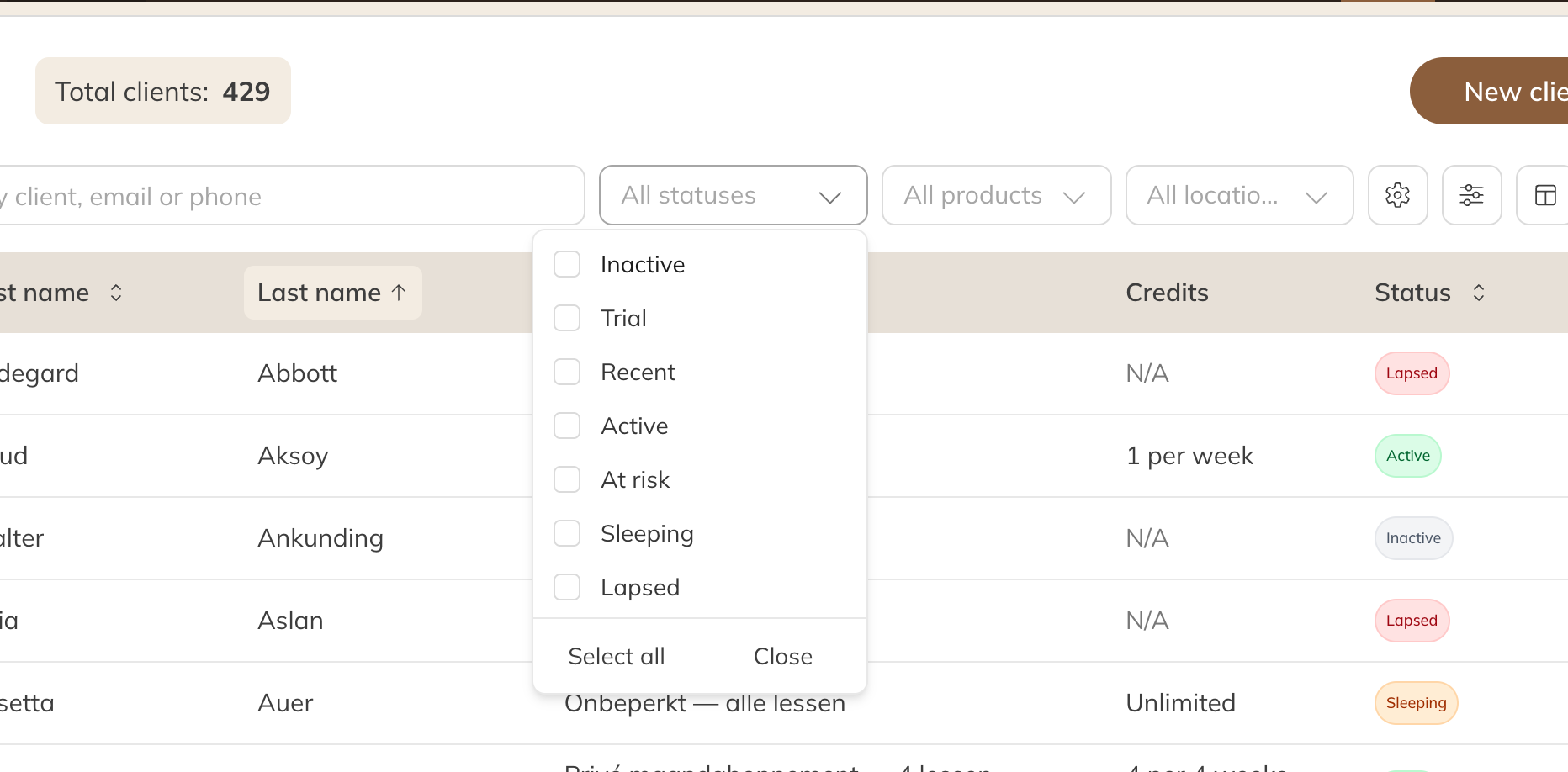
Filtering the client list by status
Tip: To set this up you need the permission Edit client status settings. See Roles and permissions.