Levels show how far along a client is, for example Beginner, Advanced or Expert. A client has one level. Levels are available from the Pro plan.
Creating a level
- Go to Clients → Teaching levels.
- Click New client level.
- Enter the Level name and choose a Color if you like.
- Click Save.
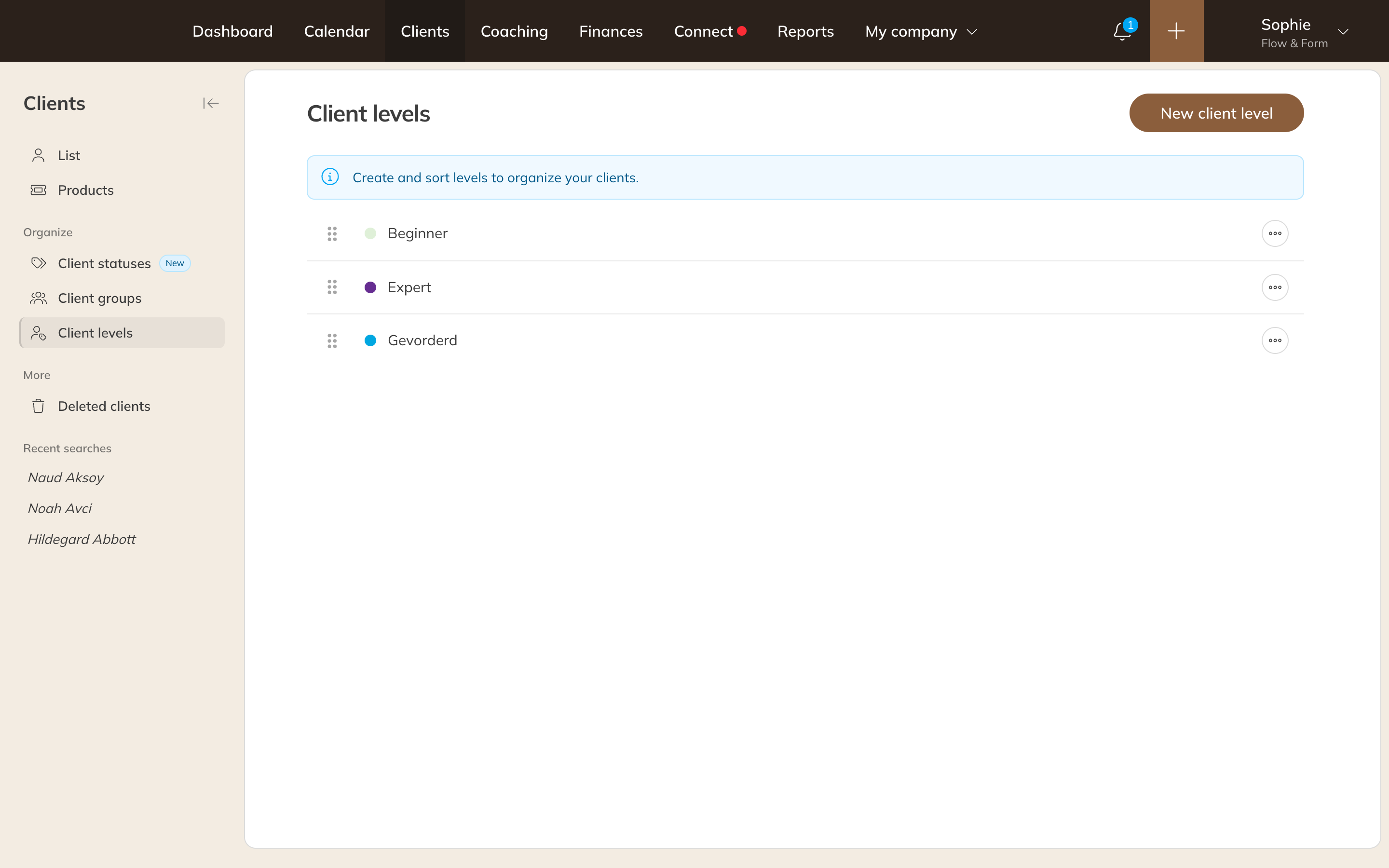
The levels overview
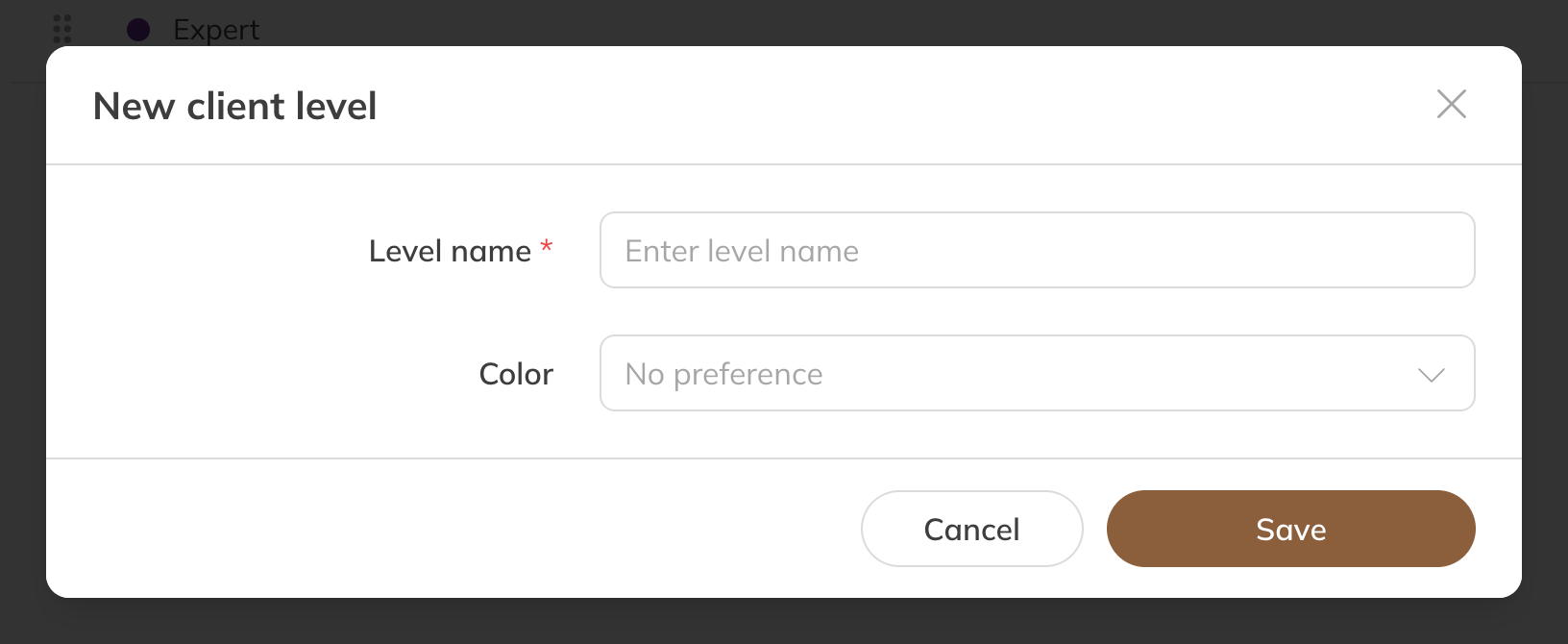
A new level
Drag the levels into the order you want. Use Options next to a level to choose Edit or Delete. If you delete a level, it also disappears from all clients who had it.
Giving a client a level
- In the client list: Options next to the client → Assign client level.
- In the client's profile: the Details tab, under Assignments next to Level.
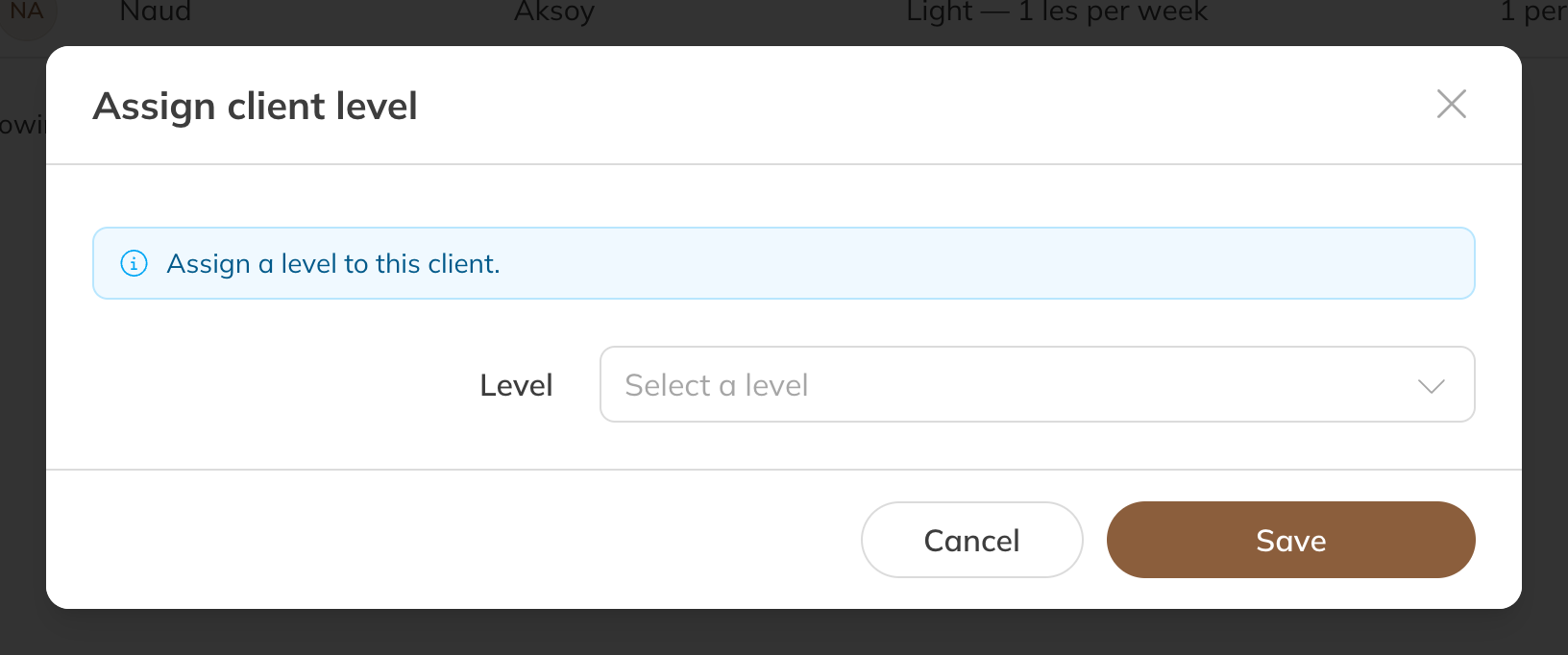
Assigning a level from the client list
In the client list, turn on the Level column through Columns, and filter by level. A family member can have their own level.
Note: A level is just a label. It doesn't determine what a client can book. If you want to make a product available to certain clients only, use client groups.
Tip: Creating and changing levels requires the permission Create, edit and delete client levels. Giving a level requires Assign clients to client levels.