A file for several clients
- Go to My company → Files.
- Click New file and at Type choose File or Url.
- Upload the file (PDF, Word, Excel, PowerPoint, CSV, text or image, up to 20 MB) or enter the link, and give it a Name.
- At Shared, choose Share file and click Save.
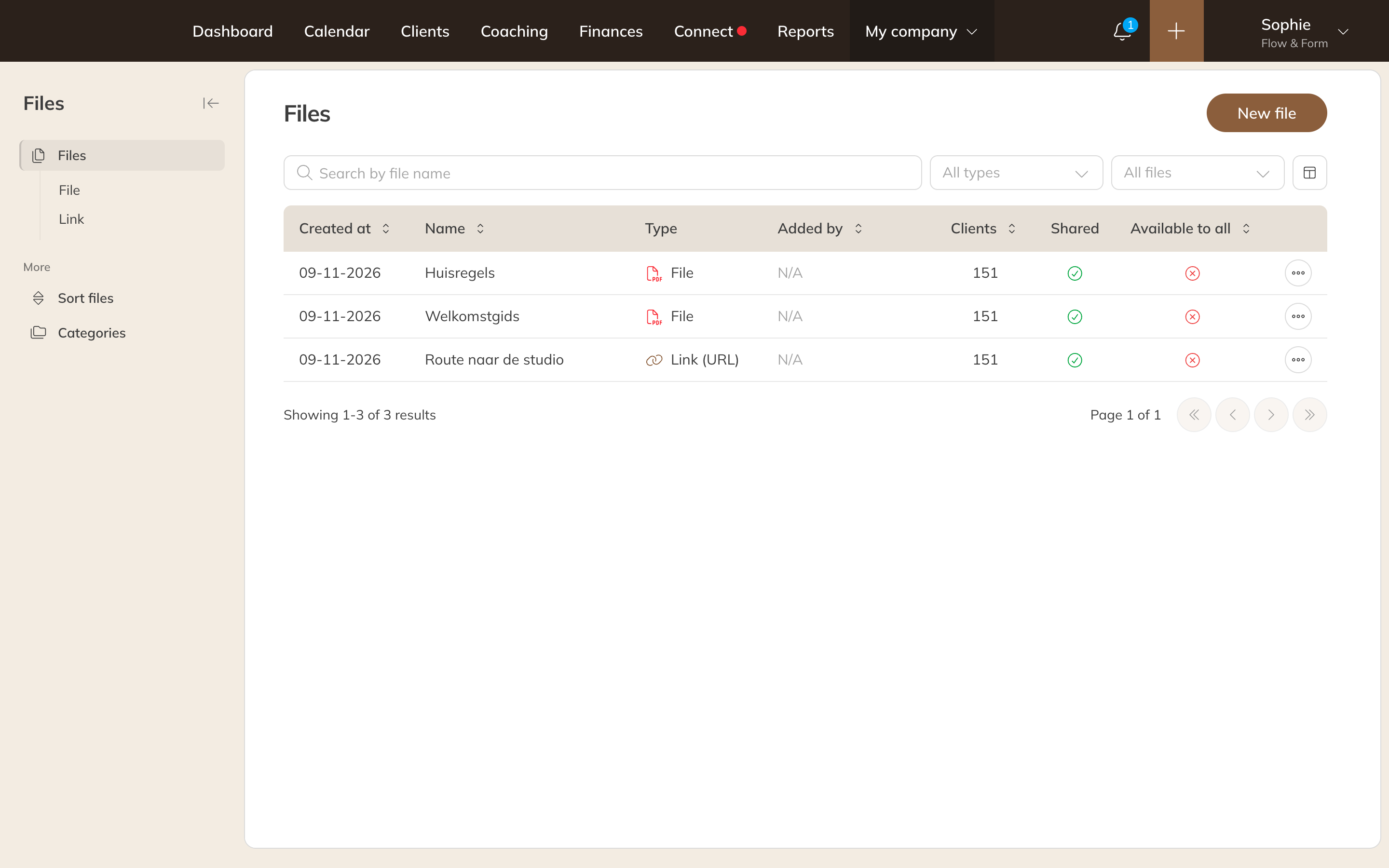
Your business's files
Then decide who sees it. Open the file and:
- choose Assign client to share it with individual clients;
- or choose client groups: clients in those groups see the file as long as they're in the group;
- or switch on Available for all clients: every client sees it, including clients who sign up later.
A client you remove no longer sees the file.
A file for one client
- Open the client and choose Documents → Files.
- Choose Assign file to share a file from your library, or New file for a personal file or personal link.
- At Shared, choose Share or Don't share.
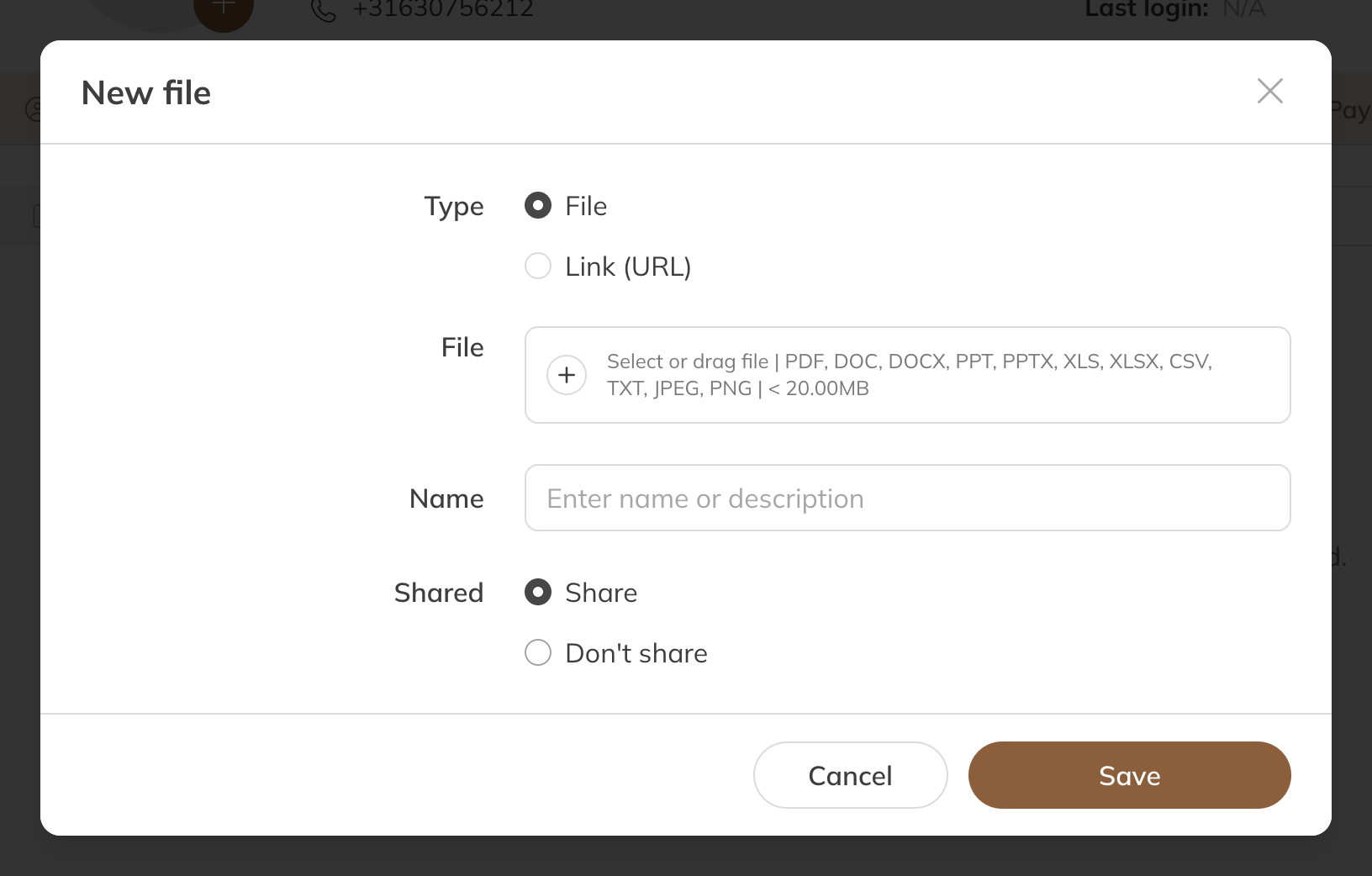
Adding a personal file
With Don't share you keep a document in the client's file without the client seeing it, for example a signed contract. A training schedule, on the other hand, you do share.
Clients see shared files in the app under Files. That menu item appears as soon as at least one file has been shared with the client.
Tip: Intake forms and tracking progress are described in the Coaching category.