- Go to My company → Products and choose Retail on the left.
- Click New product.
- Choose the Product type: Article, Bar, Digital, Gift card or Video collection. Enter a name and click Next.
- Fill in the details and click Save.
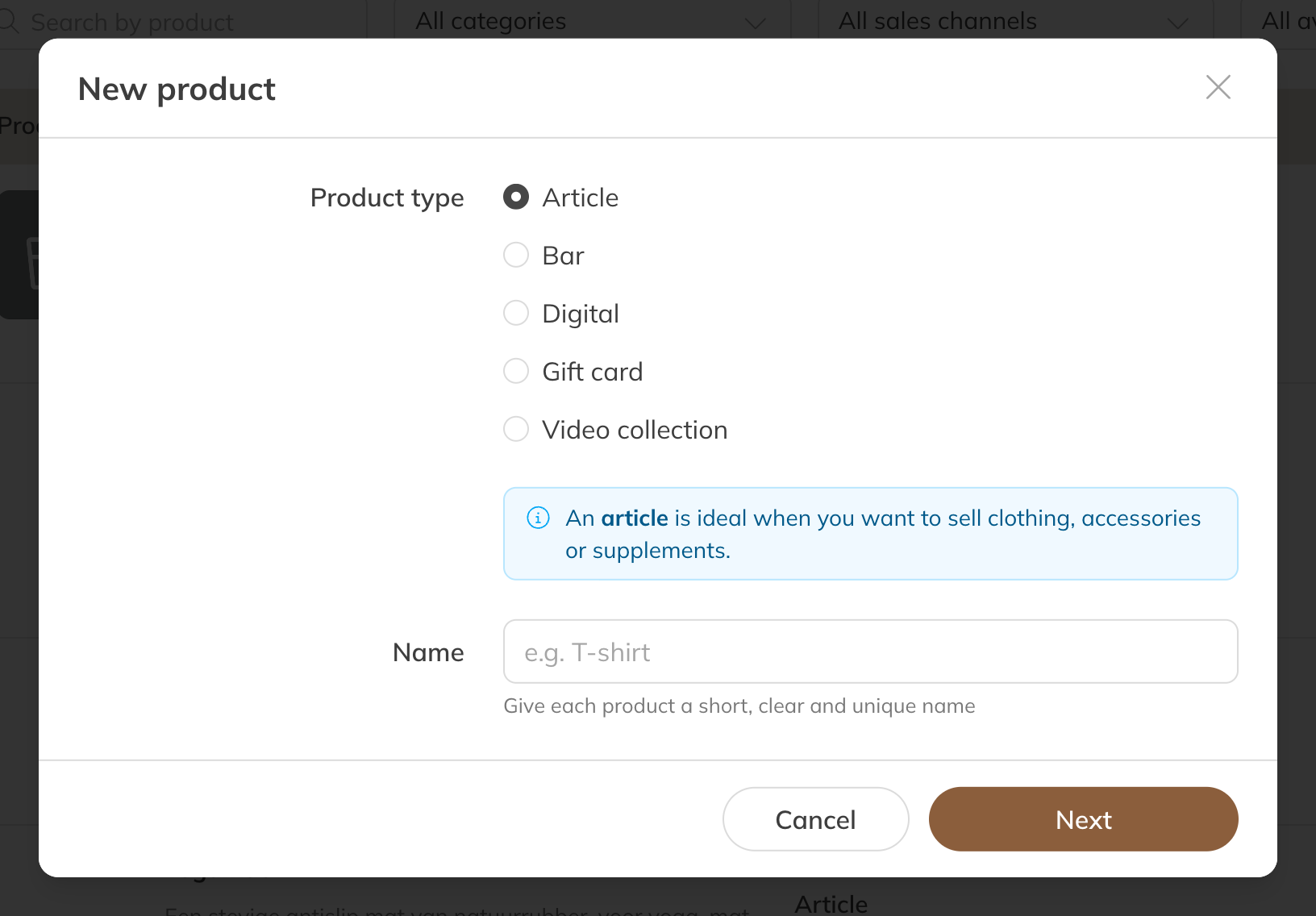
A new retail product
Bar and Gift card are available in the Pro and Premium plans. For a gift card, read Selling a gift card; for a video collection, Selling a video collection.
Product details
| Field | Meaning |
|---|---|
| Category | Where the product appears in the shop and at the point of sale, for example Drinks. |
| Measure (article and bar) | A clothing size, or a quantity in grams or millilitres. |
| Link to file (digital) | The link to the file. The client receives it in the order confirmation. |
| Description | Shown in the shop. |
| Sales channels | Where the product is for sale. See Sales channels. |
| Info in email (Pro and Premium) | Extra text in the purchase confirmation, for example where the client can collect the product. |
| Client groups (Pro and Premium) | Only clients in these groups can see and buy the product. |
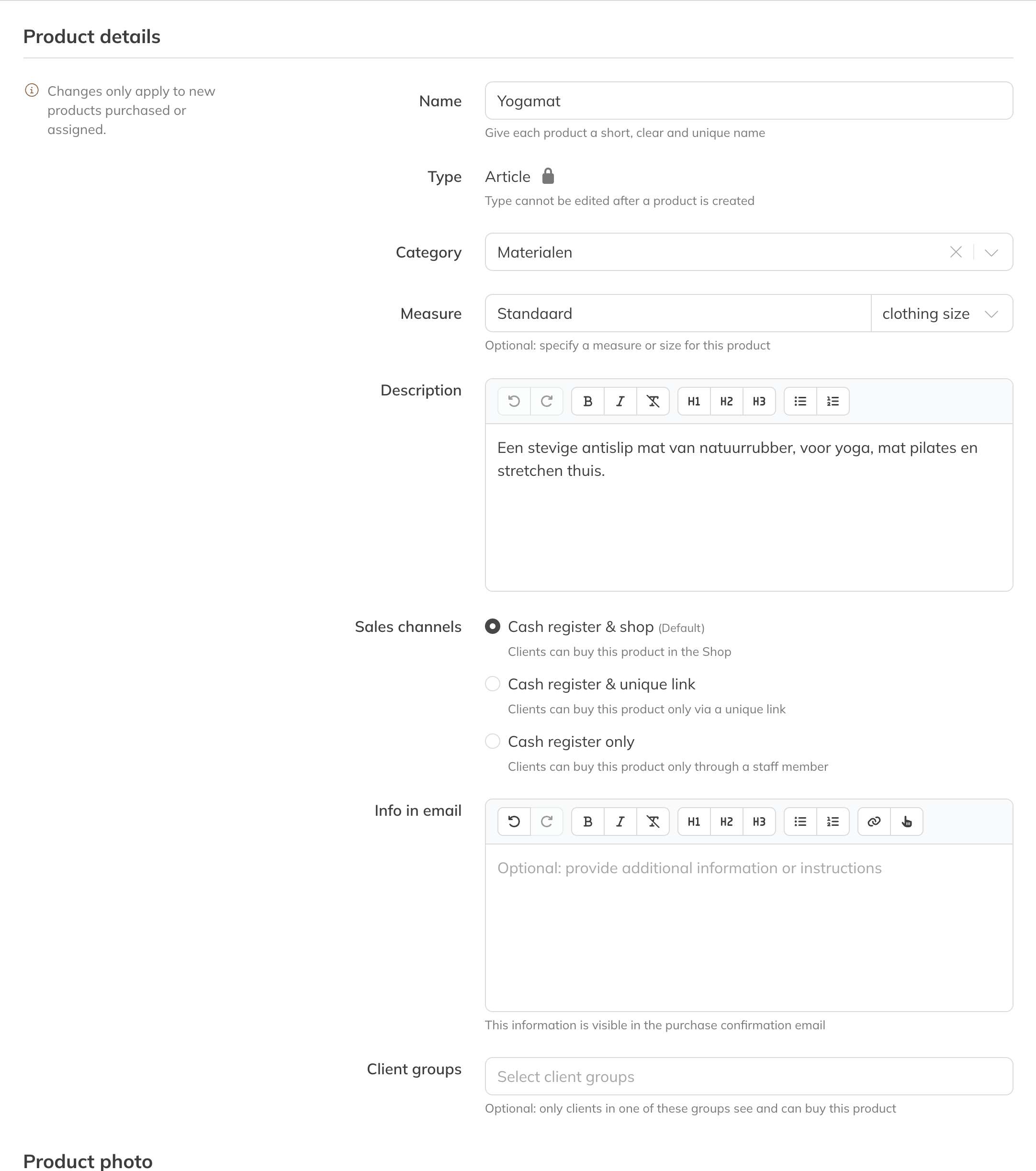
The product details of an article
Price
Enter the Price (incl. VAT) and the VAT. Under More payment settings you can enter a Special price: a discounted price clients see instead of the regular price.
Stock (Pro and Premium)
Under Stock settings you can optionally enter a SKU, your own product code. Turn on Track stock quantity and enter the Stock quantity. The stock goes down with every sale. Changes to the stock apply immediately.