Besides the reports, there are lists of individual bookings and sessions, for your own checks and analysis. You'll find them under Reports → Bookings & sessions. Most booking lists are included in the Pro and Premium plans.
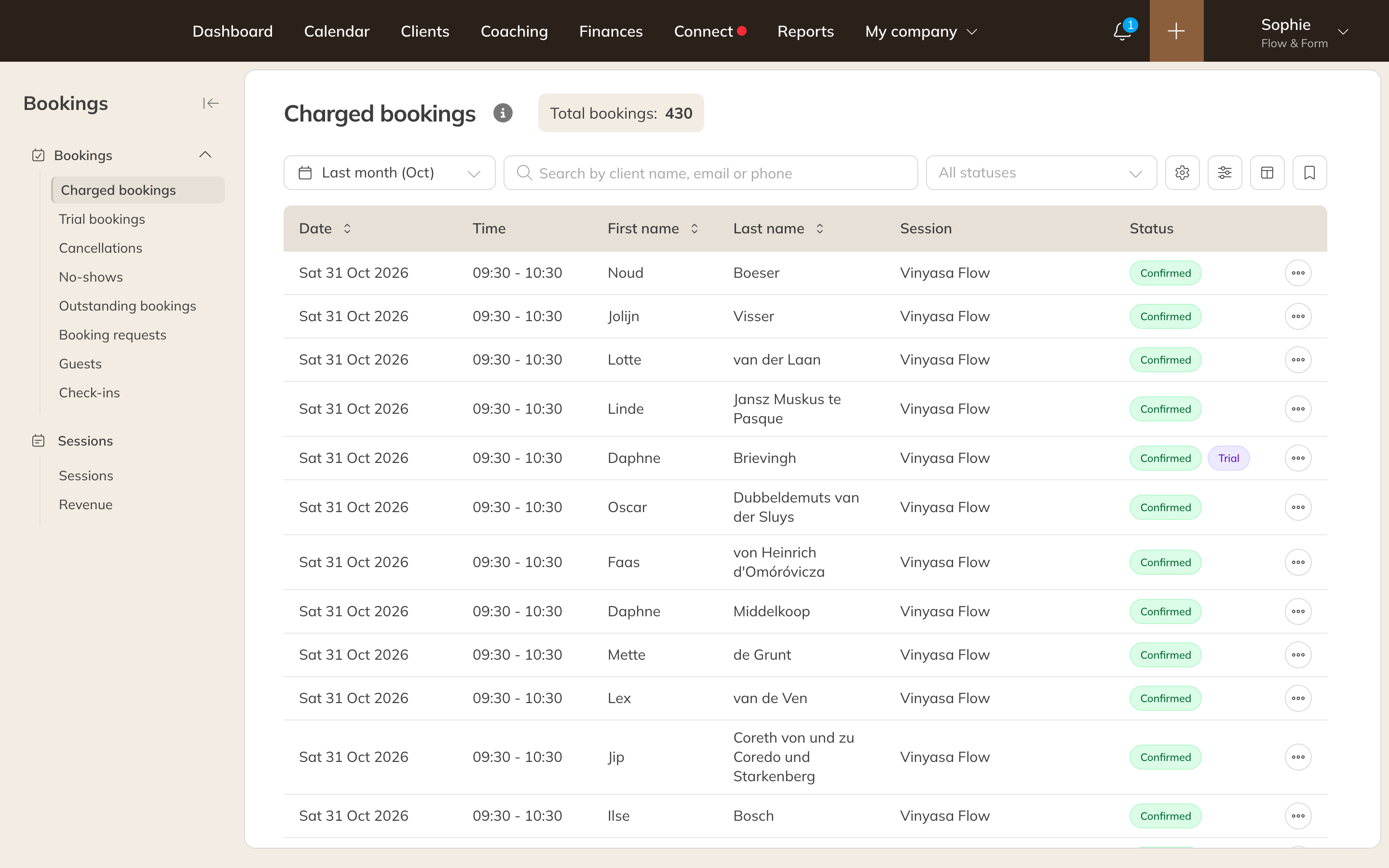
The Charged bookings list
| List | What it contains |
|---|---|
| Charged bookings | Bookings for which a credit was used. |
| Trial bookings | Bookings paid with a trial product. |
| Cancellations | Cancelled bookings, with their status, for example Cancelled by client or Cancelled too late. |
| No-shows | Bookings for group sessions that have already taken place, where the participant isn't marked as attended. |
| Outstanding bookings | Bookings that still need to be paid. Use Invoice outstanding bookings to turn them into invoices. |
| Booking requests, Guests, Check-ins | Requests that are still waiting, bookings by guests without an account, and check-ins. You only see check-ins if you use access control. |
| Sessions | All sessions with participants, location, instructor and status. |
| Revenue | The revenue per session. See Revenue per session. |
Filtering and choosing columns
- Choose the period at the top left and search by name, email or phone.
- Use Filters to filter by credit product, activity, activity type, location, room, instructor, client group and more.
- Use Columns to choose which columns you see. Save a filter you use often as a view.
Exporting
Click the gear icon (Actions) and choose Export visible columns or Export all columns, as Excel or CSV. You'll then find the download under Notifications.
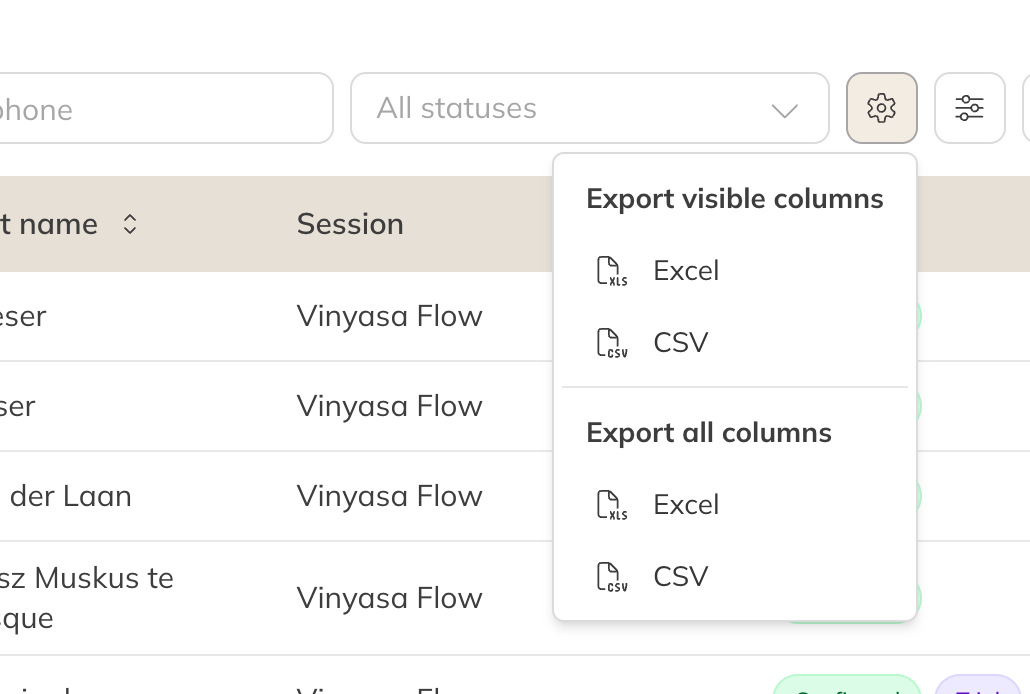
Exporting a list
Making your own overview in Excel
Want to see, for example, how many credits each client used per month? Export Charged bookings for the period, with all columns, and create a pivot table in Excel: Insert → PivotTable. Put the client in the rows and add up the bookings or credits in the values.
Tip: Only want to know who came most or least often? Then you don't need Excel: use the Bookings per client report.