How to Upgrade or Downgrade a Client’s Membership
Estimated Reading Time: 3 minutes
Applies to: All Plans
Quick Summary
You can upgrade or downgrade a client’s Membership directly from their profile. This allows you to adjust their plan while keeping billing, Credits, and history fully aligned.
Why This Matters
Clients often change how frequently they want to train. Updating their Membership ensures they are billed correctly, receive the right number of Credits, and continue with their bookings without disruption. It is only possible to upgrade or downgrade a membership if this is an ongoing membership without a fixed end date. If it is not, then it’s best to end the current product and assign a new product.
Step by Step Instructions
Step 1: Open the client profile: Go to Clients > Select Client
– Open the profile of the client.
Step 2: Go to the client products: Products
– Click on the Products tab.
Step 3: Select the membership you want to upgrade or downgrade.
Step 4: Start upgrade or downgrade: Product overview > Upgrade/Downgrade
– Click Upgrade/Downgrade.
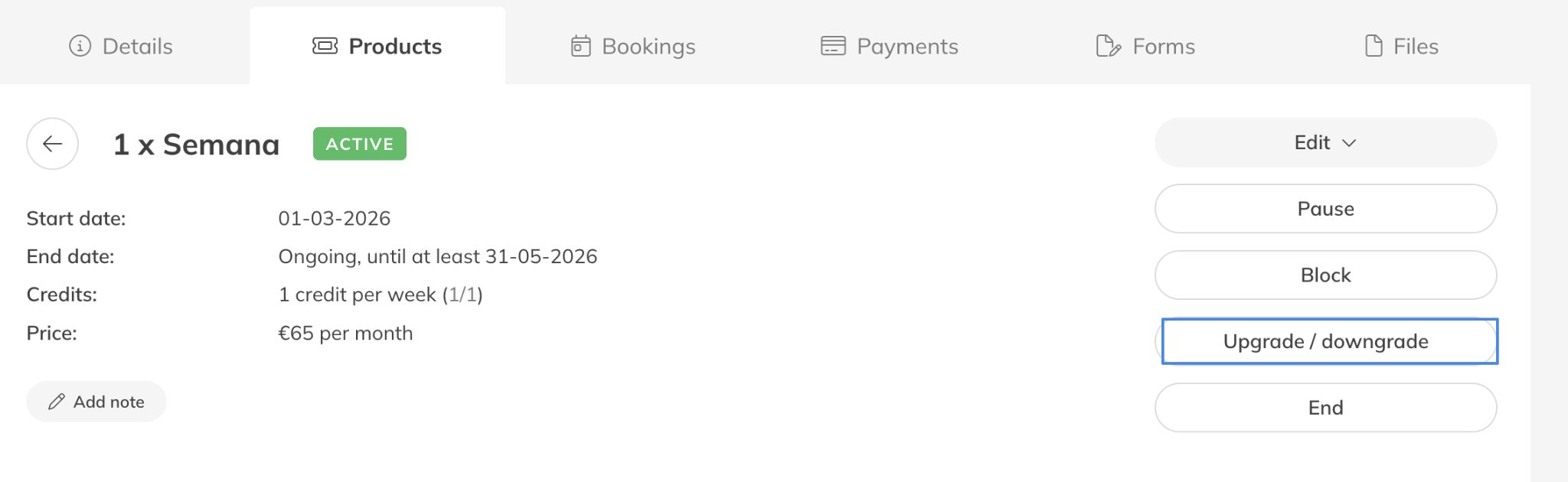
Step 5: Select new Membership from the Dropdown menu
– Choose in the dropdown which Membership you want to change to.
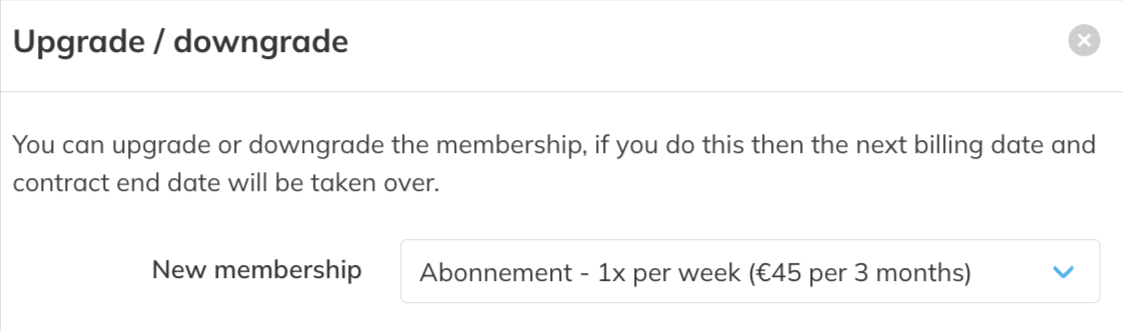
Step 6: Choose when the change takes effect: Go to Upgrade/Downgrade > Settings
– Choose whether to change the Membership immediately or on the next payment date (billing cycle).
Step 7: Confirm the change: Go to Save
– Click Save to apply the change.
Step 8: Determine if the client owes you any money or if you owe the client anything when changing the membership during the payment cycle. If so, you can adjust the next payment accordingly or you can send a separate invoice.
Best Practice
When the subscription is upgraded or downgraded, the next payment date and minimum end date of the contract will be carried over. If you want to change the payment date or contract duration, cancel the current Membership and assign a new one instead. This also applies if you wish to change a subscription with a set ending date.
Pro Tips
If you upgrade a Membership immediately, you can adjust the next scheduled payment to charge extra for the days the upgrade started earlier
To edit the payment you can check this article.
Common Questions
What happens to the next payment date and contract end date?
– The next payment date and (minimum) contract end date are carried over to the new Membership.
What happens if the current Membership is free?
– If the current Membership is free, the new Membership will also be free.
What happens to upcoming bookings made with the old Membership?
– These remain scheduled.
What if bookings do not match the new Membership?
– These bookings remain with open credits. You can cancel the bookings or confirm them using another product under the Bookings tab.
Related Articles
– How to manually Assign Products to Your Customers
– How to change Product Validity or end an assigned Product
– How to Create a Membership Product