You'll find your products under My company → Products. There are two kinds: Credits, which clients use to book, and Retail, things you sell that aren't used for booking.
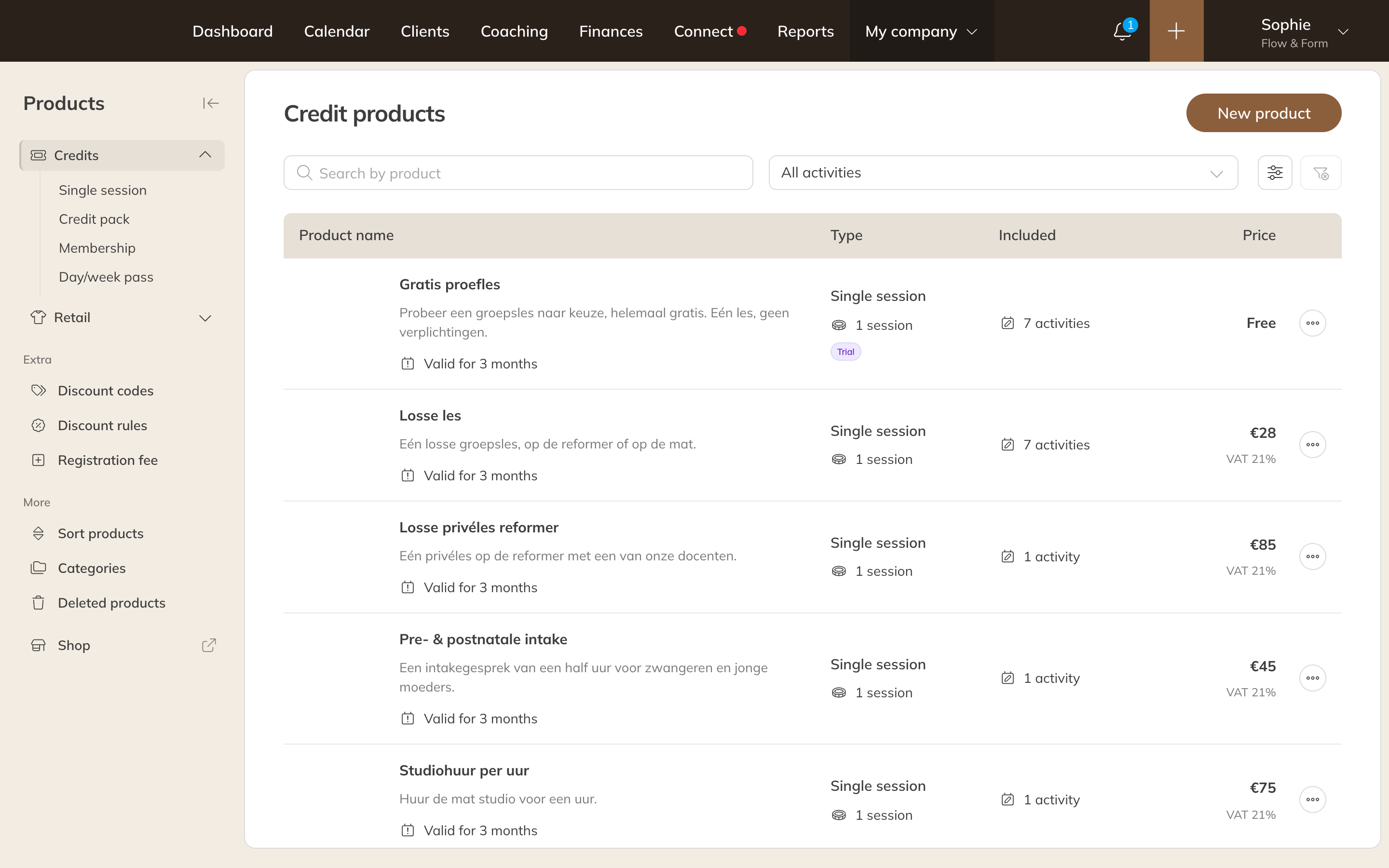
Your credit products under My company → Products
Credit products
With a credit product, a client can book a class or training session, or you can add the client to a session. For each product you choose which activities it's valid for.
| Type | What for |
|---|---|
| Single session | One class or a trial class. A client can buy several at once. |
| Credit pack | A number of credits the client can use freely within a period of validity, such as a 10-class pack. See Creating a credit pack or single session. |
| Membership | A fixed number of credits per period, or unlimited, with a (recurring) payment. See Creating a membership. |
| Day/week pass | Unlimited booking for 1 to 7 days. |
You can also set a registration fee, a one-off amount on the first purchase. See Setting a registration fee.
Retail products
| Type | What for |
|---|---|
| Article | Clothing, accessories or supplements. |
| Bar | Drinks and food (Pro and Premium). |
| Digital | A training plan or other file, with a link the client receives in the order confirmation. |
| Gift card | A code that gives someone a class or credit pack as a present (Pro and Premium). See Selling a gift card. |
| Video collection | Access to one or more videos (Pro and Premium). See Selling a video collection. |
Creating a product
- Go to My company → Products and choose Credits or Retail on the left.
- Click New product.
- Choose the Product type and enter a Name. Click Next.
- Fill in the rest of the form and click Save.
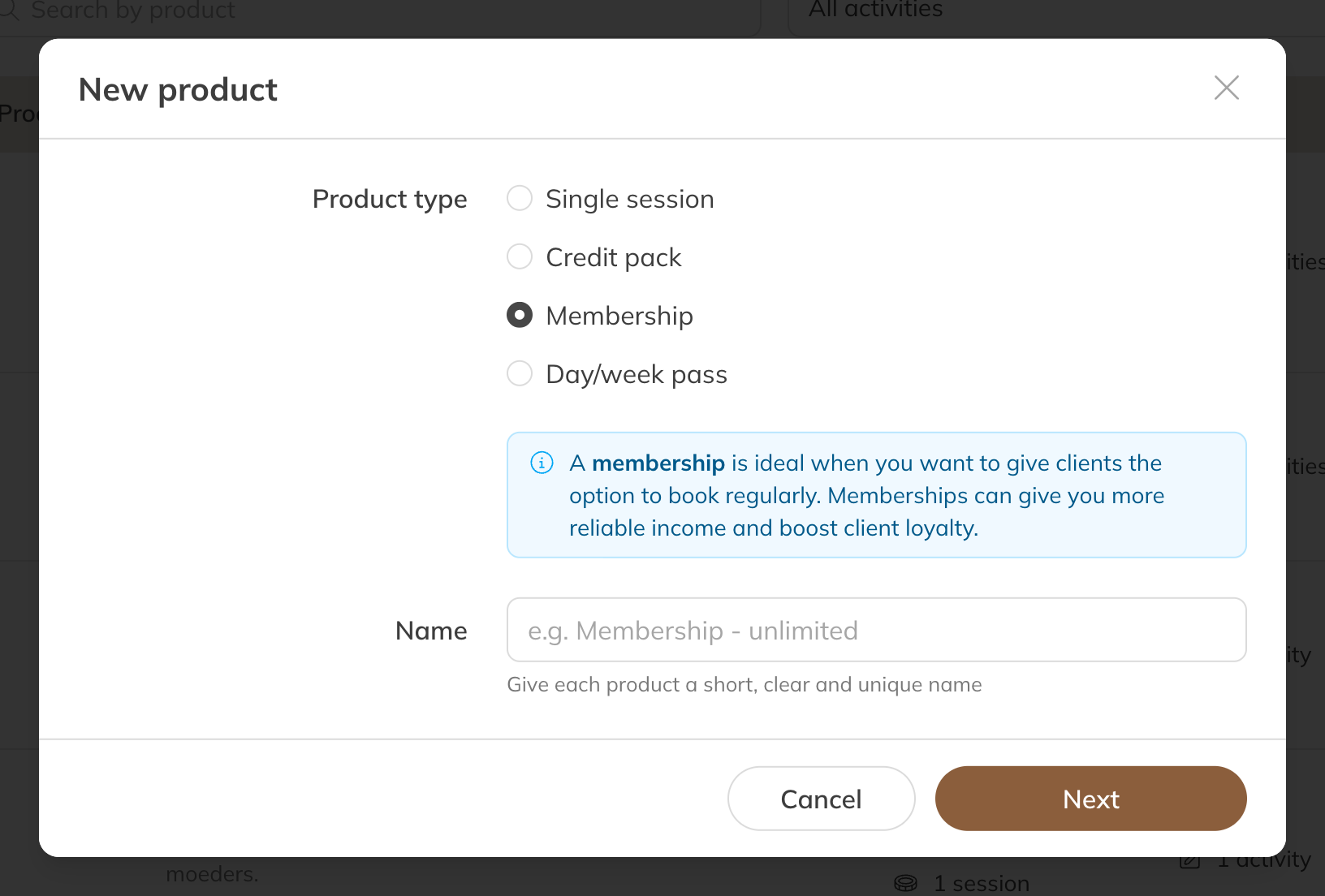
A new credit product: choose the type first
Note: You can't change the type later. If you picked the wrong type, create a new product.
Where do you sell products?
- In the shop in the app and on your website. See Setting up the shop.
- While booking a class, if the client doesn't have a suitable product yet.
- Through a checkout link, for example behind a button on your website. See Selling a product through a checkout link.
- Yourself, with Assign a product on a client or at the point of sale (Pro and Premium). See Paying at the front desk: point of sale and card terminal.