- Go to My company → Products and click New product.
- Choose Membership, enter a name, such as Unlimited or 1x per week, and click Next.
- Fill in the payment settings (see below).
- Under Activities & booking, tick the activities the membership is valid for.
- Click Save.
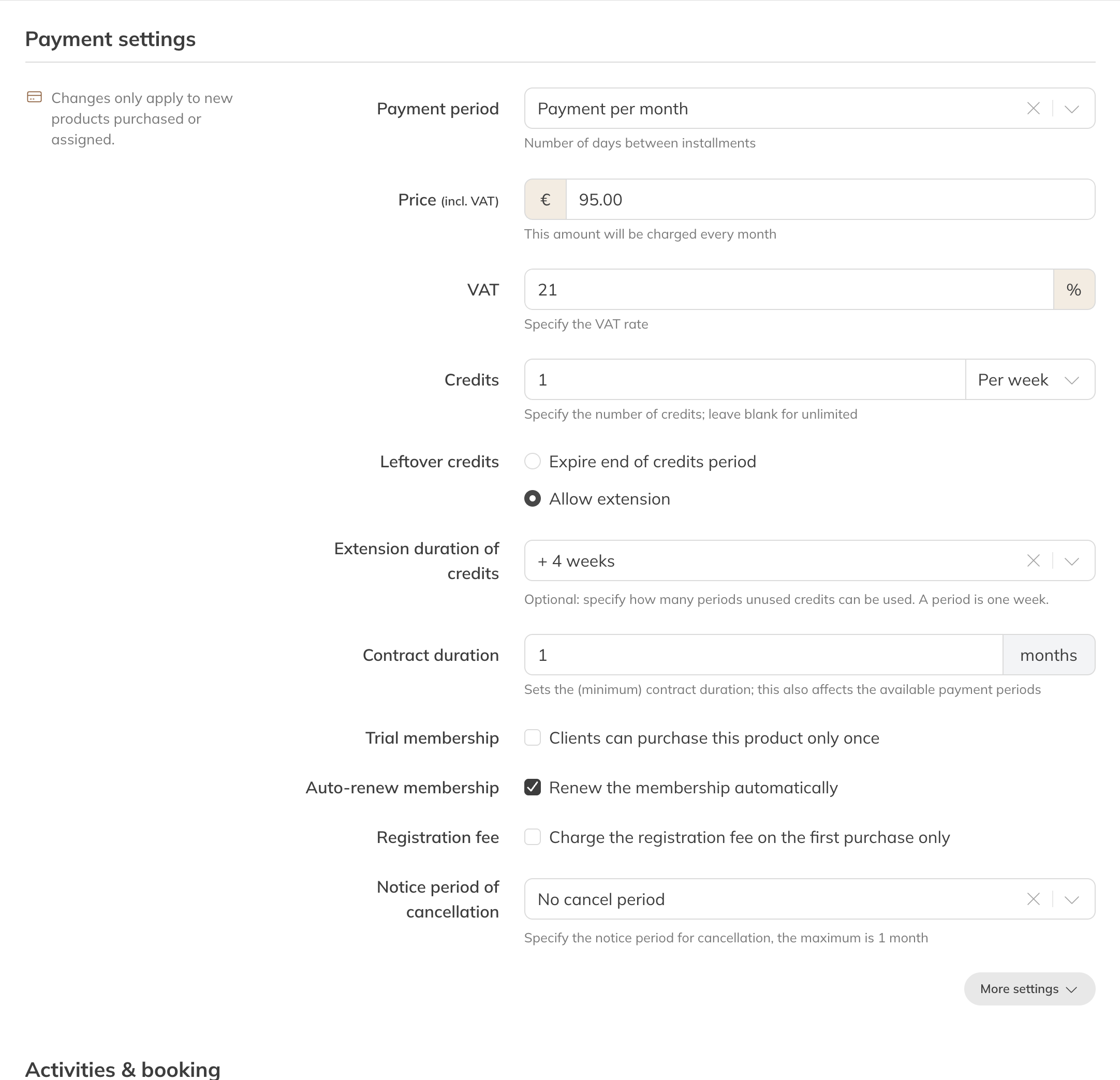
The payment settings of a membership
Payment settings
| Field | Meaning |
|---|---|
| Payment period | How often the client pays. By default: One-time payment, Monthly payment or Payment every 4 weeks. Under Advanced: weekly, every 2 or 3 weeks, every 2, 3 or 6 months and yearly. |
| Price (incl. VAT) | The amount per payment period. For a one-time payment, it's the price for the whole contract. |
| Credits | How many classes the client can book per period, for example 1 per week. Leave it empty for unlimited. See Credits per period and carrying over unused credits. |
| Credits left | Do unused credits expire at the end of the period, or can the client carry them over? |
| Contract duration | The (minimum) length of the contract. It's at least one payment period. With monthly payment you count in months, with weekly payment in weeks. |
| Trial membership | A client can only buy this membership once. |
| Auto-renew membership | On: the membership continues after the contract duration until it's cancelled. Off: it stops at the end of the contract duration. |
| Registration fee | See Setting a registration fee. |
| Notice period of cancellation | With weekly payment: none, or 1 to 4 weeks. With monthly payment or longer: none, or 1 month. You only see this field for a membership that renews automatically. |
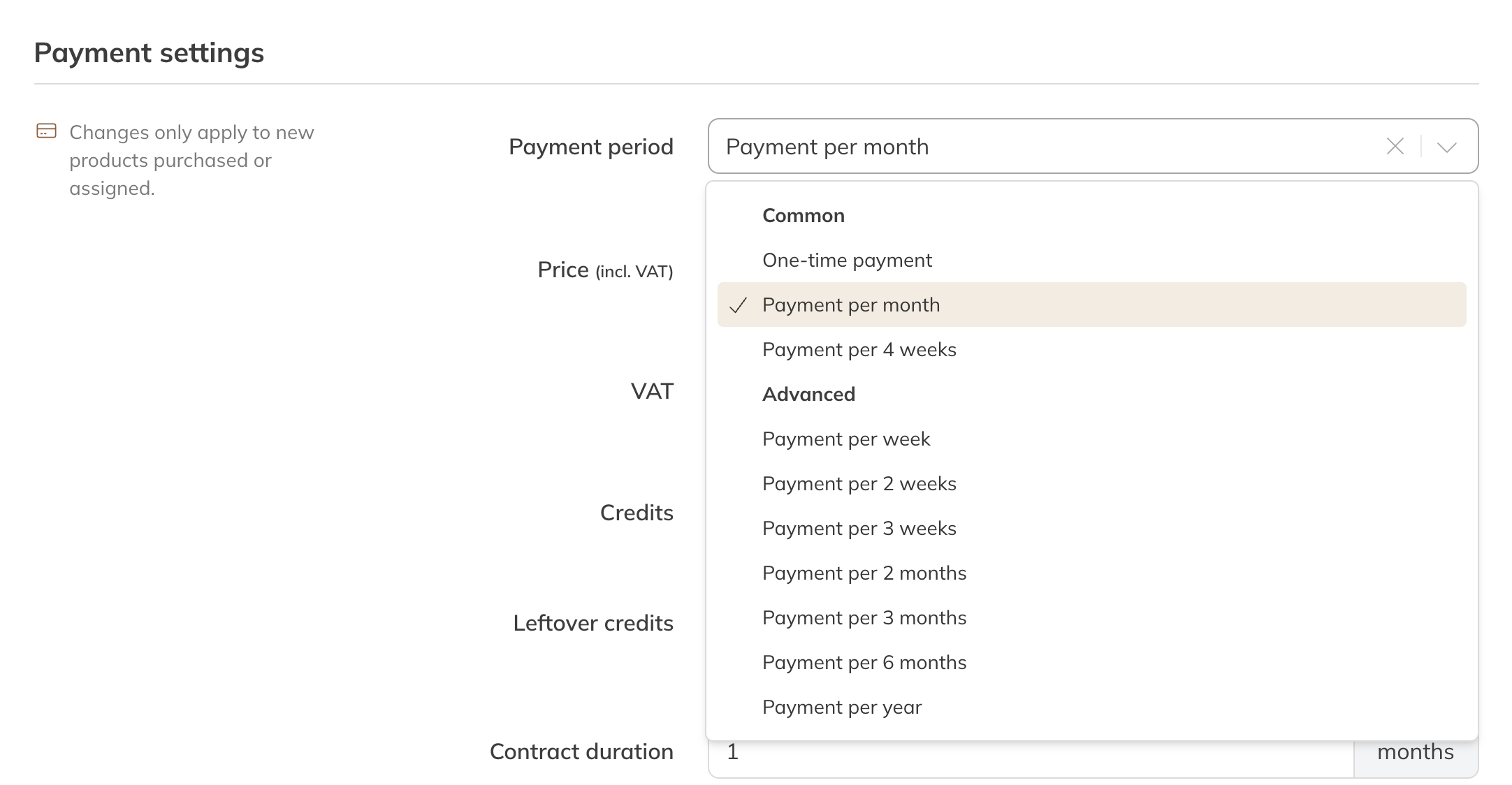
The payment periods of a membership
Which credit periods you can choose depends on the payment period. With weekly payment you choose credits per week; with monthly payment you can also choose per calendar month, or per 3, 6 or 12 months.
Under More settings
- Mandate: for a membership with a recurring payment, a direct debit authorisation is always requested, so each period can be collected.
- Enable booking penalties: strikes for no-shows and late cancellations with this membership. You see this if penalties are turned on.
- Revenue per credit, Additional info at checkout and Invoice remark: see Creating a credit pack.
To find out how the start date and the payments after that work, read Start date and payments of a membership.
Note: Changes to a membership only apply to new purchases. Clients who already have it keep their price, credits, contract duration and notice period.