These settings apply to everyone in your company. You'll find them under My company → Settings → Preferences → Calendar. Change what you want and click Save at the bottom.
Tip: You set your own view, such as the view the calendar opens in, in your own profile. See The calendar: views, filters and your preferences.
Credit deduction
| Setting | What it controls |
|---|---|
| Credit deduction timing | When the credit is deducted if a staff member adds a client to a session: immediately, only for group classes, after the session or only manually. See When are credits deducted? |
| Clients without credits | Credits required (default): you can only add clients with available credits. Staff may add: you can also add a client without credits; the booking stays outstanding. See Confirming outstanding bookings with credits later. |
| Credits during membership pause | Block (default): during a pause the client can't use their credits; after the pause they can again. Allow: the client can use unused credits from earlier periods during the pause. No new credits are added during the pause. See Pausing a membership. |
| Unpaid accepted booking requests | Keep open (default): the request and the payment stay open, so the client can pay on the spot or afterwards. Cancel at session start: if the request hasn't been paid when the session starts, the booking and the outstanding payment are cancelled and the client gets an email. See Accepting or rejecting booking requests. |
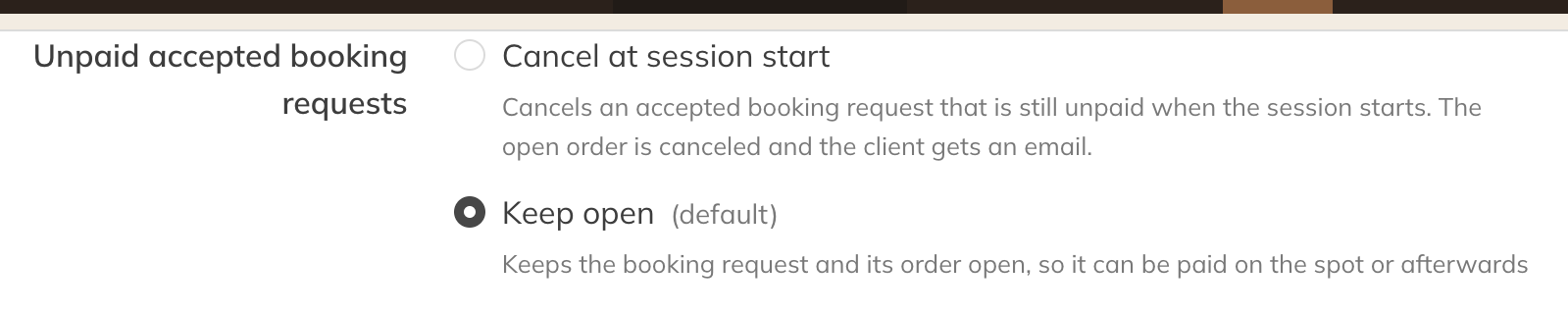
Unpaid accepted booking requests
Note: When clients book themselves, the credit is always deducted immediately, whatever you choose here.
Calendar view
Here you decide what everyone sees in the calendar and in sessions.
| Setting | What it controls |
|---|---|
| Schedule start time and Schedule end time | The first and last time slot the calendar shows. |
| Latest client note in sessions | Show (default): with a session's participants you see their most recent internal note. Dismiss: you only see notes in the client profile. |
| Client note date | Whether you see how long ago that note was written. Hidden by default. |
| Group session color | Activity color (default) or Instructor color: the color of the instructor teaching the session. |
| Instructor name in session blocks | Show: the instructor's name appears in the block in the calendar. Dismiss (default): only in the session details. |
| Participant order | Alphabetical (default, by first name) or Booking order. The waiting list is always in booking order. |
| Display for 1–2 participants | Show names (default): with one or two participants you see their names in the block. Show count: only the number. |
| Default attendance status | Whether participants are marked absent or attended by default. See Marking participants as attended by default. |
| Attendance in client profile | Whether you see attendance for bookings and attendance figures in the client profile. Hidden by default. |
| Gender for session participants | Whether you see participants' gender, useful for dance, for example. Hidden by default. |
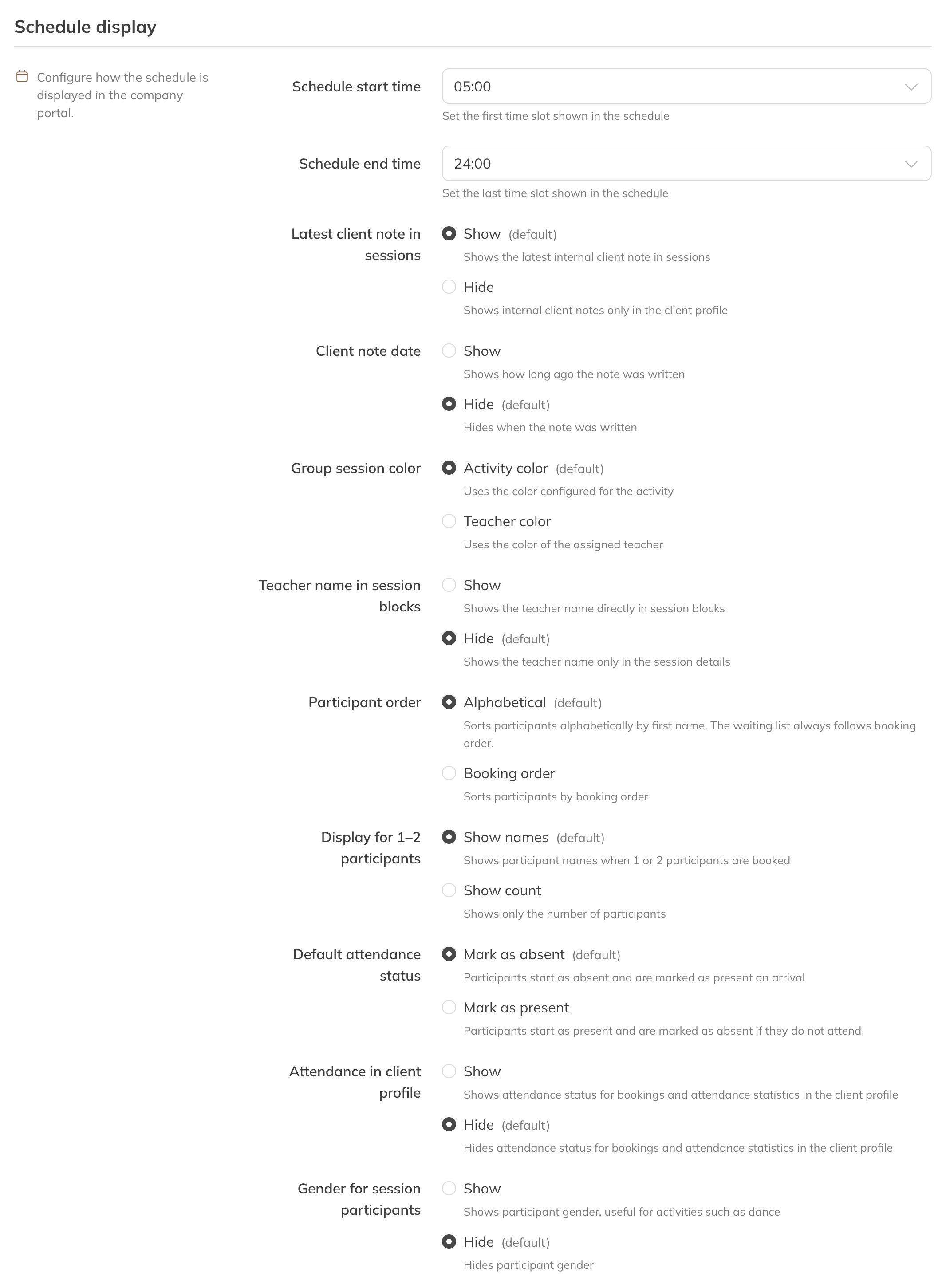
Calendar view
Note: Can't see Group session color, Instructor name in session blocks or Gender for session participants? You only see these if you're allowed to manage staff, or to see clients' gender.
Tip: Do you use penalties for no-shows? Then attendance counts: a participant who isn't marked as attended counts as a no-show. See Penalties for no-shows and late cancellations.